


Anuncio de llamadas y mensajes
Juega en PC con BlueStacks: la plataforma de juegos Android, en la que confían más de 500 millones de jugadores.

Página modificada el: Feb 13, 2026
Juega Anuncio de llamadas y mensajes en PC
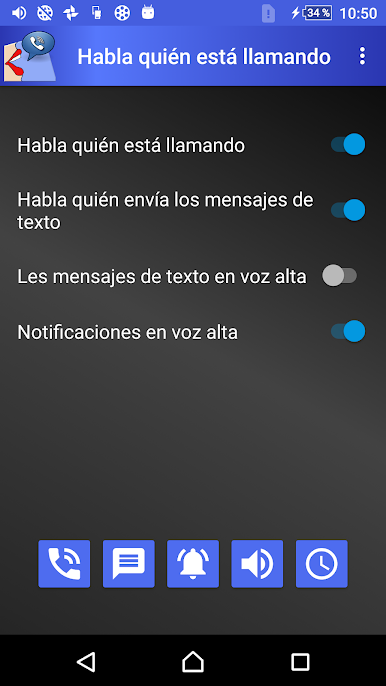
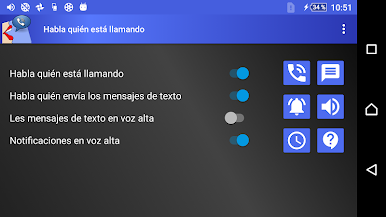
• Anuncia quién llama cuando suena el móvil.
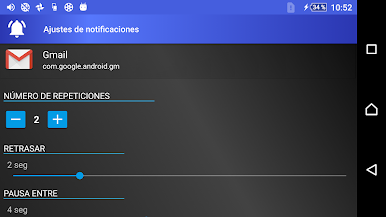
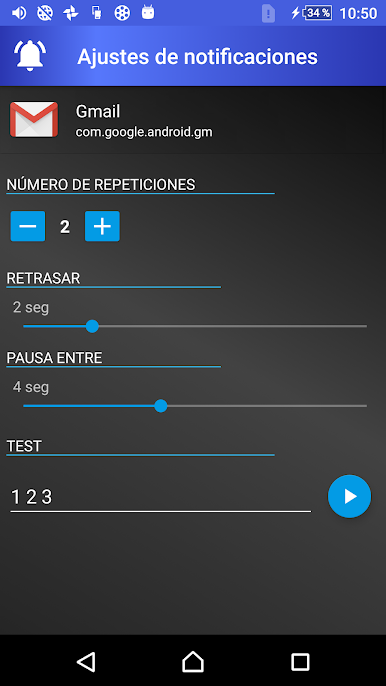
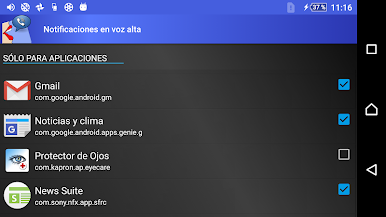
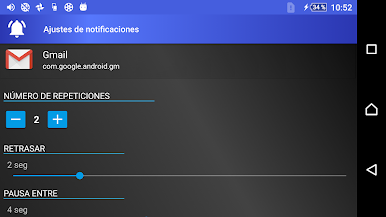
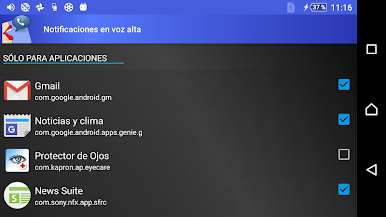
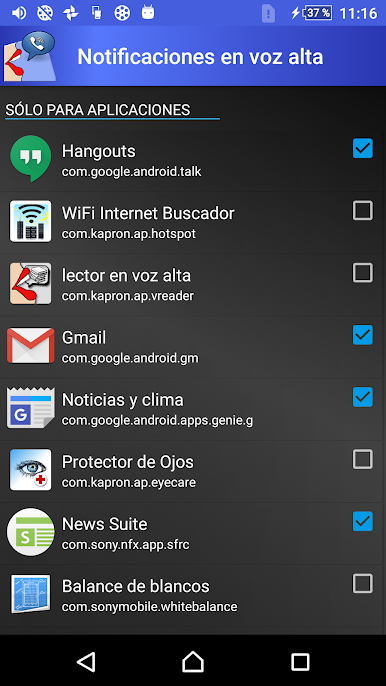
• Lee en voz alta tus mensajes de texto y notificaciones de las apps que elijas: WhatsApp, Telegram, redes sociales, correo, noticias o calendario.
• Informa de la hora actual en los intervalos que definas.
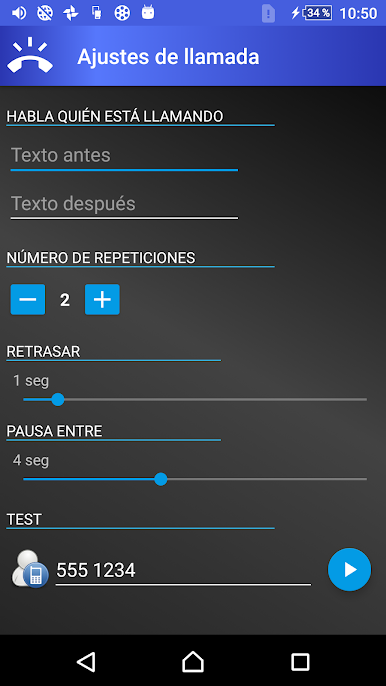
Averigua fácilmente quién te llama o envía mensajes sin levantar el teléfono. Crea tonos hablados personalizados añadiendo texto antes o después del nombre del contacto o del remitente.
Mantente al día sin esfuerzo: la app también lee en voz alta las últimas noticias de tus fuentes RSS favoritas. Explora la galería de canales populares incorporada o añade tu propio enlace.
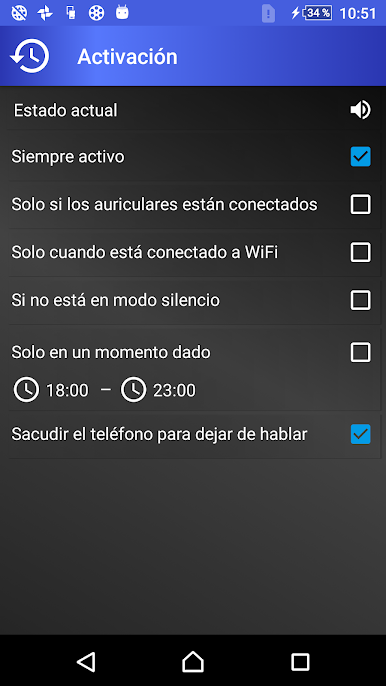
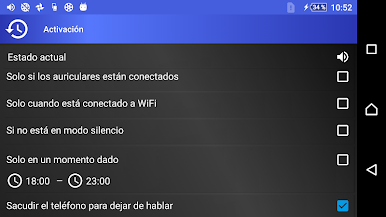
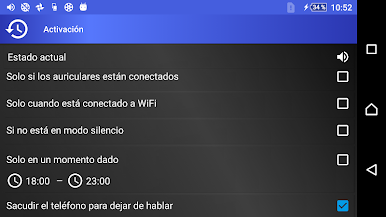
Configúrala para que hable solo cuando uses auriculares o en determinados lugares u horas del día.
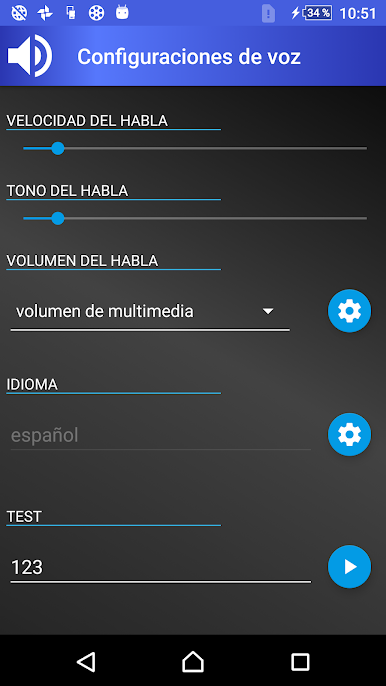
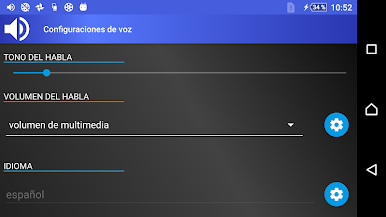
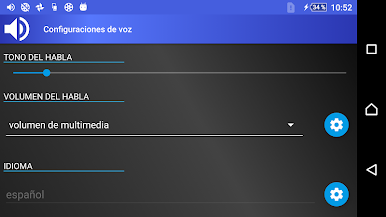
Elige entre múltiples voces disponibles casi en cualquier idioma. Ajusta la velocidad y el tono de la lectura. Funciona sin conexión a Internet.
100 % privada: sin registros, sin nube. ¡Todo se queda en tu dispositivo!
Ligera, con un consumo mínimo de batería y repleta de funciones útiles.
Por qué te encantará:
✓ Mantén la vista en la carretera cuando conduces o vas en bici.
✓ Juega, entrena, corre o cocina sin tocar el móvil.
✓ Recibe cómodamente notificaciones mientras trabajas, viajas o entrenas con auriculares.
Ideal para conductores, ciclistas, corredores, personas con discapacidad visual, padres ocupados y profesionales con prisas. ¡Olvídate de parar lo que estás haciendo para mirar el teléfono!
Juega Anuncio de llamadas y mensajes en la PC. Es fácil comenzar.
-
Descargue e instale BlueStacks en su PC
-
Complete el inicio de sesión de Google para acceder a Play Store, o hágalo más tarde
-
Busque Anuncio de llamadas y mensajes en la barra de búsqueda en la esquina superior derecha
-
Haga clic para instalar Anuncio de llamadas y mensajes desde los resultados de búsqueda
-
Complete el inicio de sesión de Google (si omitió el paso 2) para instalar Anuncio de llamadas y mensajes
-
Haz clic en el ícono Anuncio de llamadas y mensajes en la pantalla de inicio para comenzar a jugar

