


Chore Checklist - Lite
Jogue no PC com BlueStacks - A Plataforma de Jogos Android, confiada por mais de 500 milhões de jogadores.

Página modificada em: Nov 2, 2025
Play Chore Checklist - Lite on PC
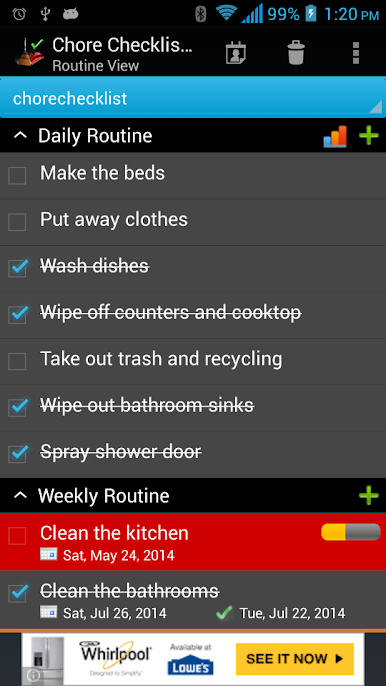
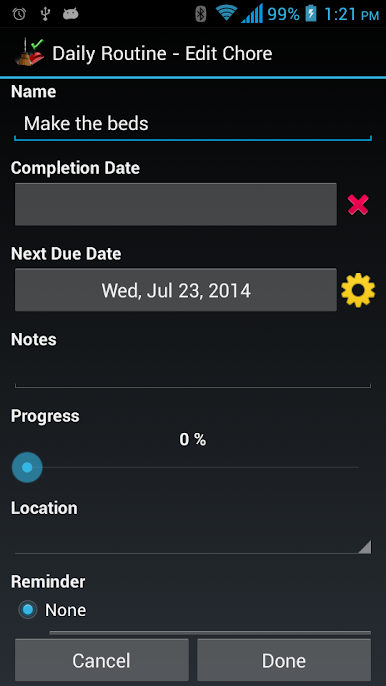
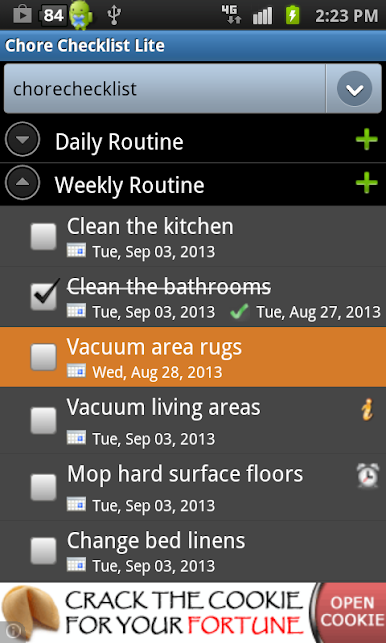
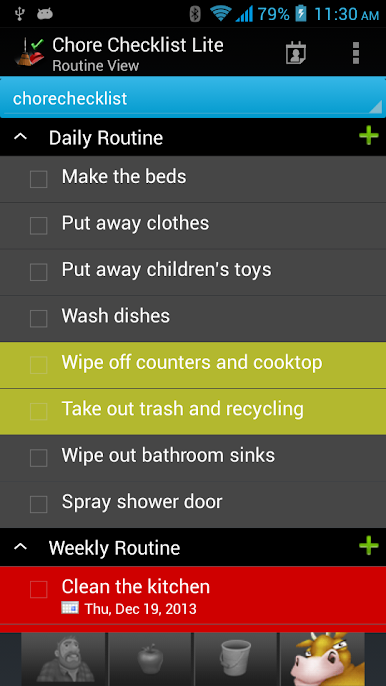
It comes with a pre-loaded check list which has routines, such as "Daily Routine", "Weekly Routine", "Monthly Routine" and etc. You can edit them or add new routine/chores. You can set start/end date, reminder, progress, and notes for each chore.
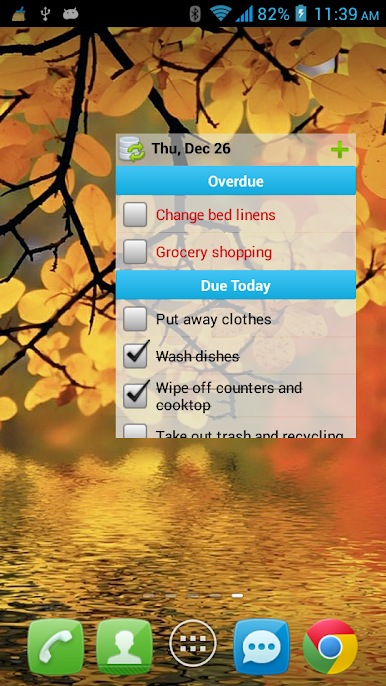
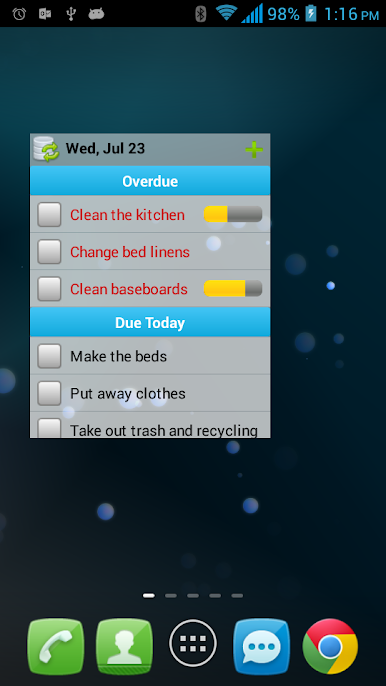
You will need to install this app on your phone(not SD card) in order to add a widget to home screen.
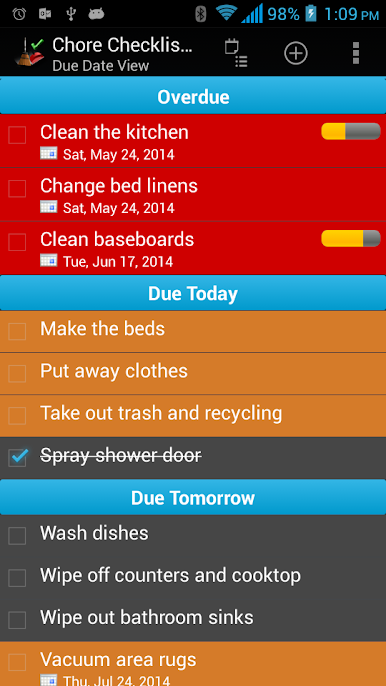
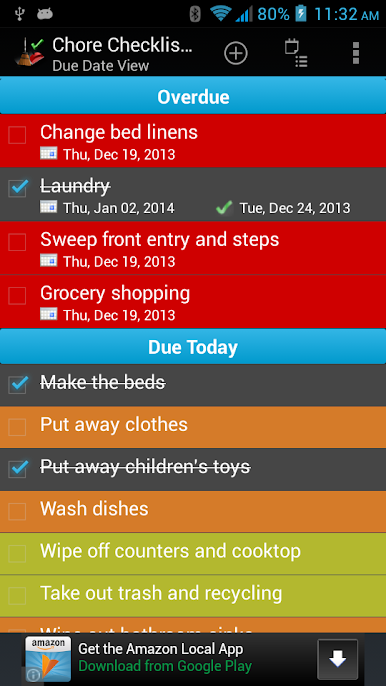
The app also allows you to create multiple lists. In "Due Date View", the user can combine multiple lists into one view sorted by due date.
This lite version has Ads and the following features are disabled:
*View, export/email history report
*Sync/Share/Backup lists (separate purchase of Cloud Connector is required. However, this feature will be retired at the end of 2023. We highly recommend trying out our newly redesigned "Opus - Task Helper" app, which offers a seamless and instant automatic sync feature through a new cloud service. The app is free, supported by banner Ads. You can download the app from the Google Play store at https://play.google.com/store/apps/details?id=com.dotnetideas.opus)
***Upgrade from Lite to Full app:
When you upgrade from lite to full, you can use the "Backup and Restore" feature to migrate your data.
To backup your lists, open the lite app and click on "Menu"->"Backup and Restore"->"Backup" in Routine View. Then click on "Backup" to use the default folder or "Select Folder" to choose a different location.
Then open the full version, click on "Menu"->"Backup and Restore"->"Restore". It will open default backup location. Choose the folder which contains backup files and click on "Restore". If you have chosen a different backup location, then navigate to that location and click on "Restore".
Jogue Chore Checklist - Lite no PC. É fácil começar.
-
Baixe e instale o BlueStacks no seu PC
-
Conclua o login do Google para acessar a Play Store ou faça isso mais tarde
-
Procure por Chore Checklist - Lite na barra de pesquisa no canto superior direito
-
Clique para instalar Chore Checklist - Lite a partir dos resultados da pesquisa
-
Conclua o login do Google (caso você pulou a etapa 2) para instalar o Chore Checklist - Lite
-
Clique no ícone do Chore Checklist - Lite na tela inicial para começar a jogar

