


鎖屏
在電腦上使用BlueStacks –受到5億以上的遊戲玩家所信任的Android遊戲平台。

Run lockscreen passcode on PC or Mac
Get freedom from your phone’s obvious limitations. Use lockscreen passcode, made by kunkun apps, a Tools app on your PC or Mac with BlueStacks, and level up your experience.
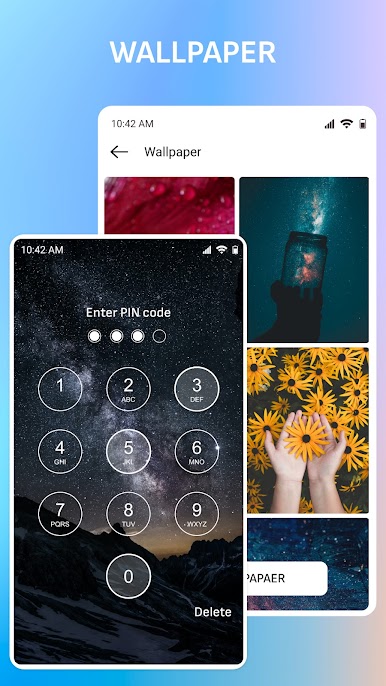
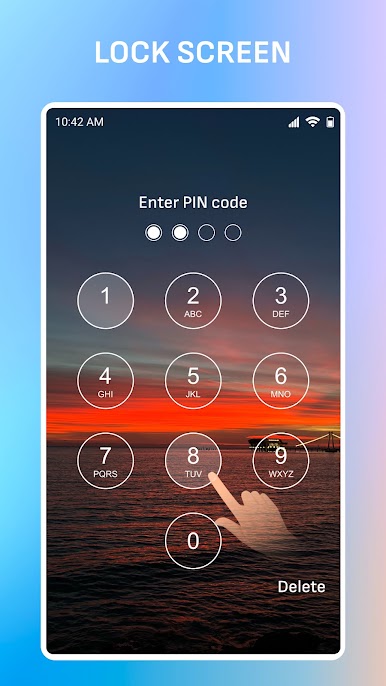
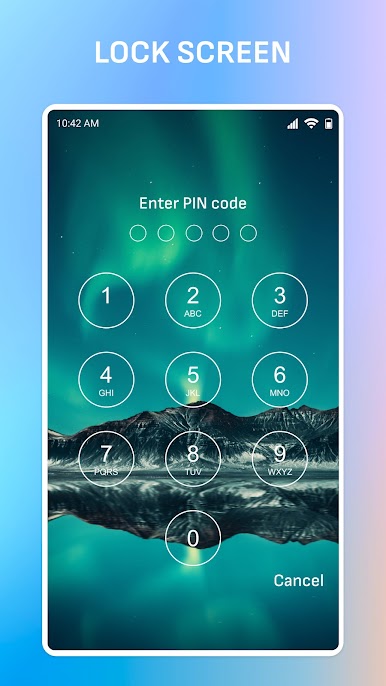
This app is basically a lockscreen that lets users set up a passcode, so no one can poke around in their stuff without permission. It keeps everything straightforward: punch in the code of your choice and the screen’s locked up, just like the classic smartphone stuff. It doesn’t overload with settings. The interface is pretty clean and easy to figure out in a few minutes, which is nice for anyone who just wants simple security without any complicated steps or extra hassle.
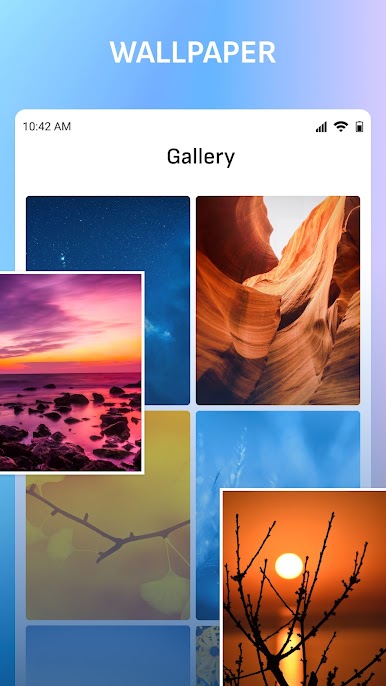
What’s a bit more fun is the wallpaper part. There are lots of different background designs, most of them pretty nicely put together, but it also lets anyone use a favorite photo or something personal. It works smoothly on PC with BlueStacks, too — opening it up feels just like being on a phone, but bigger. The lockscreen also displays info like battery life and network connection right there when it’s locked, which is kind of handy if someone wants to check those at a glance without having to unlock every time. Doesn’t seem to slow things down or use much power, since even on a low-spec machine or with other stuff open, it stays responsive. It’s not a flashy tool, but it does what it’s supposed to do. If keeping things private and a bit of visual customization is what someone wants, it just fits in without fuss.
Big screen. Bigger performance. Use BlueStacks on your PC or Mac to run your favorite apps.
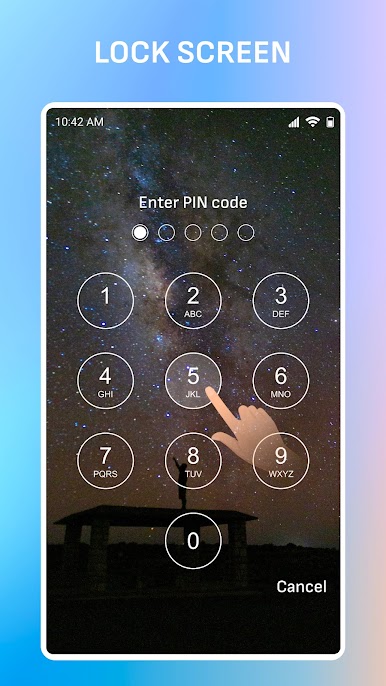
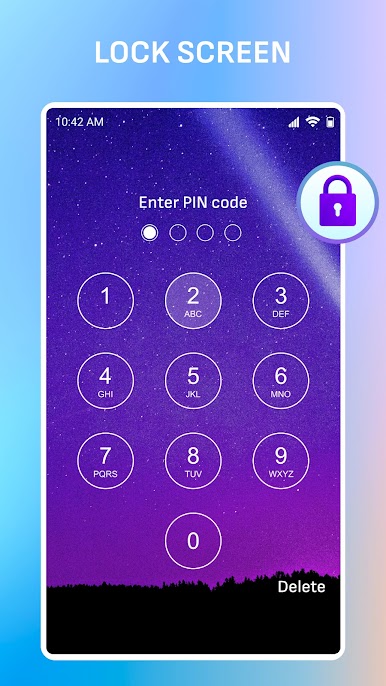
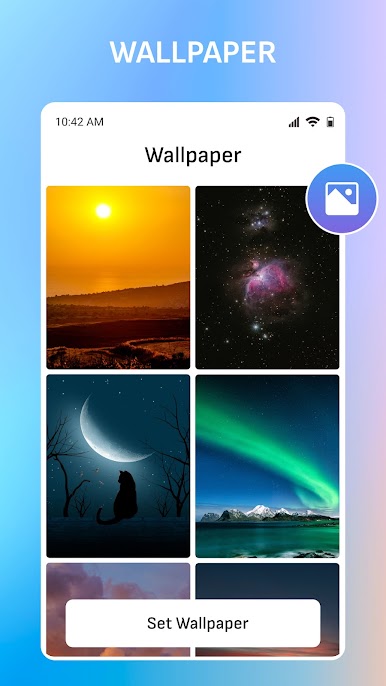
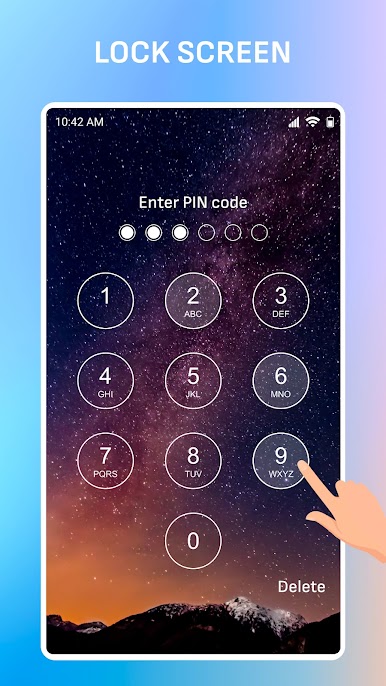
在電腦上遊玩鎖屏 . 輕易上手.
-
在您的電腦上下載並安裝BlueStacks
-
完成Google登入後即可訪問Play商店,或等你需要訪問Play商店十再登入
-
在右上角的搜索欄中尋找 鎖屏
-
點擊以從搜索結果中安裝 鎖屏
-
完成Google登入(如果您跳過了步驟2),以安裝 鎖屏
-
在首頁畫面中點擊 鎖屏 圖標來啟動遊戲

