


RedRetro - Terminal Theme
Jogue no PC com BlueStacks - A Plataforma de Jogos Android, confiada por mais de 500 milhões de jogadores.

Página modificada em: Aug 21, 2025
Play RedRetro - Terminal Theme on PC
QUICK TIPS
You can manually edit icons in most launchers by long-pressing the icon you'd like to edit.
Widgets: If your widget stops updating, check your system or battery settings to make sure the app is exempt from battery optimization. More info at https://dontkillmyapp.com/
DISCLAIMER
You may need an non-stock or alternative launcher to apply the icon pack. Please download a launcher (Nova, Evie, Microsoft, etc.) before installing.
HOW-TO GUIDE
http://natewren.com/apply
FEATURES
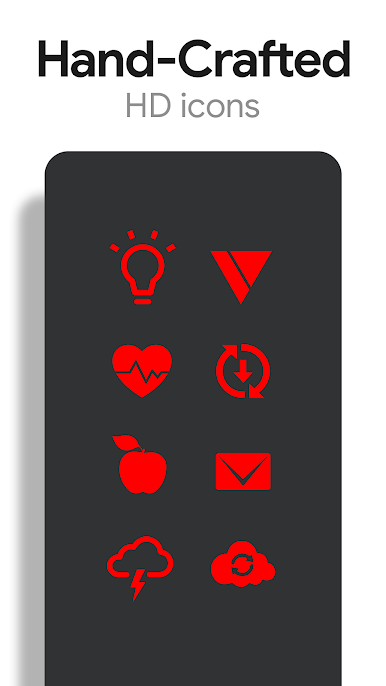
• 5,000+ Hand-crafted HD red icons
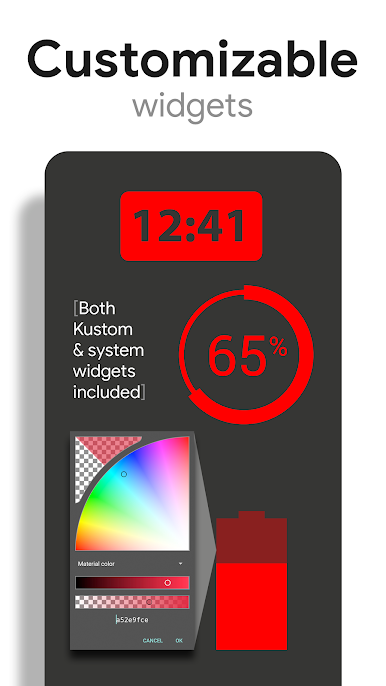
• Digital Clock Widget with date options
• HD wallpapers - Hosted on the cloud. Choose and save the ones you want. (All wallpapers shown are included)
• Icons updated regularly.
• All Icons are high resolution (192x192).
• Wallpaper picker.
• Easy link to request more outline icons.
• Clean icons work best with dark wallpapers.
HOW TO APPLY ICONS VIA ICON PACK
1. Open the app after installing
2. Navigate to "Apply" tab
3. Select your Launcher
HOW TO APPLY ICONS VIA LAUNCHER
1. Open Launcher settings by tapping + holding on an empty area of home screen
2. Select personalization options
3. Select icon pack
HEX CODE
Red: FF0000
FOLLOW ME
Twitter: https://twitter.com/natewren
QUESTIONS/COMMENTS
natewren@gmail.com
http://www.natewren.com
Jogue RedRetro - Terminal Theme no PC. É fácil começar.
-
Baixe e instale o BlueStacks no seu PC
-
Conclua o login do Google para acessar a Play Store ou faça isso mais tarde
-
Procure por RedRetro - Terminal Theme na barra de pesquisa no canto superior direito
-
Clique para instalar RedRetro - Terminal Theme a partir dos resultados da pesquisa
-
Conclua o login do Google (caso você pulou a etapa 2) para instalar o RedRetro - Terminal Theme
-
Clique no ícone do RedRetro - Terminal Theme na tela inicial para começar a jogar

