

bloqueio e cofre de aplicativo
Jogue no PC com BlueStacks - A Plataforma de Jogos Android, confiada por mais de 500 milhões de jogadores.

Página modificada em: Dec 5, 2024
Run Vault, App Lock: Security Plus on PC or Mac
Let BlueStacks turn your PC, Mac, or laptop into the perfect home for Vault, App Lock: Security Plus, a fun Tools app from KewlApps.
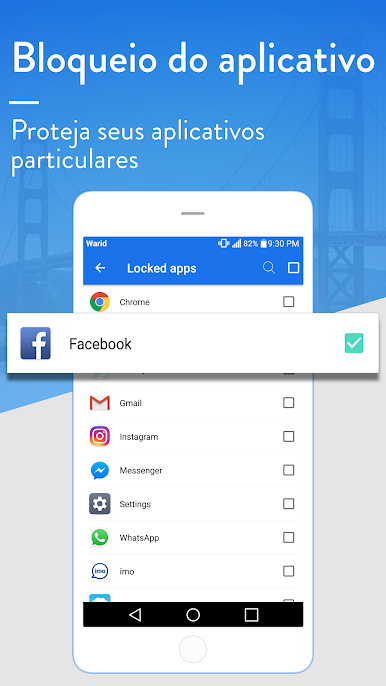
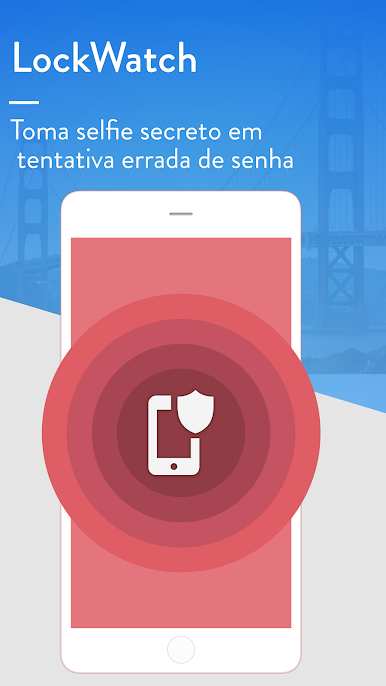
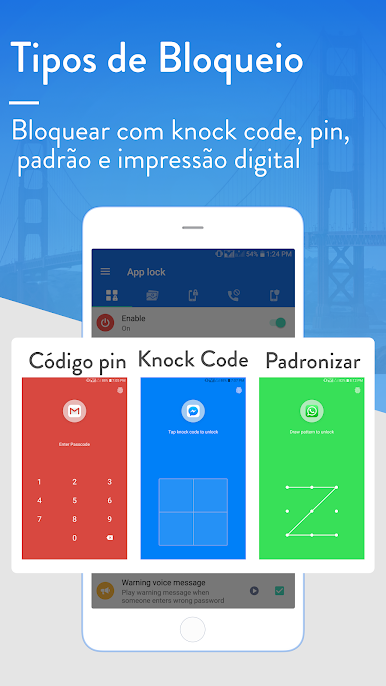
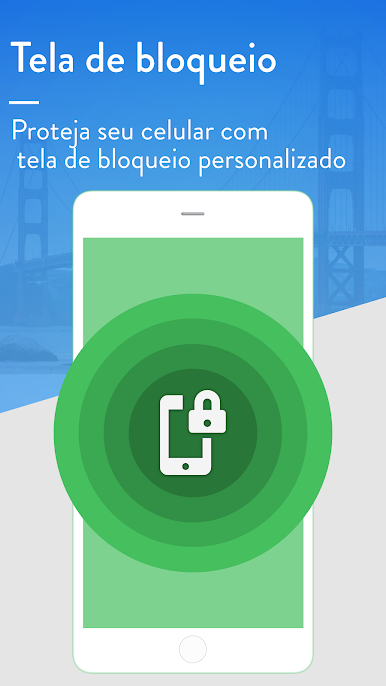
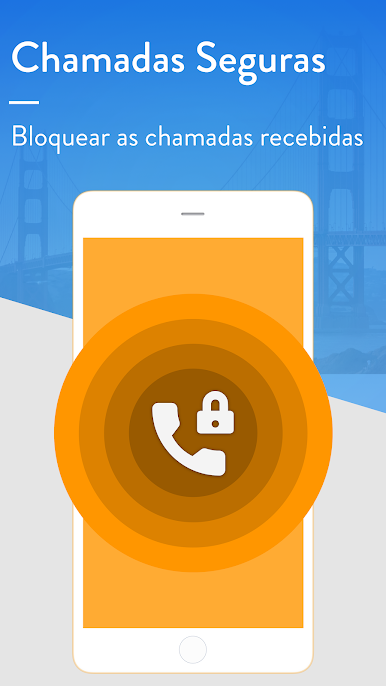
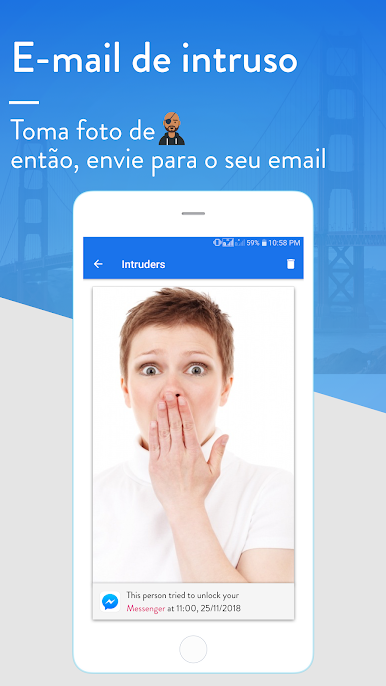
Vault, App Lock: Security Plus is the kind of privacy app that feels straightforward the moment it opens. It puts a clean lock screen over whatever someone wants to protect, and it pops up fast, so there is no awkward pause before the app actually opens. PIN, pattern, knock code, and fingerprint are all there, with extras like a random keypad and invisible pattern so shoulder surfers have a harder time. It can even throw a lock on things people forget about, like incoming calls, notifications, or the recent apps drawer, and there is uninstall protection so the locker itself cannot be quietly removed. The intruder selfie with an email alert is a little dramatic, but useful, and there is a spoken warning option that can be turned off if that feels loud.
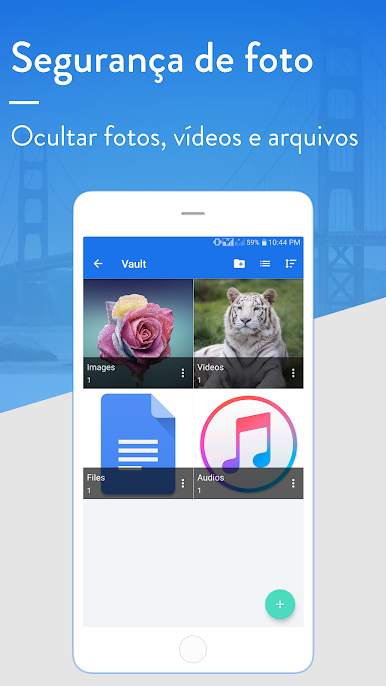
The gallery vault is the other big piece. Photos, videos, files, and even audio can be moved into a private space so they stop showing up in galleries or music players. SD card support is there, and there is a basic backup that helps bring locked photos back after a reinstall, which is reassuring. On a PC with BlueStacks, it works like a quick gate in front of Android apps, and the pattern or knock code is easy to do with a mouse when typing a PIN feels slow. Setup is a few switches and picks, no maze of menus, and it explains the permissions well enough. It needs Accessibility to detect when protected apps launch, and device admin to spot wrong lock screen attempts, which makes sense for how it works. Overall it comes off like a tidy toolkit that covers the usual privacy holes without getting in the way once it is tuned.
Eager to take your app experience to the next level? Start right away by downloading BlueStacks on your PC or Mac.

Jogue bloqueio e cofre de aplicativo no PC. É fácil começar.
-
Baixe e instale o BlueStacks no seu PC
-
Conclua o login do Google para acessar a Play Store ou faça isso mais tarde
-
Procure por bloqueio e cofre de aplicativo na barra de pesquisa no canto superior direito
-
Clique para instalar bloqueio e cofre de aplicativo a partir dos resultados da pesquisa
-
Conclua o login do Google (caso você pulou a etapa 2) para instalar o bloqueio e cofre de aplicativo
-
Clique no ícone do bloqueio e cofre de aplicativo na tela inicial para começar a jogar

