


Hourly Reminder -On Time Alarm
Spiele auf dem PC mit BlueStacks - der Android-Gaming-Plattform, der über 500 Millionen Spieler vertrauen.

Seite geändert am: Apr 4, 2025
Play Hourly Reminder -On Time Alarm on PC
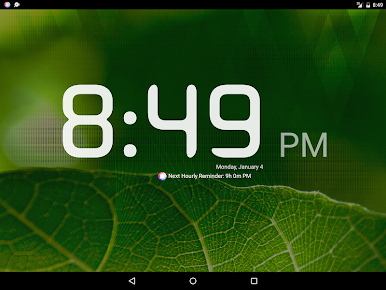
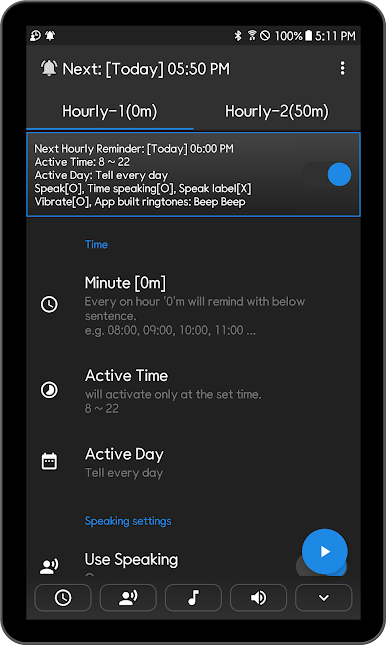
If power on the app then will speak(talk) the time with text and favorite music(mp3) from 8am to 10 pm everyday automatically.
(Don't worry! Nothing to set except clicking Power On('Activated Speak hours(time)').)
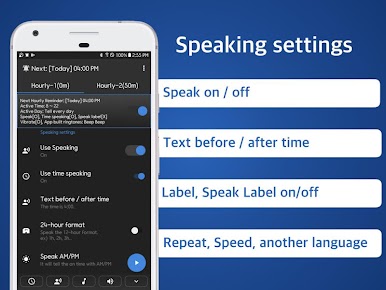
Listen your own text with voice every hour on hours.
Simple and Lite Alarm.
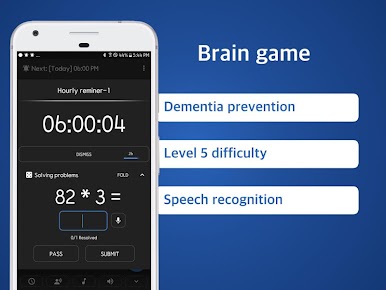
■ Math problems to improve brain and prevent dementia
-Solve various math problems games with 5 levels of difficulty every hour.
-Improve your memory and concentration!
■ 2 different Free O’clock setting
- (0 to 59 minutes)
- Work 50 min and Rest 10 min
- Completely independent setup
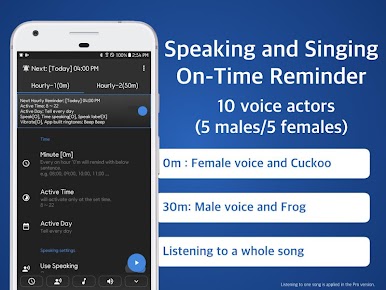
- Hourly-1(0m) : Cuckoo and Voice
- Hourly-2(50m): Frog and Vibration
- Hourly-2(50m): Listen a song
- Hourly-2(50m): Speak in Spanish(another language)
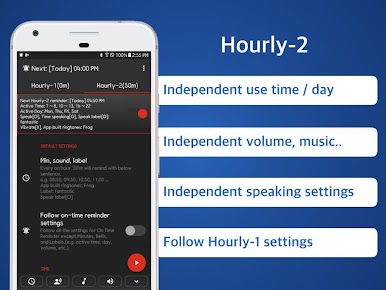
- Independent use day
- Independent use time
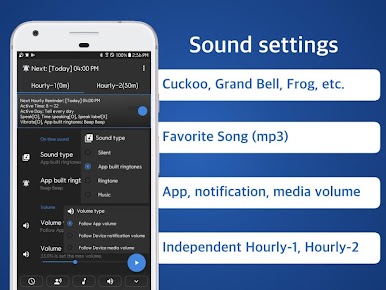
- Independent volume, music..
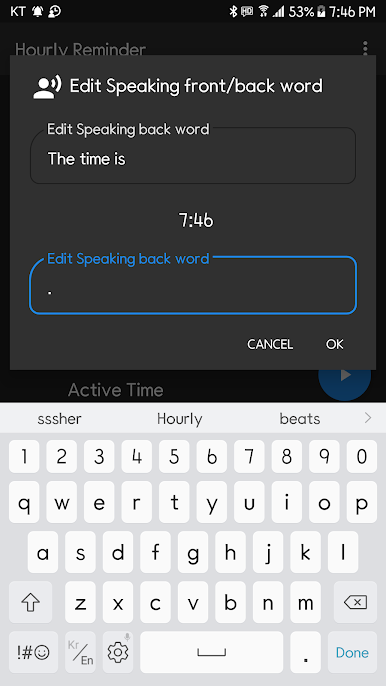
- Independent speaking settings
- Follow Hourly-1 settings
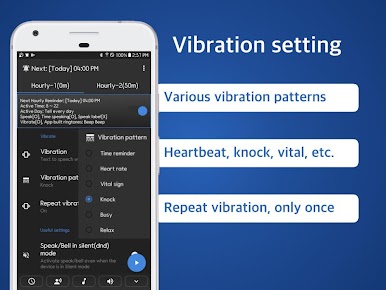
- Various vibration patterns
On time notification
Your own notification combination
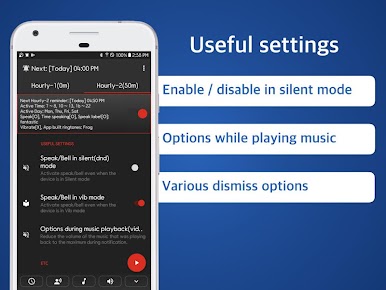
- Ring the bell / Speak current time and label / Vibration / Turn on screen
hourly reminder schedule chime clock alarm!
■ Battery saving optimization(When reminders don't work well)
Go on the Device's Settings.
Apps > Speaking Alarm Clock > Battery > Optimise battery usage > Click App not optimised > Click All >
Speaking Alarm Clock - Switch off
** this app never collect any user information !!
** picture/media/file permission; because use data base table for this app.
** device id and call info; because this app can control volume or vibration during in-call.
** internet/network; just for advertisement
** Loading time may vary depending on the manufacturer or the devices.(tts engine: text to speech)
Spiele Hourly Reminder -On Time Alarm auf dem PC. Der Einstieg ist einfach.
-
Lade BlueStacks herunter und installiere es auf deinem PC
-
Schließe die Google-Anmeldung ab, um auf den Play Store zuzugreifen, oder mache es später
-
Suche in der Suchleiste oben rechts nach Hourly Reminder -On Time Alarm
-
Klicke hier, um Hourly Reminder -On Time Alarm aus den Suchergebnissen zu installieren
-
Schließe die Google-Anmeldung ab (wenn du Schritt 2 übersprungen hast), um Hourly Reminder -On Time Alarm zu installieren.
-
Klicke auf dem Startbildschirm auf das Hourly Reminder -On Time Alarm Symbol, um mit dem Spielen zu beginnen

