

Barcode und QR-Code Tastatur
Spiele auf dem PC mit BlueStacks - der Android-Gaming-Plattform, der über 500 Millionen Spieler vertrauen.

Seite geändert am: Oct 17, 2025
Run Barcode & QR code Keyboard on PC or Mac
What’s better than using Barcode & QR code Keyboard by Nikola Antonov? Well, try it on a big screen, on your PC or Mac, with BlueStacks to see the difference.
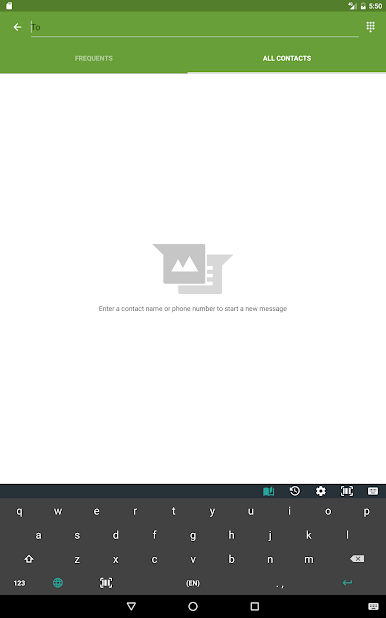
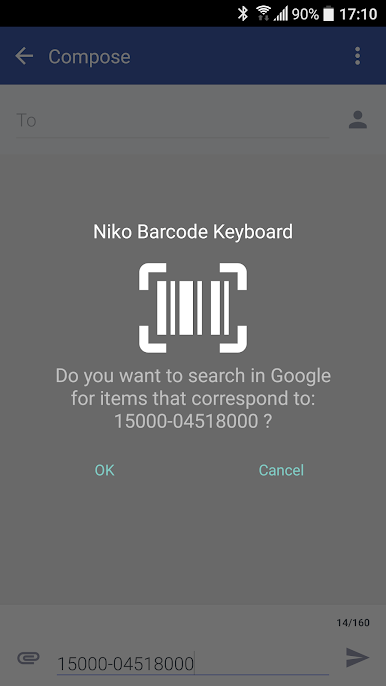
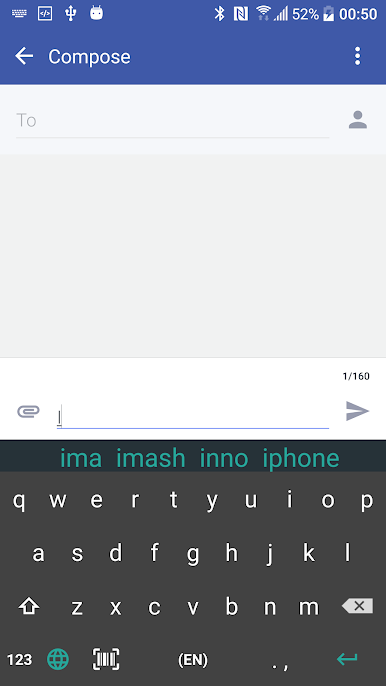
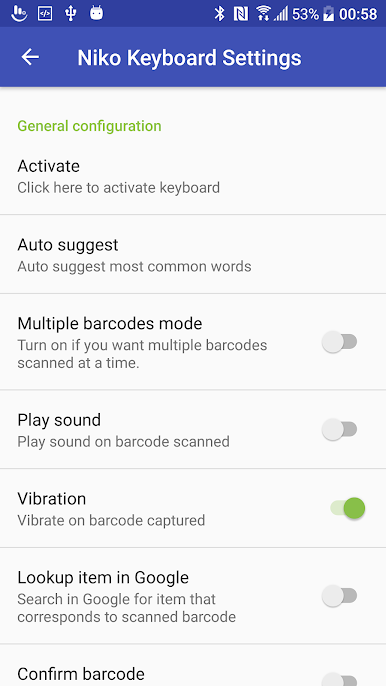
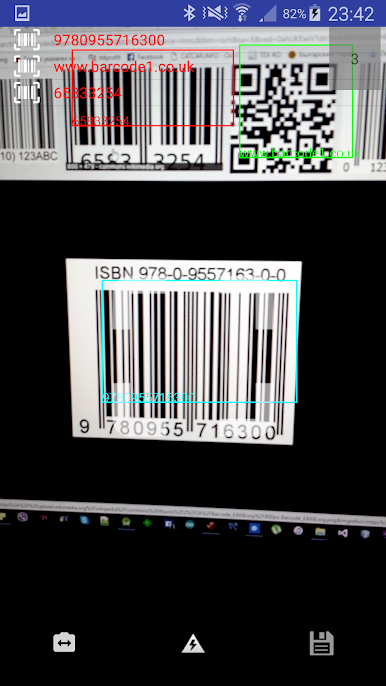
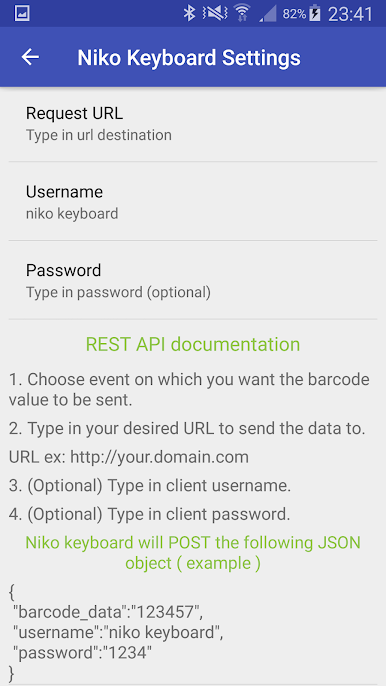
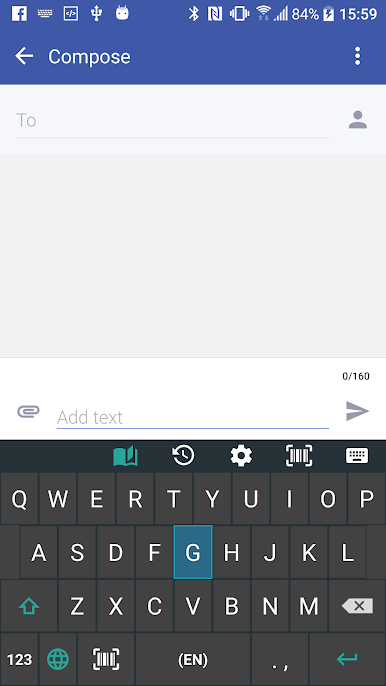
Barcode & QR code Keyboard is not a regular scanner app. It turns into a keyboard, so when it reads a barcode or QR code, the text just appears in whatever field is active, like it was typed. That makes it weirdly handy for forms, spreadsheets, inventory apps, or quick web searches. It handles the usual suspects like EAN, UPC, Code 128, plus QR, Data Matrix, PDF417, and Aztec. There is a batch mode vibe too, so multiple codes in a row do not become a chore. Settings are practical rather than flashy: auto submit that taps Enter or Go after each scan, a quick search option, a flashlight toggle, and even a way to post the scanned data to a web URL with optional credentials. There is also a transform to link option for turning results into a Google search link, which is neat for lookups.
Running it on PC with BlueStacks feels natural if a webcam is nearby. The app behaves like a normal Android keyboard inside the emulator, so scanned codes drop straight into the active app. Focus and lighting still matter, and the front camera mode is not the fastest, but when the code is clear it locks on fast and uses very little CPU. It does not nag for odd permissions, the interface is simple, and it gets out of the way. Great for anyone doing product checks, library or comic cataloging, small shop workflows, or just saving Wi Fi and contact QR codes without copy paste games. There is a Pro option and some enterprise friendly touches, but the basic setup already covers a lot without feeling heavy.
BlueStacks gives you the much-needed freedom to experience your favorite apps on a bigger screen. Get it now.

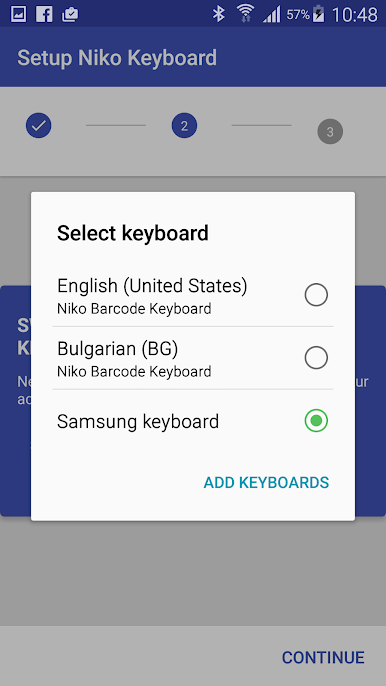
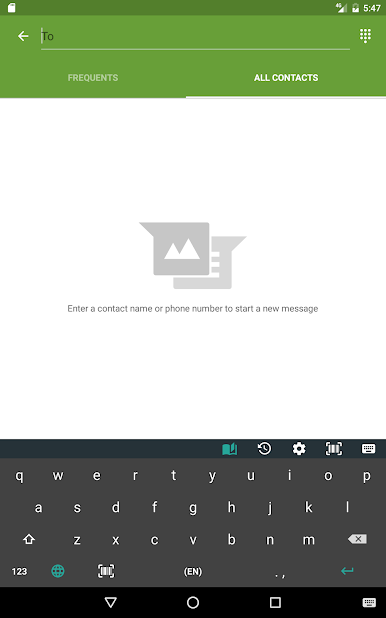
Spiele Barcode und QR-Code Tastatur auf dem PC. Der Einstieg ist einfach.
-
Lade BlueStacks herunter und installiere es auf deinem PC
-
Schließe die Google-Anmeldung ab, um auf den Play Store zuzugreifen, oder mache es später
-
Suche in der Suchleiste oben rechts nach Barcode und QR-Code Tastatur
-
Klicke hier, um Barcode und QR-Code Tastatur aus den Suchergebnissen zu installieren
-
Schließe die Google-Anmeldung ab (wenn du Schritt 2 übersprungen hast), um Barcode und QR-Code Tastatur zu installieren.
-
Klicke auf dem Startbildschirm auf das Barcode und QR-Code Tastatur Symbol, um mit dem Spielen zu beginnen

