

Planyway: Calendar for Trello
Spiele auf dem PC mit BlueStacks - der Android-Gaming-Plattform, der über 500 Millionen Spieler vertrauen.

Seite geändert am: Mar 23, 2025
Run Planyway: Calendar for Trello on PC or Mac
Upgrade your experience. Try Planyway: Calendar for Trello, the fantastic Productivity app from Planyway, from the comfort of your laptop, PC, or Mac, only on BlueStacks.
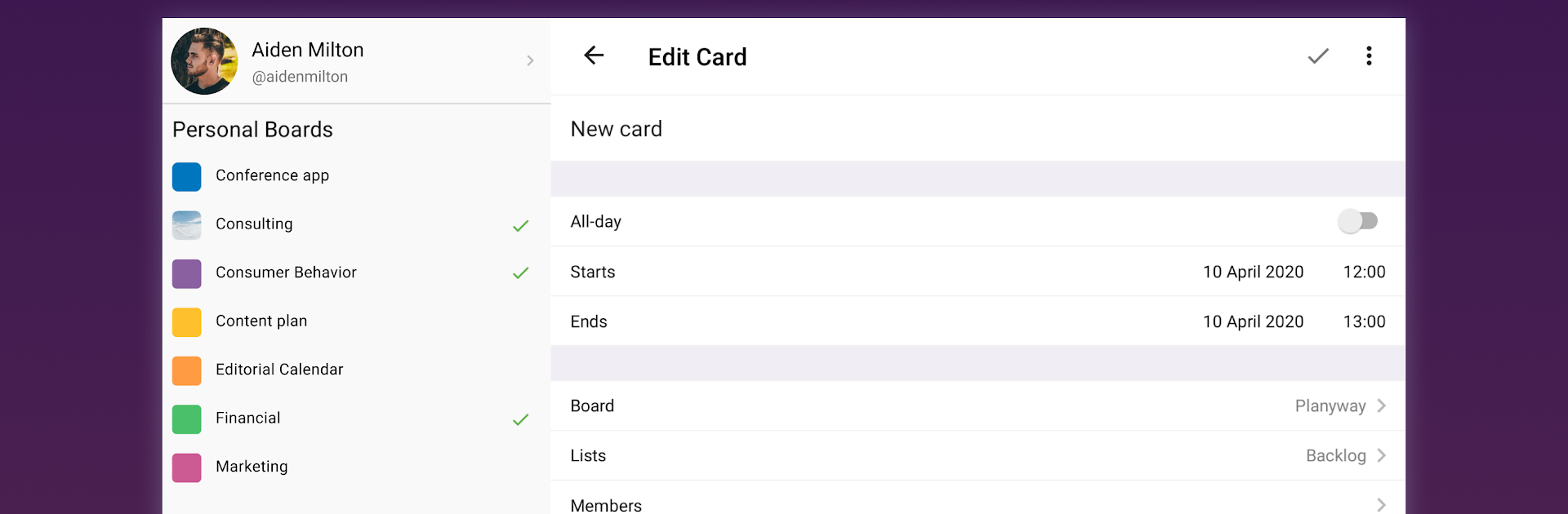
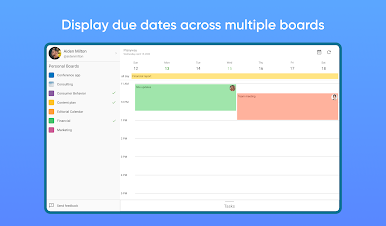
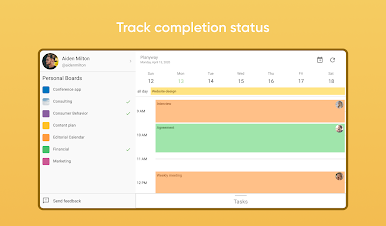
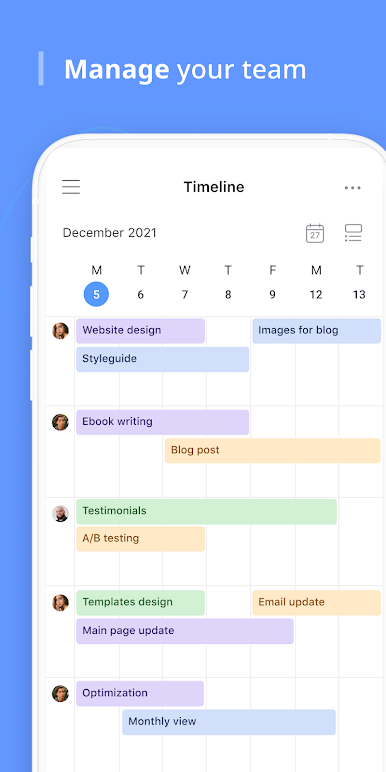
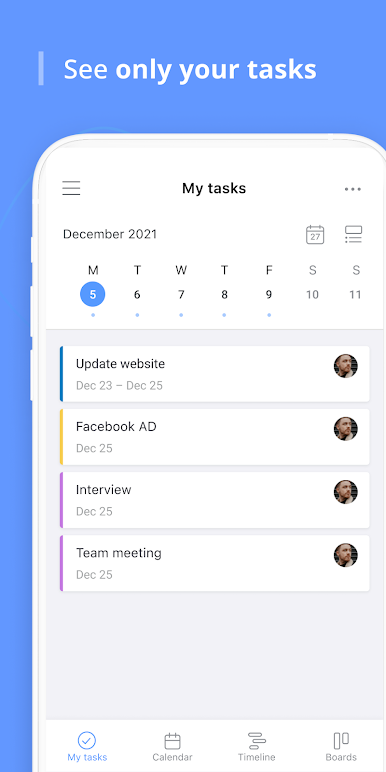
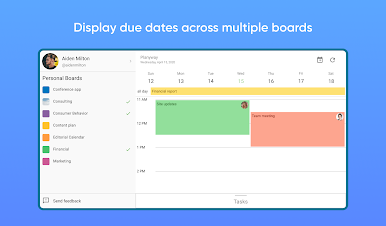
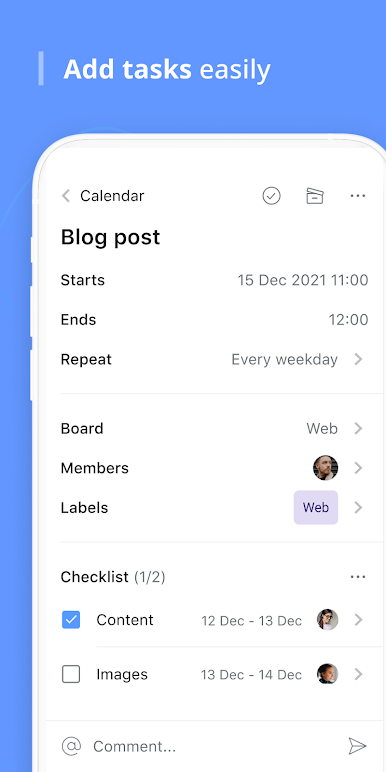
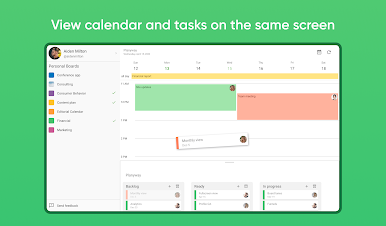
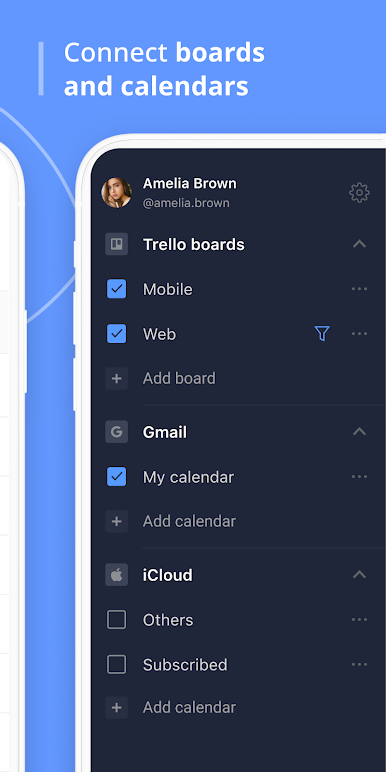
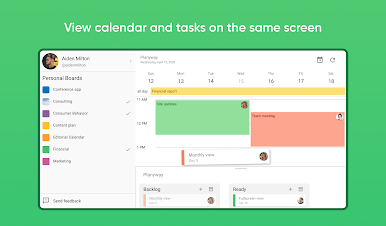
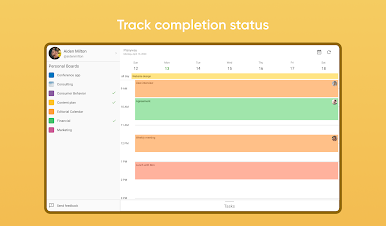
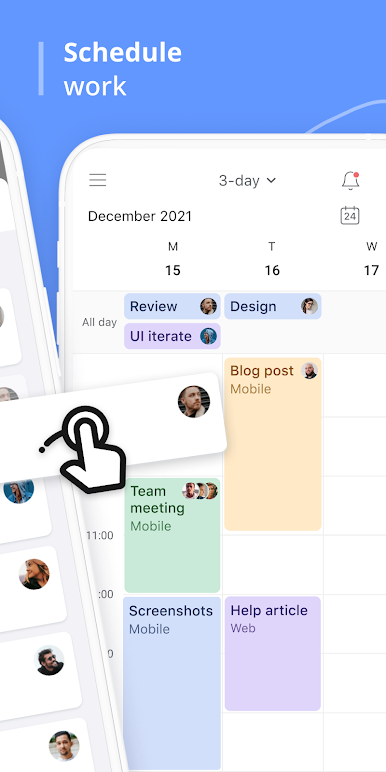
Planyway is like a control center for anyone who spends time juggling tasks in Trello – whether solo or with a whole crew. It takes all those scattered Trello boards and pulls everything together in one calendar, so there’s none of that “Wait, what’s due next?” feeling. The neat thing is the way it lays things out: there’s a timeline for the whole team, weekly and monthly calendars, and even ways to see just your own list, without everyone else’s clutter. On a PC (like through BlueStacks), seeing those larger calendar views feels pretty comfortable, especially for bigger projects or if you’re someone who has a lot going on across different boards.
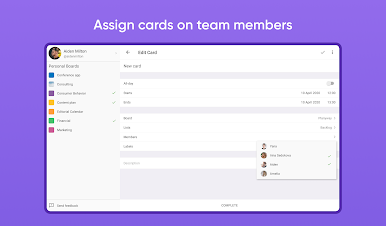
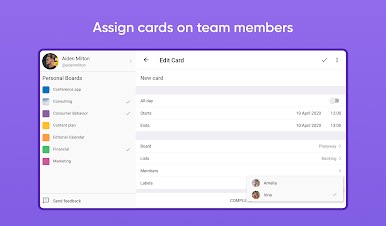
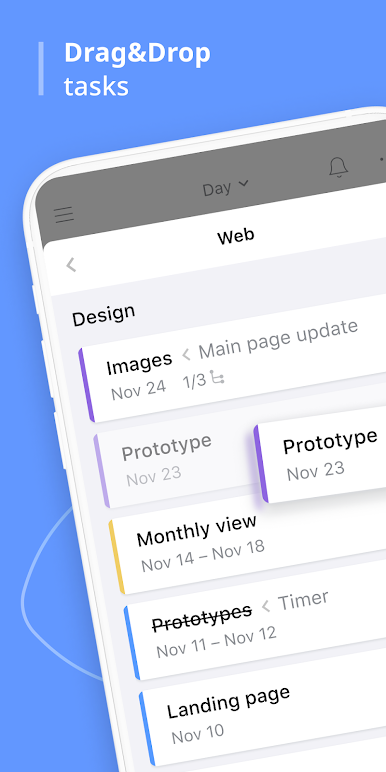
It isn’t just about tossing everything in one place—it actually lets users break big projects into smaller pieces, assign them, and keep tabs on who’s doing what. There’s some real-time syncing happening, so when things get updated in Trello or Planyway, everyone sees it right away. People who connect their Google calendars get that extra benefit of seeing outside appointments alongside work stuff. It works for personal organizing too, not just teams. The daily organizer and time tracker are there if someone wants to get granular about schedules. Overall, Planyway turns Trello from a simple board of lists into a detailed calendar and planning tool, making it easier to keep up with deadlines and see all tasks at a glance without missing anything important.
Big screen. Bigger performance. Use BlueStacks on your PC or Mac to run your favorite apps.
Spiele Planyway: Calendar for Trello auf dem PC. Der Einstieg ist einfach.
-
Lade BlueStacks herunter und installiere es auf deinem PC
-
Schließe die Google-Anmeldung ab, um auf den Play Store zuzugreifen, oder mache es später
-
Suche in der Suchleiste oben rechts nach Planyway: Calendar for Trello
-
Klicke hier, um Planyway: Calendar for Trello aus den Suchergebnissen zu installieren
-
Schließe die Google-Anmeldung ab (wenn du Schritt 2 übersprungen hast), um Planyway: Calendar for Trello zu installieren.
-
Klicke auf dem Startbildschirm auf das Planyway: Calendar for Trello Symbol, um mit dem Spielen zu beginnen

