

Project Schedule
Играйте на ПК с BlueStacks – игровой платформе для приложений на Android. Нас выбирают более 500 млн. игроков.

Страница изменена: Jan 9, 2025
Run Project Schedule on PC or Mac
Let BlueStacks turn your PC, Mac, or laptop into the perfect home for Project Schedule, a fun Productivity app from Thorsten Krämer.
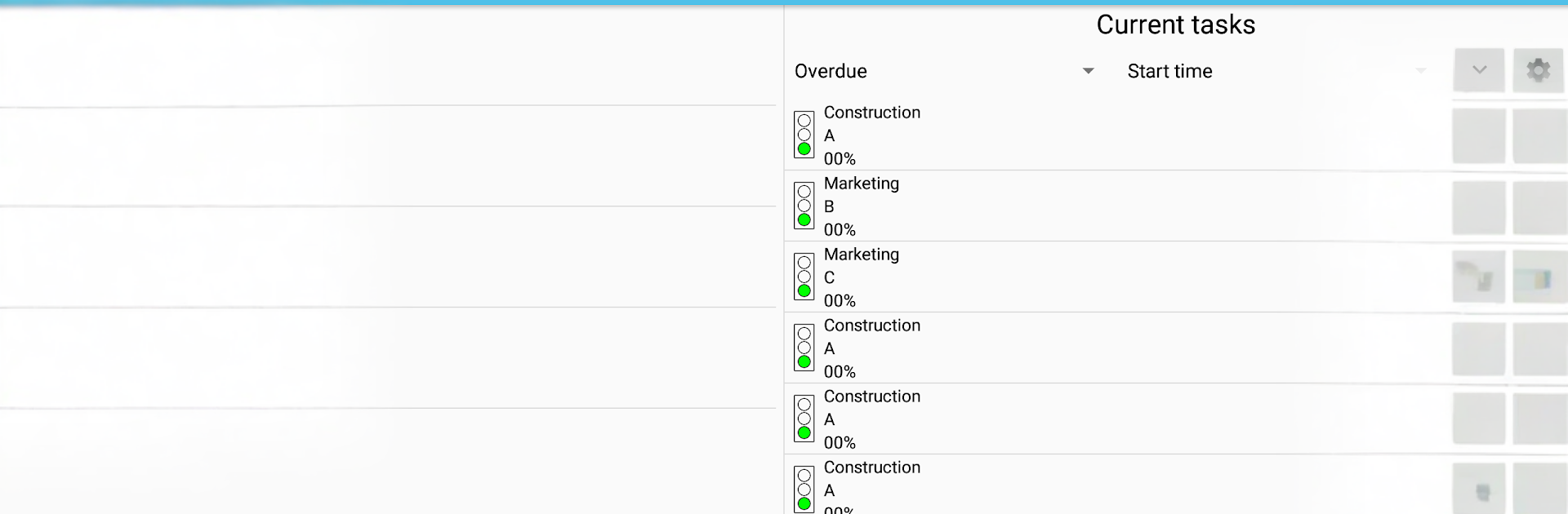
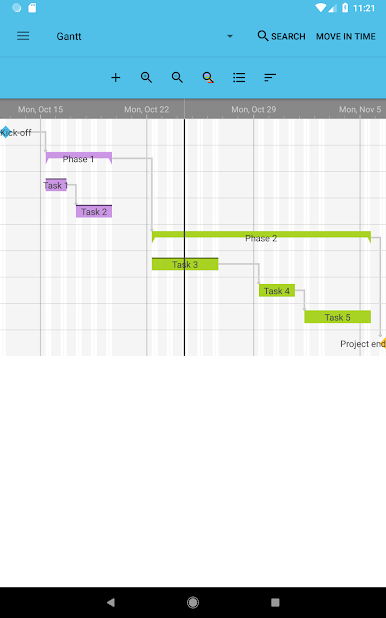
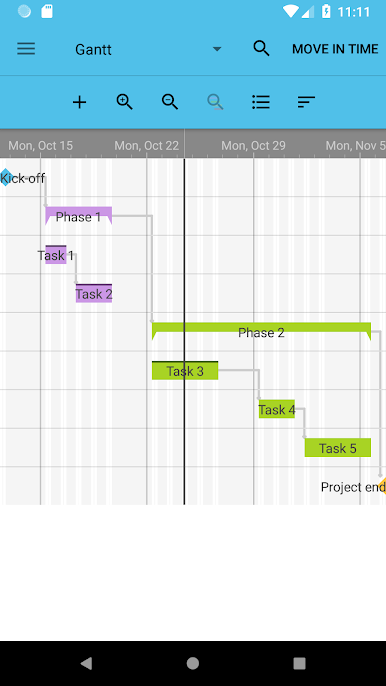
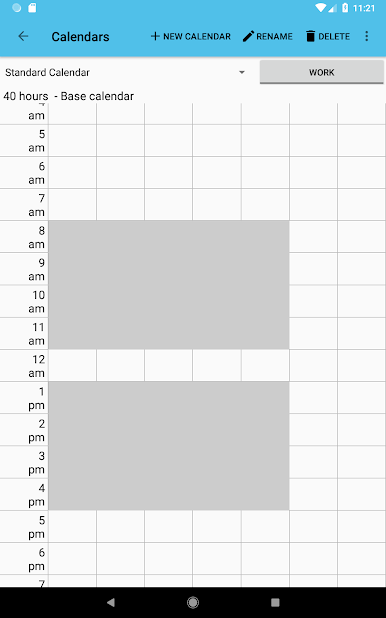
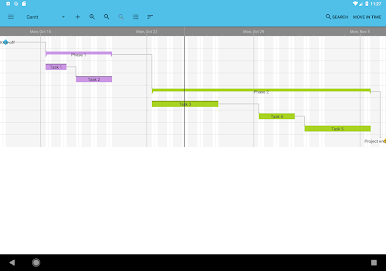
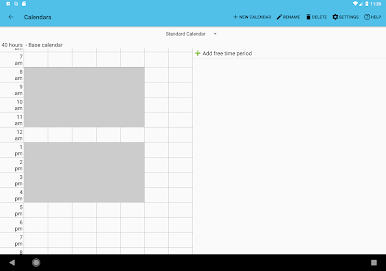
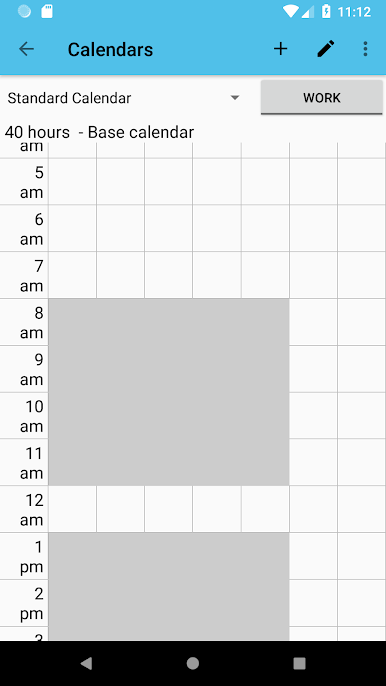
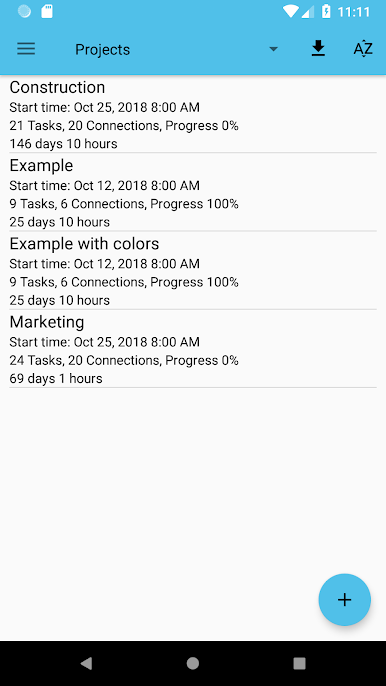
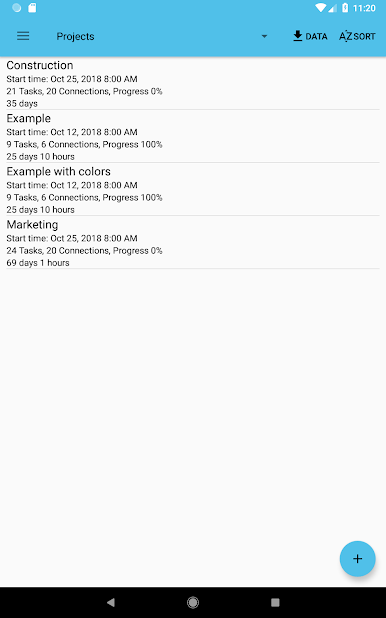
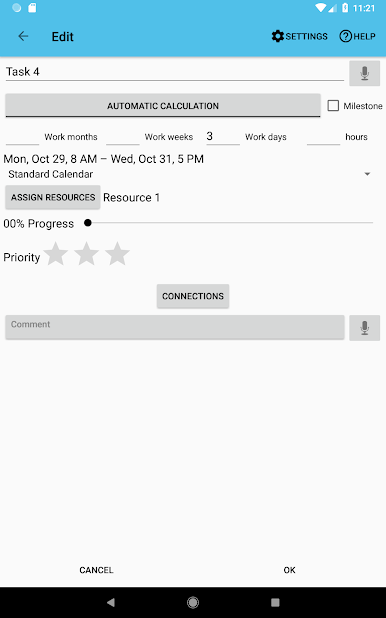
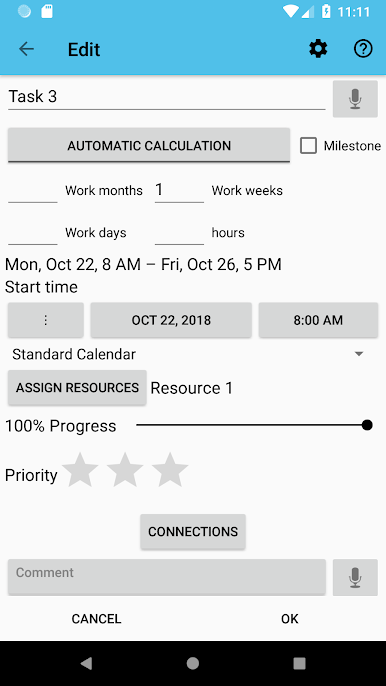
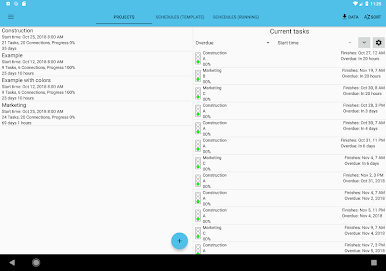
Project Schedule feels like a no-nonsense project manager that actually fits on a phone, and it gets even nicer on a PC with BlueStacks since the Gantt chart and columns have room to breathe. It is very spreadsheet-y in a good way. Multiple projects sit side by side, there is an overview that highlights tasks that need attention, and switching between a clean task list and the Gantt view is quick. Custom calendars let someone set work hours, days off, and holidays so the timeline respects real life. Resources can be added to track cost and work per task or per project, and contacts can be attached to those resources so it is clear who is doing what. Notifications pop up when a task starts or finishes, or tasks can be pushed to the device calendar if that is easier to see next to everything else.
The app plays nice with real formats. It reads MS Project .mpp with a plugin, writes and reads Excel .xls with another plugin, handles MSPDI XML and plain CSV both ways, and can spit out PNG images. The paid version flips on PDF export for Gantt, task lists, and cost reports, adds resource cost and duration data to Excel exports, syncs tasks with the device calendar, and lets users pick the exact export folder. There is optional CloudSync as a separate plugin, and Android Backup Service support if automatic backups are wanted. It is not flashy, but it feels practical and steady, which is all many folks want when deadlines and budgets are the main thing.
Big screen. Bigger performance. Use BlueStacks on your PC or Mac to run your favorite apps.
Играйте в игру Project Schedule на ПК. Это легко и просто.
-
Скачайте и установите BlueStacks на ПК.
-
Войдите в аккаунт Google, чтобы получить доступ к Google Play, или сделайте это позже.
-
В поле поиска, которое находится в правой части экрана, введите название игры – Project Schedule.
-
Среди результатов поиска найдите игру Project Schedule и нажмите на кнопку "Установить".
-
Завершите авторизацию в Google (если вы пропустили этот шаг в начале) и установите игру Project Schedule.
-
Нажмите на ярлык игры Project Schedule на главном экране, чтобы начать играть.

