

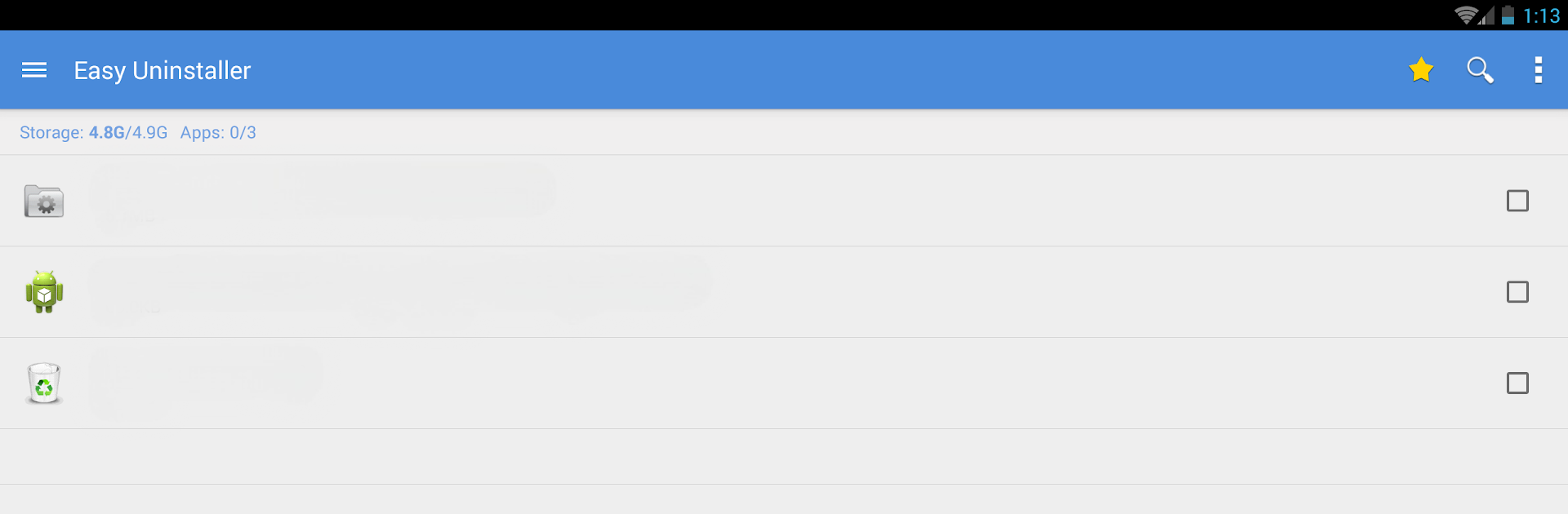
Easy Uninstaller -Deinstaller
Spiele auf dem PC mit BlueStacks - der Android-Gaming-Plattform, der über 500 Millionen Spieler vertrauen.

Seite geändert am: Jun 16, 2024
Run Easy Uninstaller App Uninstall on PC or Mac
What’s better than using Easy Uninstaller App Uninstall by INFOLIFE LLC? Well, try it on a big screen, on your PC or Mac, with BlueStacks to see the difference.
About the App
Ever wish cleaning up your phone was as quick and painless as deleting a few files on your computer? With Easy Uninstaller App Uninstall from INFOLIFE LLC, managing your Android apps suddenly feels a whole lot easier. Whether you’re looking to clear out space, track what’s hogging your battery, or just keep your apps organized without the mess, this tool’s got your back.
App Features
-
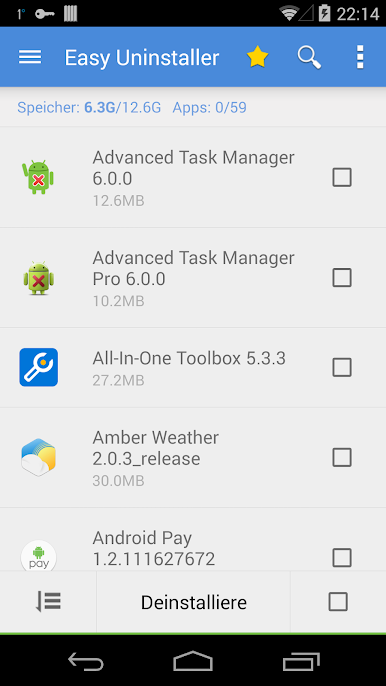
Batch Remove Apps
Pick several apps at once and remove them all in one go—no more uninstalling one by one. -
Quick & Simple Uninstall
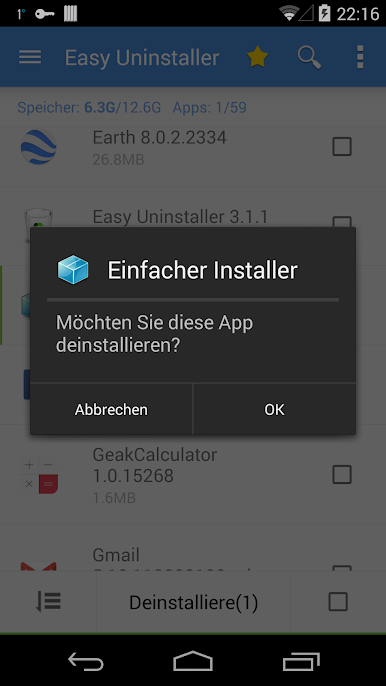
One tap and an app is gone. It really is that straightforward. -
App Organization
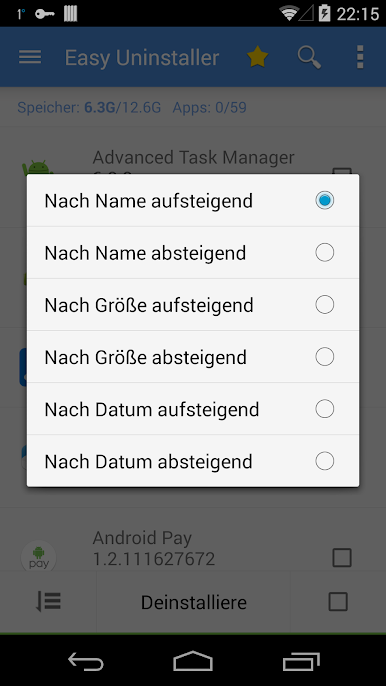
Want to see all your installed apps in one place? Sort them by name, size, update time, and more. There’s even a search bar if you’re dealing with a long list. -
Usage & Battery Insights
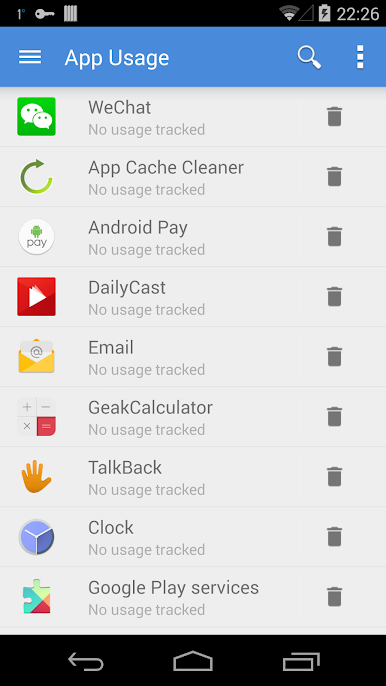
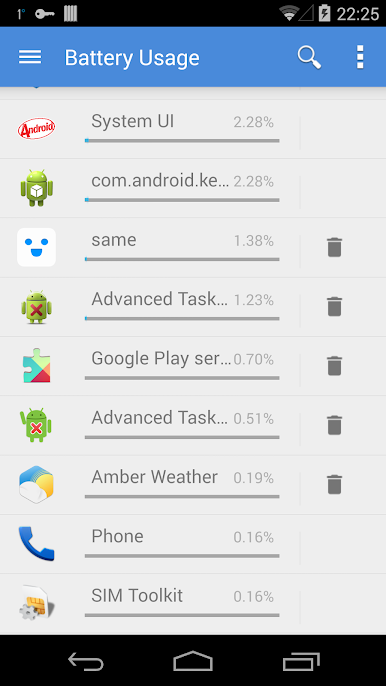
Find out which apps are draining your battery most and which ones you use the least. It makes deciding what to delete a lot easier. -
App Sharing & Market Lookup
Send your favorite apps to friends or jump straight to Google Play to look up more info—no jumping through hoops. -
Uninstall History (Recycle Bin)
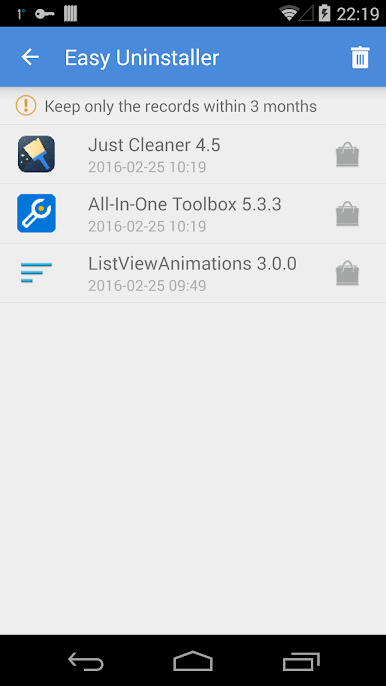
Ever deleted something and realized you want it back? Keep track of what you’ve uninstalled and review your removal history. -
App2SD Support
If your device supports moving apps to SD card, Easy Uninstaller App Uninstall helps manage that too. -
Handy Customization
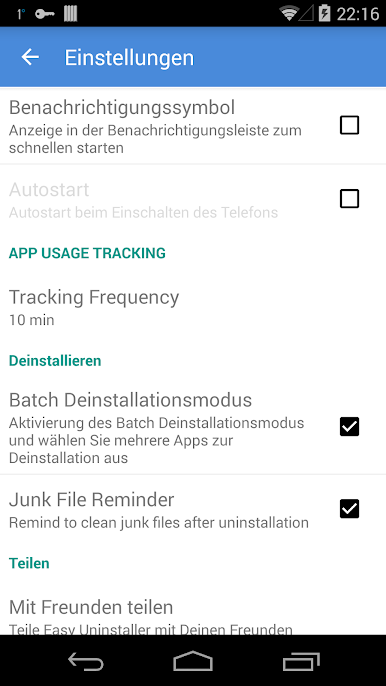
You control notifications. Don’t want the icon sitting in your notification bar? Just turn it off in settings.
You can run this handy Productivity app on a phone, tablet, or even using BlueStacks if you prefer managing things from your computer. No more clutter, pointless tapping, or hidden apps—just a cleaner device, and maybe even a little peace of mind.
BlueStacks gives you the much-needed freedom to experience your favorite apps on a bigger screen. Get it now.
Spiele Easy Uninstaller -Deinstaller auf dem PC. Der Einstieg ist einfach.
-
Lade BlueStacks herunter und installiere es auf deinem PC
-
Schließe die Google-Anmeldung ab, um auf den Play Store zuzugreifen, oder mache es später
-
Suche in der Suchleiste oben rechts nach Easy Uninstaller -Deinstaller
-
Klicke hier, um Easy Uninstaller -Deinstaller aus den Suchergebnissen zu installieren
-
Schließe die Google-Anmeldung ab (wenn du Schritt 2 übersprungen hast), um Easy Uninstaller -Deinstaller zu installieren.
-
Klicke auf dem Startbildschirm auf das Easy Uninstaller -Deinstaller Symbol, um mit dem Spielen zu beginnen

