


Gboard – Bàn phím Google
Chơi trên PC với BlueStacks - Nền tảng chơi game Android, được hơn 500 triệu game thủ tin tưởng.

Trang đã được sửa đổi vào: Mar 30, 2026
Chơi Gboard – Bàn phím Google on PC
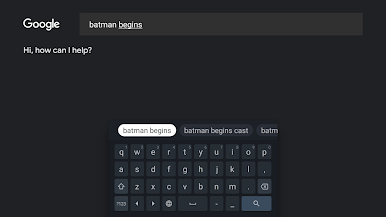
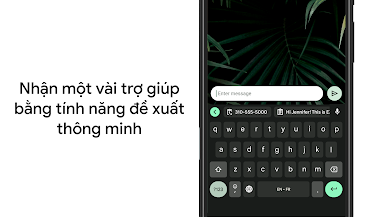
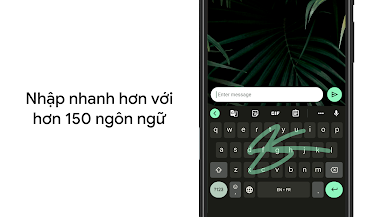
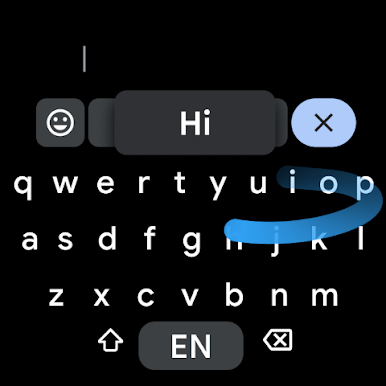
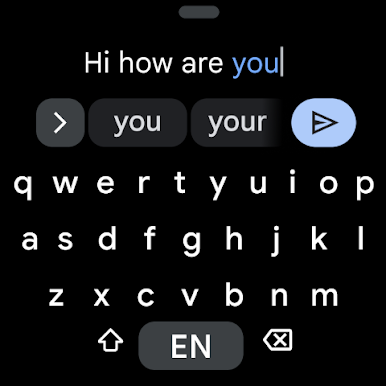
Nhập bằng cách lướt – Nhập ký tự nhanh hơn bằng cách trượt ngón tay qua các chữ cái
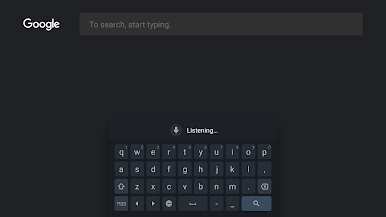
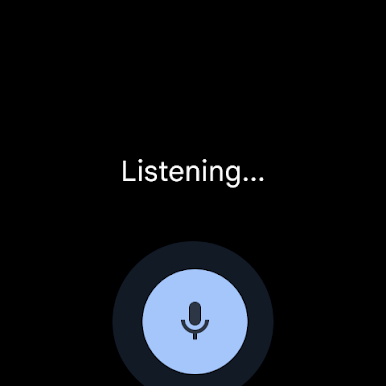
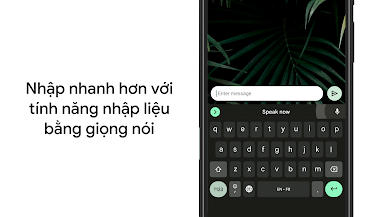
Nhập liệu bằng giọng nói – Dễ dàng đọc văn bản để nhập liệu khi di chuyển
Chữ viết tay* – Viết bằng kiểu chữ in và chữ thảo
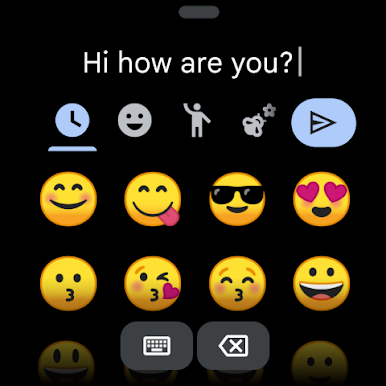
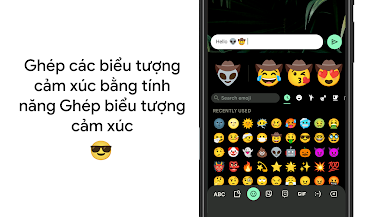
Tìm kiếm biểu tượng cảm xúc* – Tìm đúng biểu tượng cảm xúc nhanh chóng hơn
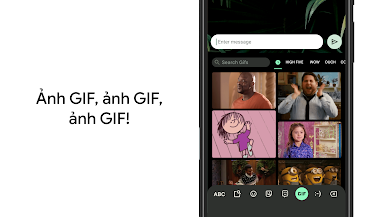
Ảnh GIF* – Tìm và chia sẻ ảnh GIF để thể hiện chính xác cảm xúc của bạn.
Nhập văn bản đa ngôn ngữ – Bạn không cần chuyển đổi giữa các ngôn ngữ theo cách thủ công nữa. Gboard sẽ tự động sửa và đề xuất nội dung từ ngôn ngữ bất kỳ mà bạn đã bật.
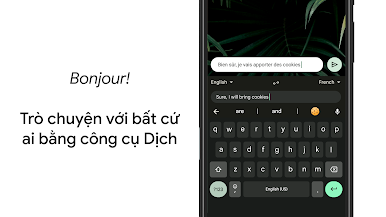
Google Dịch – Dịch các nội dung mà bạn nhập bằng bàn phím
* Tính năng này chưa có trên các thiết bị Android Go
Hỗ trợ hàng trăm ngôn ngữ:
tiếng Hà Lan ở Nam Phi, tiếng Amhara, tiếng Ả Rập, tiếng Assam, tiếng Azerbaijan, tiếng Bavaria, tiếng Bengal, tiếng Bhojpuri, tiếng Miến Điện, tiếng Cebu, tiếng Chhattisgarh, tiếng Trung (tiếng Quan thoại, tiếng Quảng Đông và các phương ngữ khác), tiếng Chittagong, tiếng Séc, tiếng Deccan, tiếng Hà Lan, tiếng Anh, tiếng Philippines, tiếng Pháp, tiếng Đức, tiếng Hy Lạp, tiếng Gujarat, tiếng Hausa, tiếng Hindi, tiếng Igbo, tiếng Indonesia, tiếng Ý, tiếng Nhật, tiếng Java, tiếng Kannada, tiếng Khmer, tiếng Hàn, tiếng Kurd, tiếng Magahi, tiếng Maithili, tiếng Malay, tiếng Malayalam, tiếng Maratha, tiếng Nepal, tiếng Sotho phía Bắc, tiếng Odia, tiếng Pashto, tiếng Ba Tư, tiếng Ba Lan, tiếng Bồ Đào Nha, tiếng Punjabi, tiếng Rumani, tiếng Nga, tiếng Saraiki, tiếng Sindh, tiếng Sinhala, tiếng Somali, tiếng Sotho phía Nam, tiếng Tây Ban Nha, tiếng Sunda, tiếng Swahili, tiếng Tamil, tiếng Telugu, tiếng Thái, tiếng Tswana, tiếng Thổ Nhĩ Kỳ, tiếng Ukraina, tiếng Urdu, tiếng Uzbek, tiếng Việt, tiếng Xhosa, tiếng Yoruba, tiếng Zulu và nhiều ngôn ngữ khác! Bạn có thể truy cập vào https://goo.gl/fMQ85U để xem danh sách tất cả ngôn ngữ mà Gboard hỗ trợ
Mẹo hay:
• Điều khiển con trỏ bằng cử chỉ: Trượt ngón tay trên phím cách để di chuyển con trỏ
• Xóa bằng cử chỉ: Từ phím xóa, hãy trượt ngón tay về bên trái để xóa nhanh nhiều từ
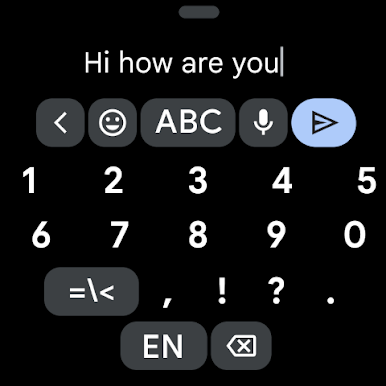
• Làm cho hàng số luôn hiển thị (bật trong mục Cài đặt → Tùy chọn → Hàng số)
• Gợi ý ký hiệu: Hiển thị gợi ý nhanh trên các phím để nhập ký hiệu bằng thao tác nhấn và giữ (bật trong mục Cài đặt → Tùy chọn → Nhấn và giữ để sử dụng ký hiệu)
• Chế độ một tay: Trên điện thoại màn hình lớn, hãy ghim bàn phím ở bên trái hoặc bên phải màn hình
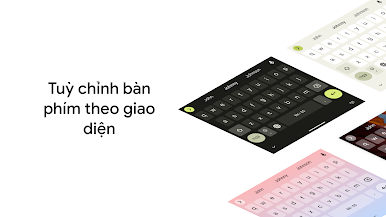
• Giao diện: Chọn giao diện mà bạn thích cũng như bật/tắt đường viền phím
Chơi Gboard – Bàn phím Google trên PC. Rất dễ để bắt đầu
-
Tải và cài đặt BlueStacks trên máy của bạn
-
Hoàn tất đăng nhập vào Google để đến PlayStore, hoặc thực hiện sau
-
Tìm Gboard – Bàn phím Google trên thanh tìm kiếm ở góc phải màn hình
-
Nhấn vào để cài đặt Gboard – Bàn phím Google trong danh sách kết quả tìm kiếm
-
Hoàn tất đăng nhập Google (nếu bạn chưa làm bước 2) để cài đặt Gboard – Bàn phím Google
-
Nhấn vào icon Gboard – Bàn phím Google tại màn hình chính để bắt đầu chơi

