


このページには広告が含まれます
Memo Widget (メモ、やることリスト)
ライフスタイル | TheDayBefore, Inc.
BlueStacksを使ってPCでプレイ - 5憶以上のユーザーが愛用している高機能Androidゲーミングプラットフォーム

Play Memo Widget (to-dos&ideas) on PC
Looking for an easy-to-use and customizable memo app?
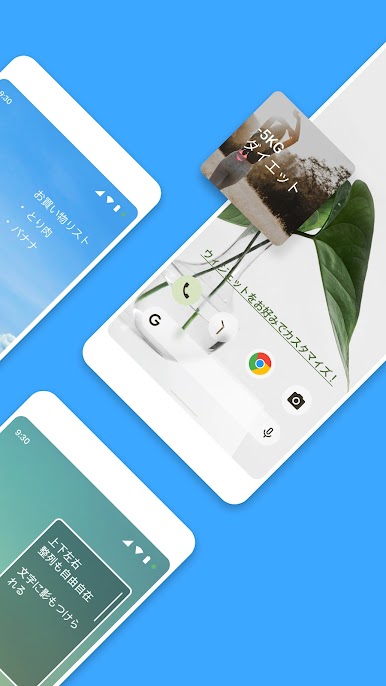
With MemoWidget, you can easily create and display memos on your phone.
Try MemoWidget to remind yourself of important events or just to decorate your personal home screen.
Main features:
- Powerful Memo Widget
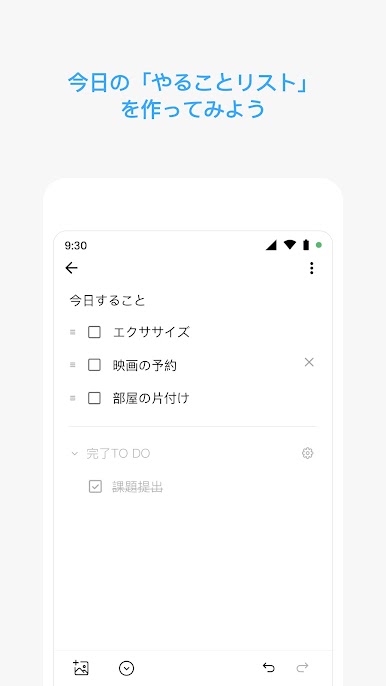
- To-do Task Management
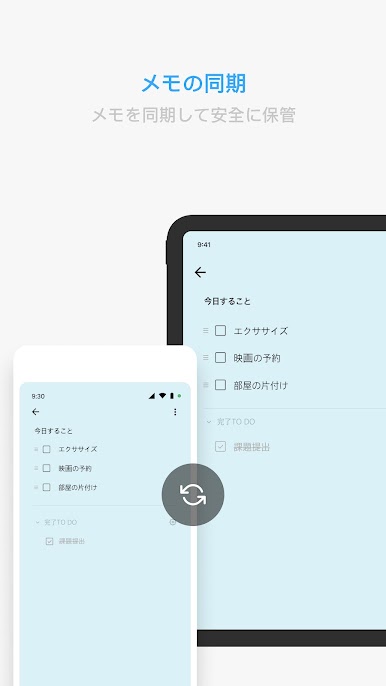
- Synchronize Memos(Premium)
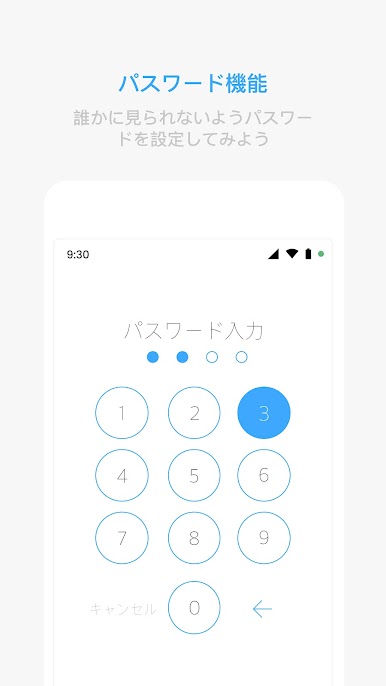
- Passcode function(Premium)
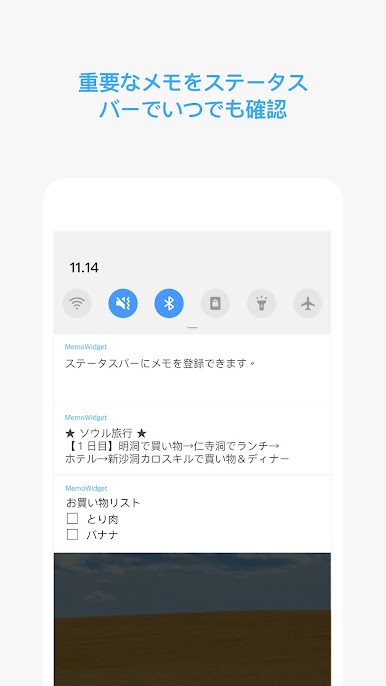
- Memo shown on Status bar
- Color Settings by Memo
- Color Group
Widget size Options
1x1, 2x1, 2x2, 4x1, 4x2, 4x4, 5x1, 5x2, 5x5 and adjustable size
Customization Options
Text size & color, background color, border color
transparent background, text-shadow
Bold, italic, underline
Text alignment (left, right, vertical (upper, center, lower))
MemoWidget Premium
Upgrade to premium subscription and try all premium services.
(Synchronization, removing ads, passcode function, Various background photos & pattern images, and Upload a photo to a memo.)
Synchronize Memos(Premium)
Start synchronizing and keep memos safe.
Passcode function(Premium)
Set the password so that no one else can see it.
Upload a photo to a memo(Premium)
You can upload pictures.
Up to 10 pictures in one memo.
Note
Install on SD card does not work properly. Be sure to install it in the internal memory.
Selective Privilege Guidance
Storage: Used for backing up and recovering memos.
How to display memo on home screen
Home Screen > Press and hold onto screen > Widgets > MemoWidget
With MemoWidget, you can easily create and display memos on your phone.
Try MemoWidget to remind yourself of important events or just to decorate your personal home screen.
Main features:
- Powerful Memo Widget
- To-do Task Management
- Synchronize Memos(Premium)
- Passcode function(Premium)
- Memo shown on Status bar
- Color Settings by Memo
- Color Group
Widget size Options
1x1, 2x1, 2x2, 4x1, 4x2, 4x4, 5x1, 5x2, 5x5 and adjustable size
Customization Options
Text size & color, background color, border color
transparent background, text-shadow
Bold, italic, underline
Text alignment (left, right, vertical (upper, center, lower))
MemoWidget Premium
Upgrade to premium subscription and try all premium services.
(Synchronization, removing ads, passcode function, Various background photos & pattern images, and Upload a photo to a memo.)
Synchronize Memos(Premium)
Start synchronizing and keep memos safe.
Passcode function(Premium)
Set the password so that no one else can see it.
Upload a photo to a memo(Premium)
You can upload pictures.
Up to 10 pictures in one memo.
Note
Install on SD card does not work properly. Be sure to install it in the internal memory.
Selective Privilege Guidance
Storage: Used for backing up and recovering memos.
How to display memo on home screen
Home Screen > Press and hold onto screen > Widgets > MemoWidget


Memo Widget (メモ、やることリスト)をPCでプレイ
-
BlueStacksをダウンロードしてPCにインストールします。
-
GoogleにサインインしてGoogle Play ストアにアクセスします。(こちらの操作は後で行っても問題ありません)
-
右上の検索バーにMemo Widget (メモ、やることリスト)を入力して検索します。
-
クリックして検索結果からMemo Widget (メモ、やることリスト)をインストールします。
-
Googleサインインを完了してMemo Widget (メモ、やることリスト)をインストールします。※手順2を飛ばしていた場合
-
ホーム画面にてMemo Widget (メモ、やることリスト)のアイコンをクリックしてアプリを起動します。

