


Project Schedule - CloudSync
BlueStacksを使ってPCでプレイ - 5憶以上のユーザーが愛用している高機能Androidゲーミングプラットフォーム

Run Project Schedule - CloudSync on PC or Mac
What’s better than using Project Schedule – CloudSync by Thorsten Krämer? Well, try it on a big screen, on your PC or Mac, with BlueStacks to see the difference.
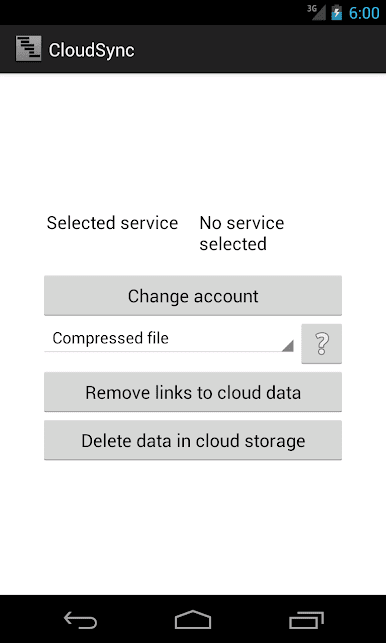
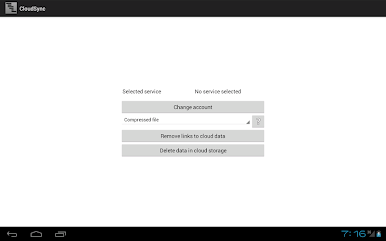
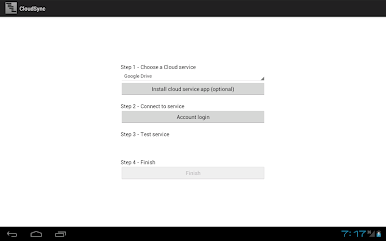
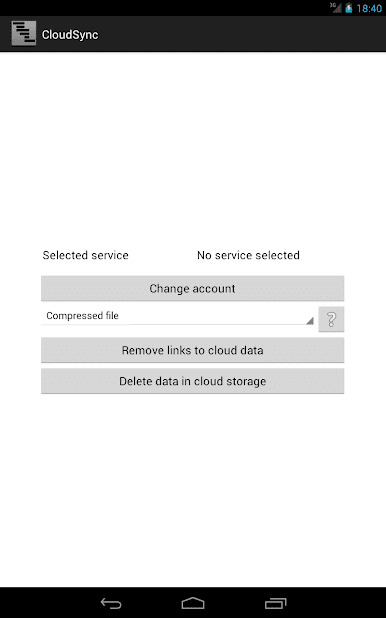
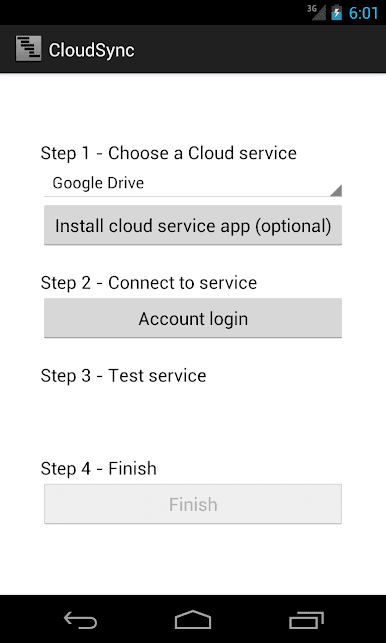
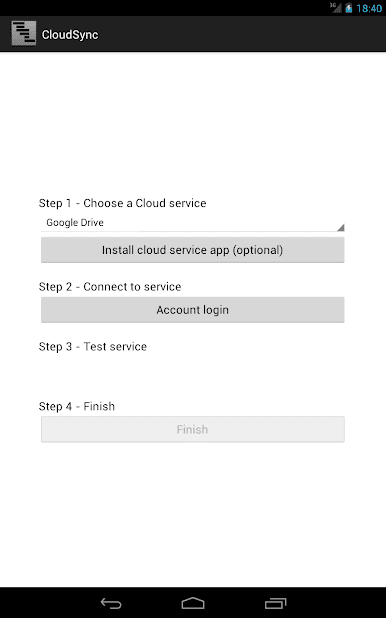
Project Schedule – CloudSync is not a standalone thing, it is a little helper for the main Project Schedule app. As long as that base app is version 1.10 or newer, this add-on plugs in and takes care of syncing project plans across devices. It connects to Box, Dropbox, or Google Drive, so the schedule lives in the cloud instead of sitting on one phone. Sign in, pick where to store stuff, and the same projects show up on a tablet, phone, or even a PC running BlueStacks without doing the export and import shuffle.
The whole point is to keep the latest task dates, milestones, and gantt views in step. It feels simple, like flipping a switch to make the planner follow along wherever someone opens it. It does need an account with one of those cloud services, and it will not do much if the core app is missing, so this is more of an essential add-on than a new feature set. On a laptop through BlueStacks, the big screen and mouse make editing tasks less of a squint, then later the phone has the same plan waiting. Nothing flashy here, which is kind of the charm. It just keeps projects consistent, avoids version confusion, and makes it easier to move between devices without babysitting files. Internet matters for sync of course, so if a connection is slow it may take a moment, but day to day it feels steady and low effort.
Big screen. Bigger performance. Use BlueStacks on your PC or Mac to run your favorite apps.
Project Schedule - CloudSyncをPCでプレイ
-
BlueStacksをダウンロードしてPCにインストールします。
-
GoogleにサインインしてGoogle Play ストアにアクセスします。(こちらの操作は後で行っても問題ありません)
-
右上の検索バーにProject Schedule - CloudSyncを入力して検索します。
-
クリックして検索結果からProject Schedule - CloudSyncをインストールします。
-
Googleサインインを完了してProject Schedule - CloudSyncをインストールします。※手順2を飛ばしていた場合
-
ホーム画面にてProject Schedule - CloudSyncのアイコンをクリックしてアプリを起動します。

