


Video Gallery for Wear OS
Play on PC with BlueStacks – the Android Gaming Platform, trusted by 500M+ gamers.

Page Modified on: Mar 4, 2021
Run Video Gallery for Wear OS (Android Wear) on PC or Mac
Multitask effortlessly on your PC or Mac as you try out Video Gallery for Wear OS (Android Wear), a Video Players & Editors app by appfour on BlueStacks.
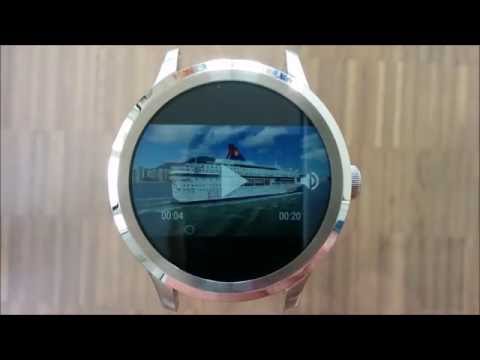
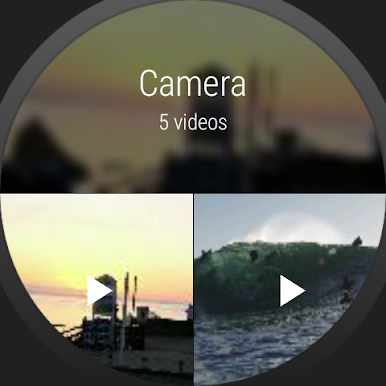
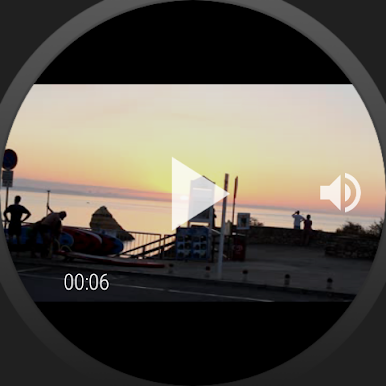
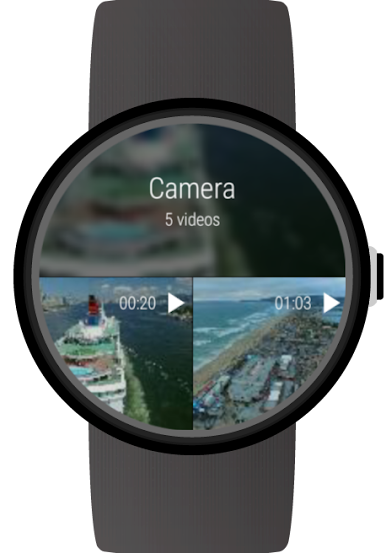
So, Video Gallery for Wear OS is basically a handy way to check out all your videos right from a smartwatch, but when running it through something like BlueStacks on a PC, it feels a bit like flipping through your phone’s gallery – just with a smarter setup. The app organizes everything from the camera, WhatsApp, even download folders, and pops them up right in one spot. There are these monthly folders, too, which makes it a lot easier to track down specific clips from a while back instead of digging through a huge pile.
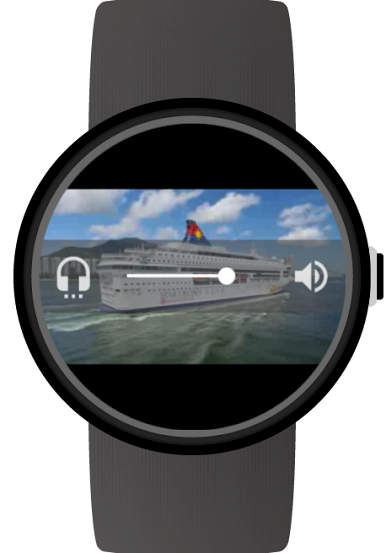
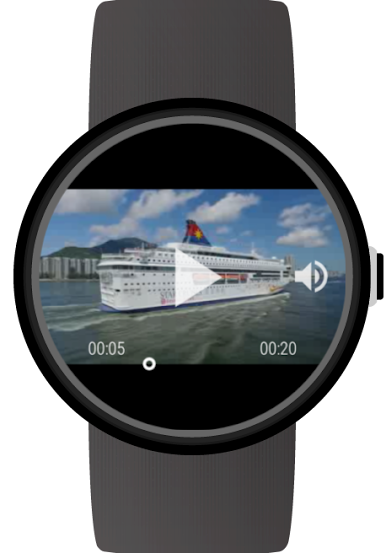
Scrolling through videos is smooth, and there are controls for play, pause, or even adjusting the volume if you’re actually watching videos directly on a wearable, though that part’s more of a novelty from a PC. Some features are locked for the free users — only about ten videos per folder show up without grabbing the upgrade. One neat thing is you can share videos directly from the app, which could be useful if someone wants to send off a quick clip via email, and even deleting unwanted ones is just a tap away. The idea is to make video browsing quick and flexible, whether it’s on an actual smartwatch or just trying things out on an emulator like BlueStacks, and it seems to do that without much hassle or setup required.
BlueStacks brings your apps to life on a bigger screen—seamless and straightforward.
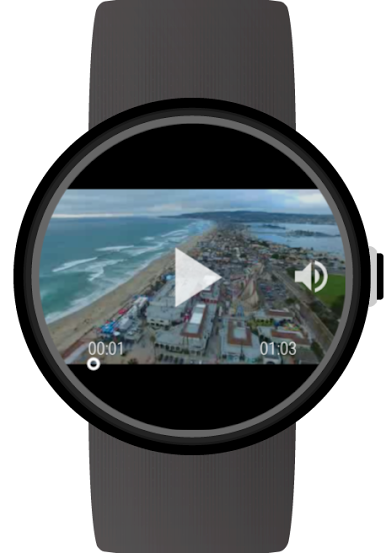
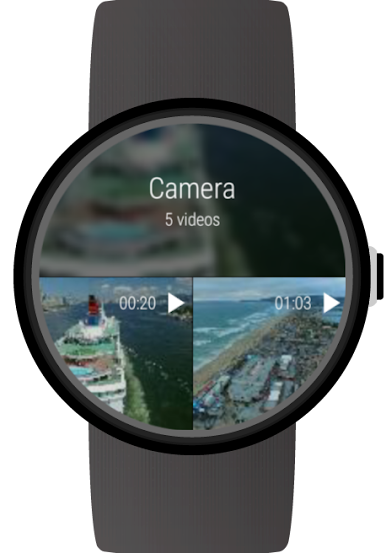

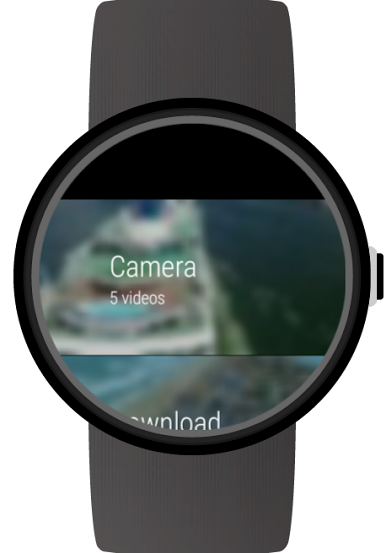
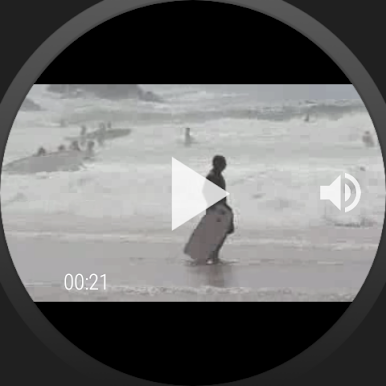
Play Video Gallery for Wear OS on PC. It’s easy to get started.
-
Download and install BlueStacks on your PC
-
Complete Google sign-in to access the Play Store, or do it later
-
Look for Video Gallery for Wear OS in the search bar at the top right corner
-
Click to install Video Gallery for Wear OS from the search results
-
Complete Google sign-in (if you skipped step 2) to install Video Gallery for Wear OS
-
Click the Video Gallery for Wear OS icon on the home screen to start playing

