


Wingo
Play on PC with BlueStacks – the Android Gaming Platform, trusted by 500M+ gamers.

Page Modified on: Oct 28, 2025
Play Wingo on PC or Mac
Bring your A-game to Wingo, the Card game sensation from Nessma El Jadida. Give your gameplay the much-needed boost with precise game controls, high FPS graphics, and top-tier features on your PC or Mac with BlueStacks.
About the Game
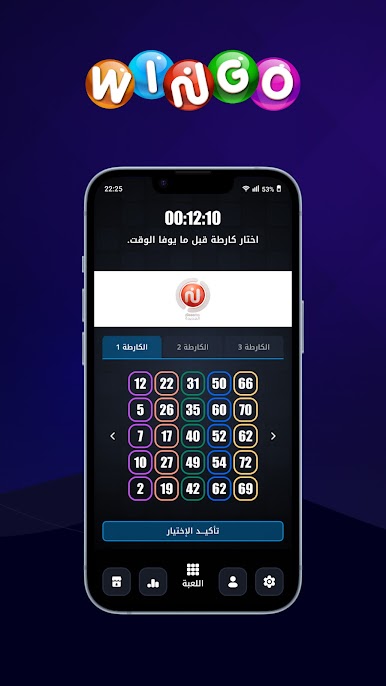
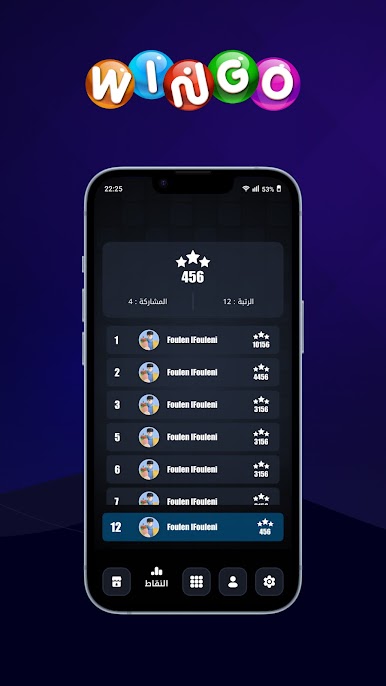
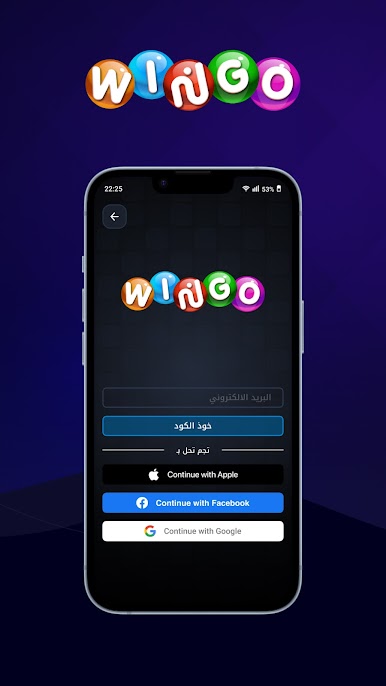
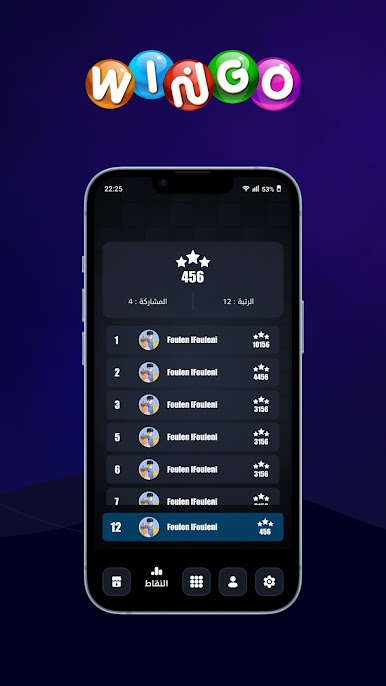
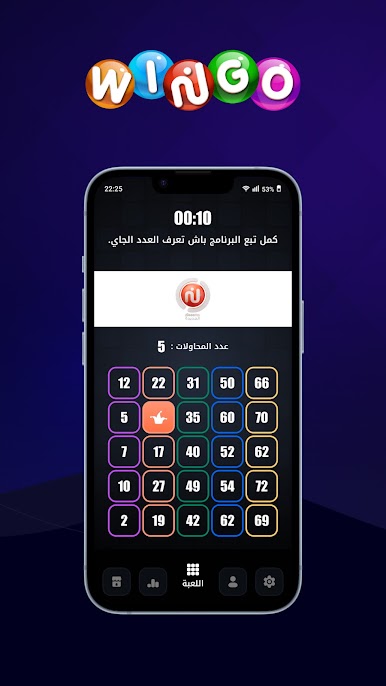
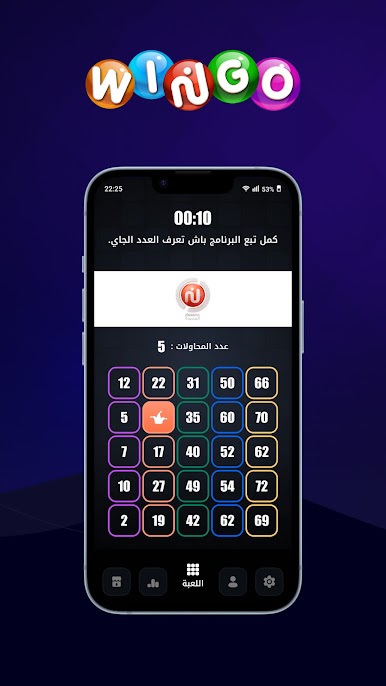
Wingo, brought to you by Nessma El Jadida, is all about that card game thrill—except it’s cranked up with a lively multiplayer twist. You’ll join in on regularly scheduled live draws, matching your own number grids as the action unfolds. Whether you want to create an account or just hop right in, Wingo’s got you covered for those laid-back gaming sessions or for when you’re feeling competitive.
Game Features
-
Live Draw Fun
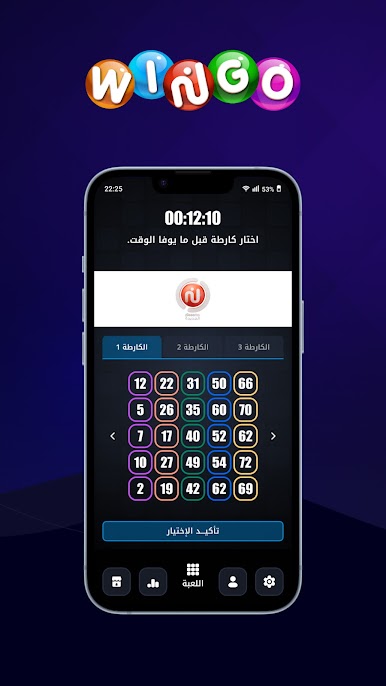
Watch the numbers roll out in real-time and mark them right on your card as the suspense builds. It’s easy to join in and see how your grid stacks up against everyone else playing. -
Jump In, No Hassle
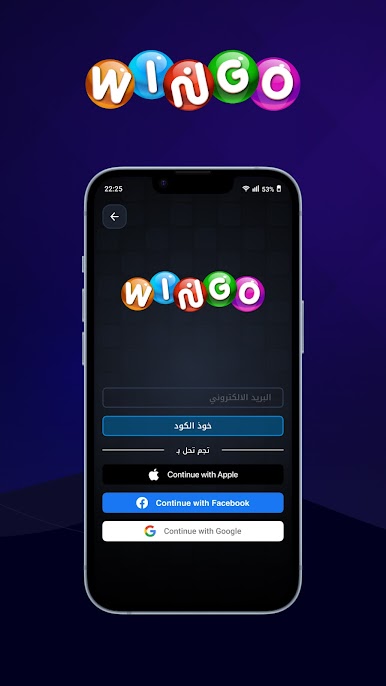
Not in the mood to register an account? No problem. You can play straight from the homepage, giving you instant access whenever you want to join the next draw. -
Different Card Types
Choose from classic 5×5 grids or try something bigger, like 7×7 cards, especially during special events. Each round mixes things up with 75 or 90 balls—makes every session feel new. -
Fresh Updates All Year
Wingo gets regular modes and event tweaks, so you never know what’s coming next. All the latest changes show up right in the app, so you’re always in the loop. -
Catch the Action on TV
If you’re a fan of a genuine live experience, you can follow the live draws on the Nessma El Jadida channel for that extra bit of excitement. -
Smooth Play on BlueStacks
Want a bigger screen or more comfortable setup? Fire up Wingo using BlueStacks and bring the card-matching action to your computer—no sweat.
Slay your opponents with your epic moves. Play it your way on BlueStacks and dominate the battlefield.
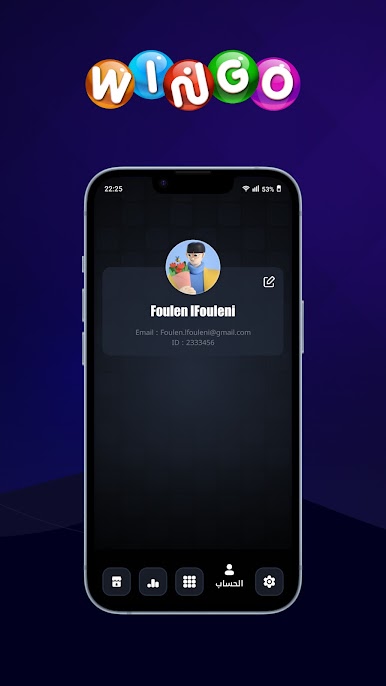
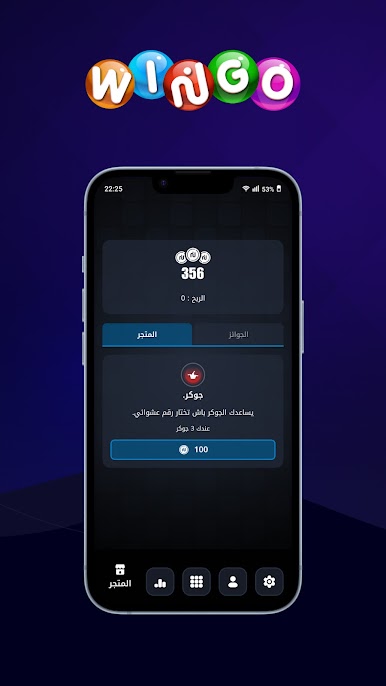
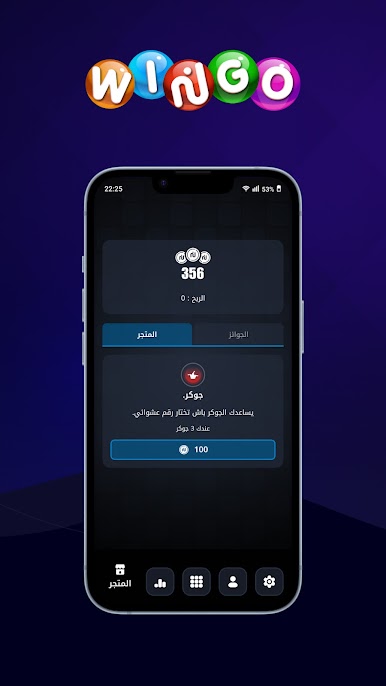
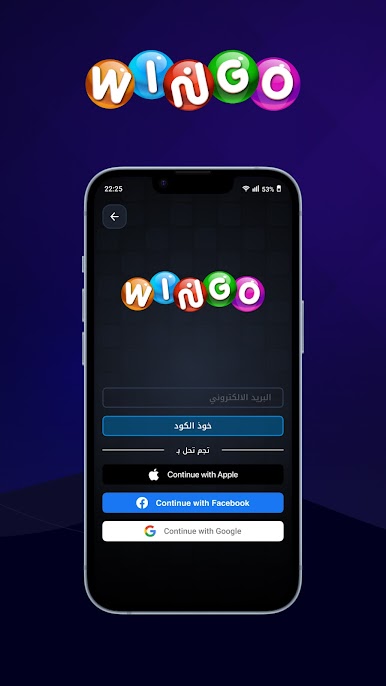
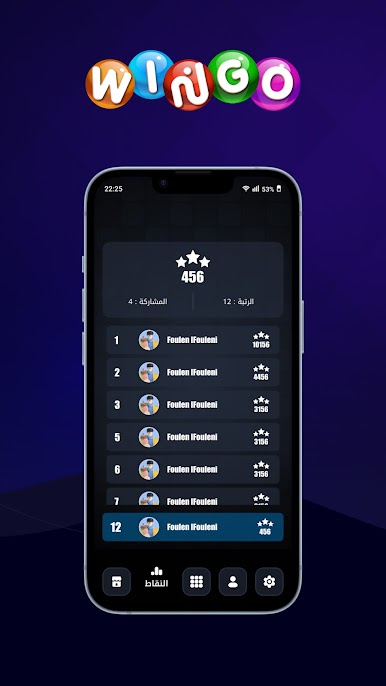
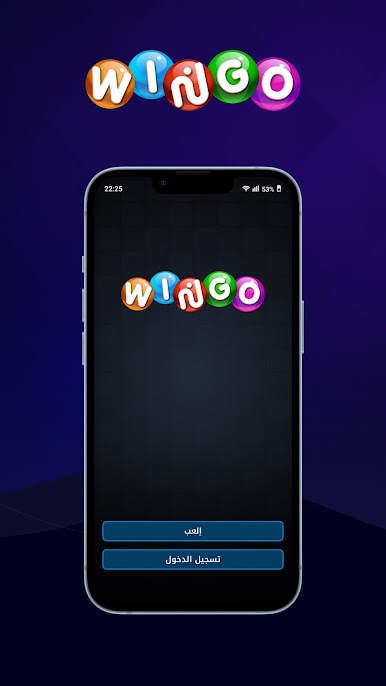
Play Wingo on PC. It’s easy to get started.
-
Download and install BlueStacks on your PC
-
Complete Google sign-in to access the Play Store, or do it later
-
Look for Wingo in the search bar at the top right corner
-
Click to install Wingo from the search results
-
Complete Google sign-in (if you skipped step 2) to install Wingo
-
Click the Wingo icon on the home screen to start playing

