Cx File Explorer
Play on PC with BlueStacks – the Android Gaming Platform, trusted by 500M+ gamers.

Page Modified on: Jul 27, 2026
Main Cx File Explorer on PC
Key features
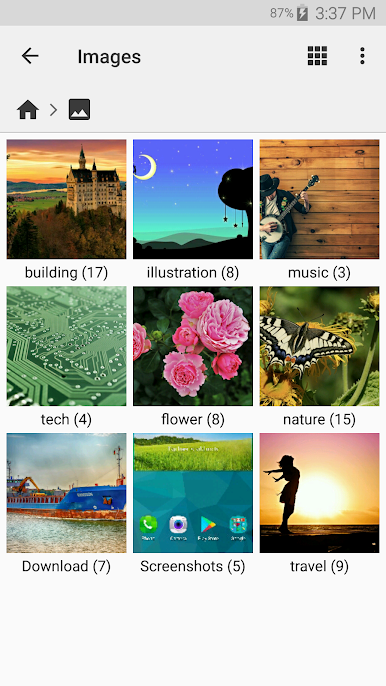
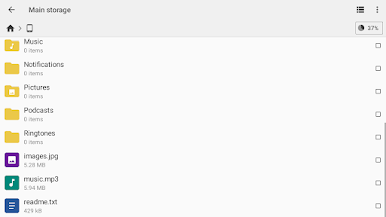
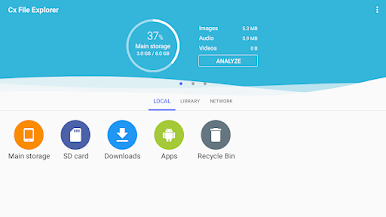
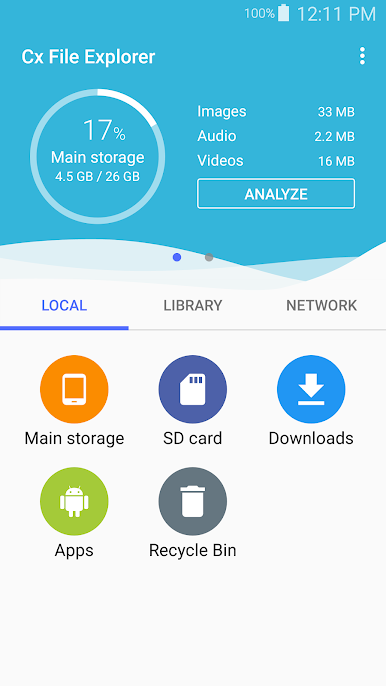
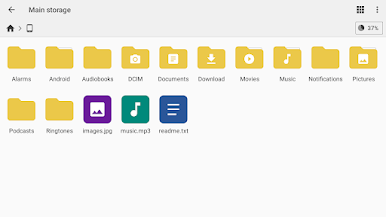
Organize your files and folders: With a user-friendly UI, you can easily browse, move, copy, compress, rename, extract, delete, create and share files (folders) on both internal and external storage of your mobile device.
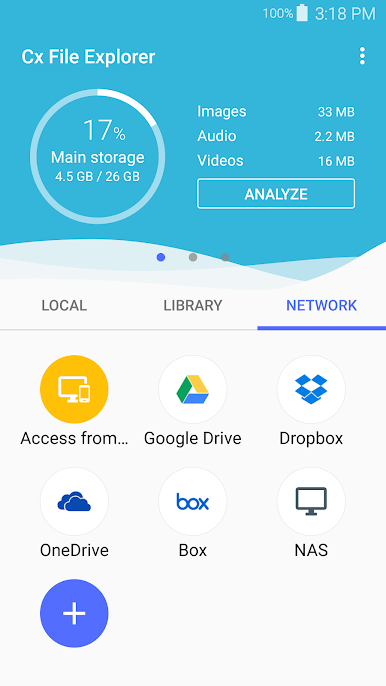
Access files on cloud storage: You can manage the files on cloud storages.
Access files on NAS (Network-attached storage): You can access files within remote or shared storage like FTP, FTPS, SFTP, SMB, WebDAV, and LAN. Also you can access your mobile device from PC using FTP(File Transfer Protocol).
Manage your apps: You can manage the apps installed on your mobile device.
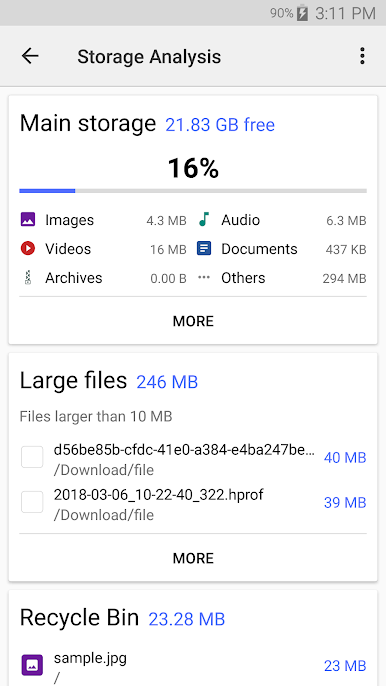
Analyze and manage your storage: Cx File Explorer provides visualized storage analysis so that you can quickly scan the available space and manage it. The Recycle bin also helps you easily manage your storage.
Clean up storage quickly: Discover and clean junk files, duplicate files and unused apps in storage cleaner.
Supported devices: Android TV, phone and tablet
Material Design interface: Cx File Explorer uses the Material Design interface.
If you are looking for a file manager app that has simple and sleek interface with full features, Cx File Explorer would be the best choice.

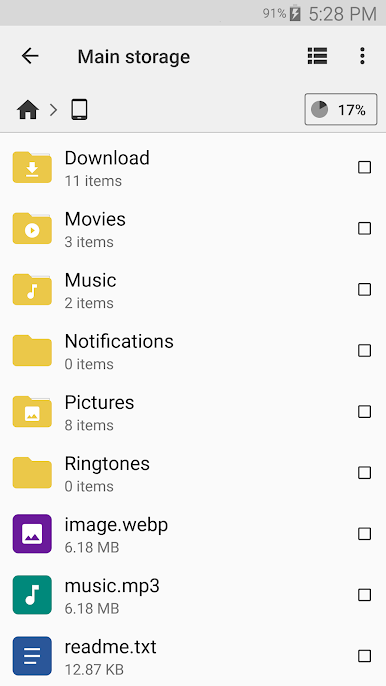

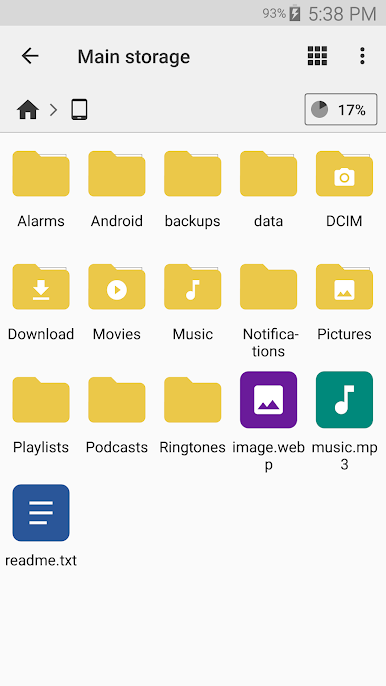
Play Cx File Explorer on PC. It’s easy to get started.
-
Download and install BlueStacks on your PC
-
Complete Google sign-in to access the Play Store, or do it later
-
Look for Cx File Explorer in the search bar at the top right corner
-
Click to install Cx File Explorer from the search results
-
Complete Google sign-in (if you skipped step 2) to install Cx File Explorer
-
Click the Cx File Explorer icon on the home screen to start playing