

MyPhoneExplorer Client
Play on PC with BlueStacks – the Android Gaming Platform, trusted by 500M+ gamers.

Page Modified on: Jan 31, 2026
Play MyPhoneExplorer Client on PC
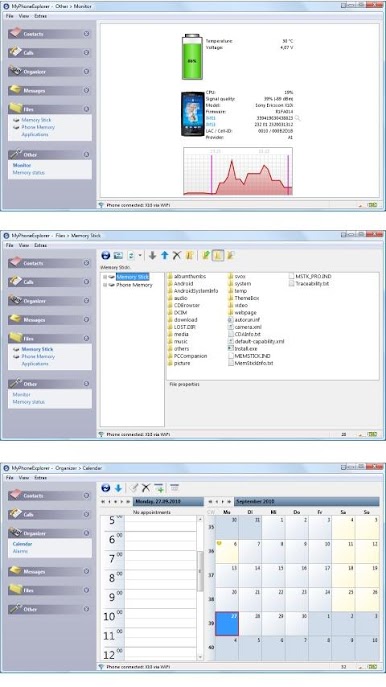
Control your phone through your desktop with mouse and keyboard, create screenshots,... For this feature the app uses the 'Accessibility Service' of your phone.
Some other features:
- sync your contacts with Microsoft Outlook, Thunderbird, SeaMonkey, Lotus Notes, Tobit David, Windows Contacts,..
- sync your calendar with Microsoft Outlook, Thunderbird, Sunbird, Lotus Notes, Tobit David, Windows Calendar,...
- sync your notes with Microsoft Outlook, Lotus Notes and Windows StickyNotes
- manage your SMS: download to PC, backup, delete, send SMS from desktop
- view the call list of the phone, archive calls, delete them, backup call lists
- create and restore backups (includes contacts, calendar, tasks, notes, sms and files)
- manage installed apps, launch, install, uninstall or download them to your desktop
- use the pc keyboard as input method for your phone
- handle calls from your desktop, dial numbers, accept, reject and end calls
- and much more....
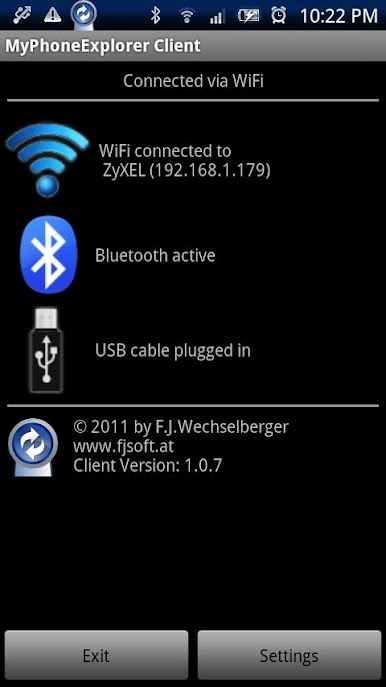
Connection via WiFi, USB-Cable or Bluetooth. No data will be handled throught external servers, the whole communication is local.
This is the client which is needed for phone, you'll need also the desktop-software which can be downloaded at www.fjsoft.at.
Play MyPhoneExplorer Client on PC. It’s easy to get started.
-
Download and install BlueStacks on your PC
-
Complete Google sign-in to access the Play Store, or do it later
-
Look for MyPhoneExplorer Client in the search bar at the top right corner
-
Click to install MyPhoneExplorer Client from the search results
-
Complete Google sign-in (if you skipped step 2) to install MyPhoneExplorer Client
-
Click the MyPhoneExplorer Client icon on the home screen to start playing

