

Talking Stopwatch & Timer
Play on PC with BlueStacks – the Android Gaming Platform, trusted by 500M+ gamers.

Page Modified on: Mar 5, 2026
Run Talking Stopwatch & Timer [Countdown/up Interval] on PC or Mac
Why limit yourself to your small screen on the phone? Run Talking Stopwatch & Timer [Countdown/up Interval], an app by L.droid, best experienced on your PC or Mac with BlueStacks, the world’s #1 Android emulator.
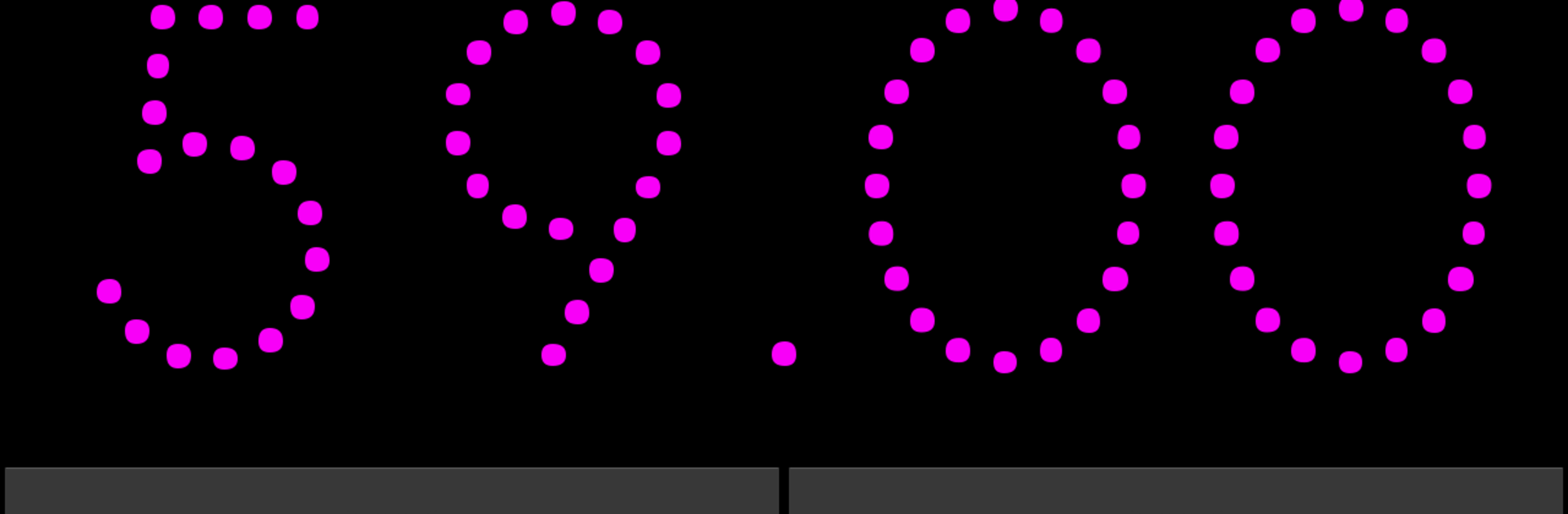
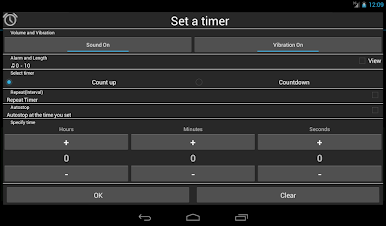
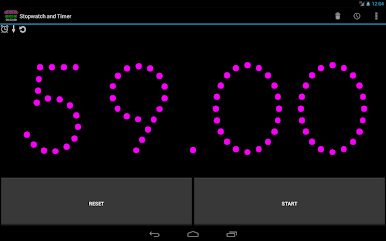
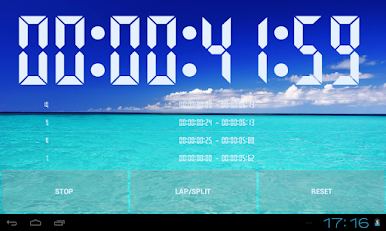
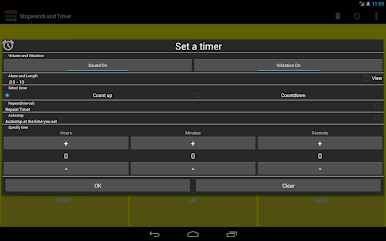
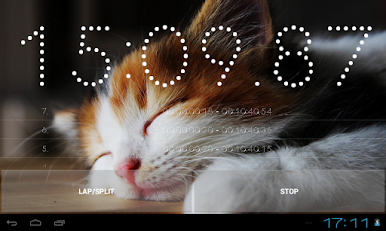
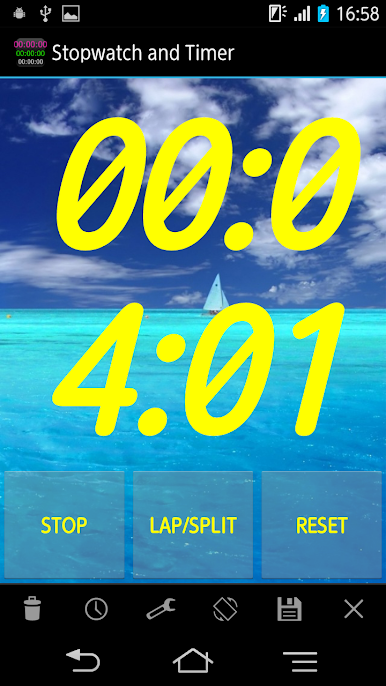
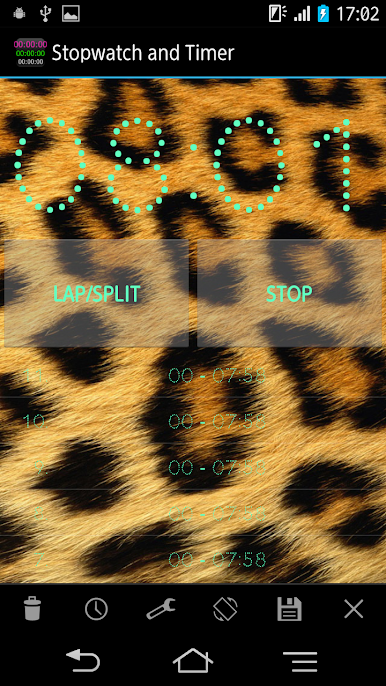
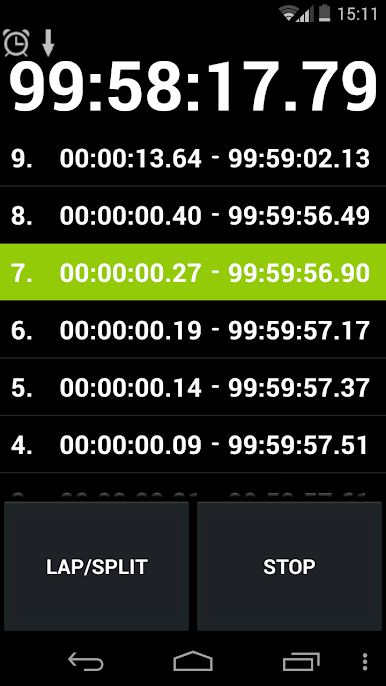
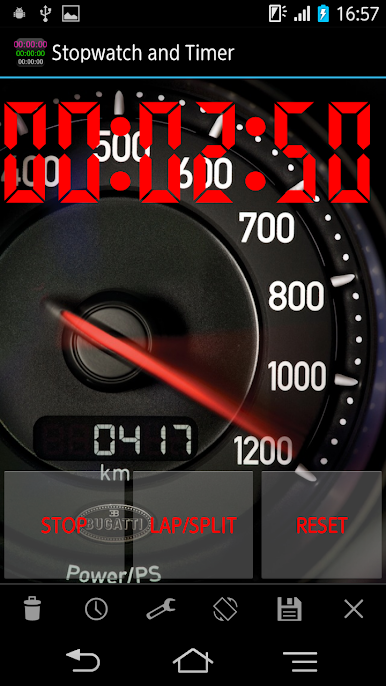
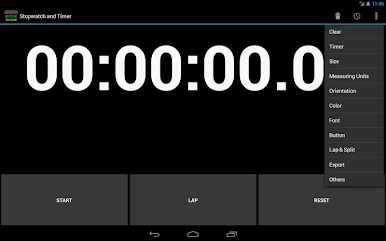
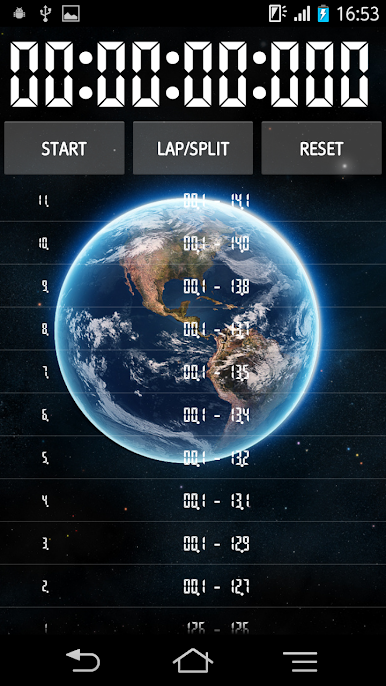
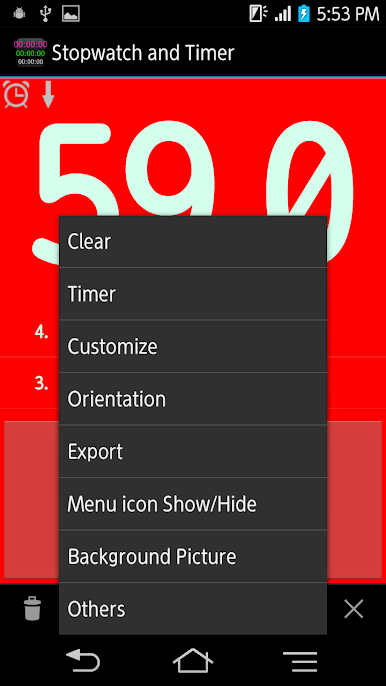
Thinking about this app feels like describing a neat little toolkit that will quietly do exactly what is needed, no fuss. The interface is plain and friendly so it is easy to set a countdown, a count up, or build an interval sequence without hunting through menus. Timers can speak the time out loud using the phone’s text to speech, play a chosen music file, vibrate, or just pop a silent notification. Laps and split times are available, and the timing resolution can be tuned all the way down to milliseconds for things that need that level of detail.
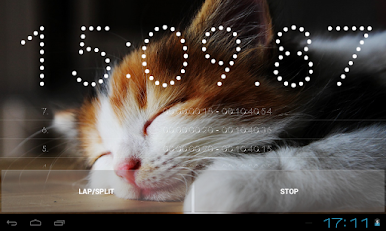
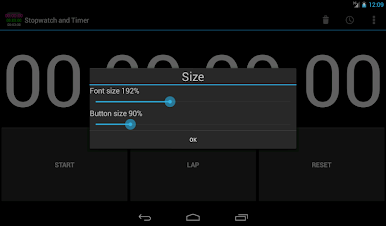
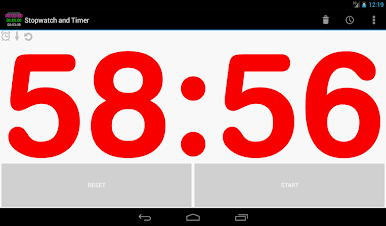
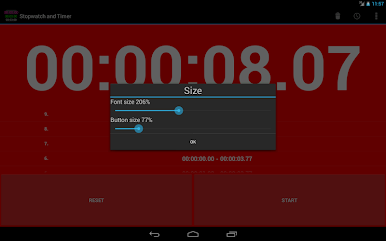
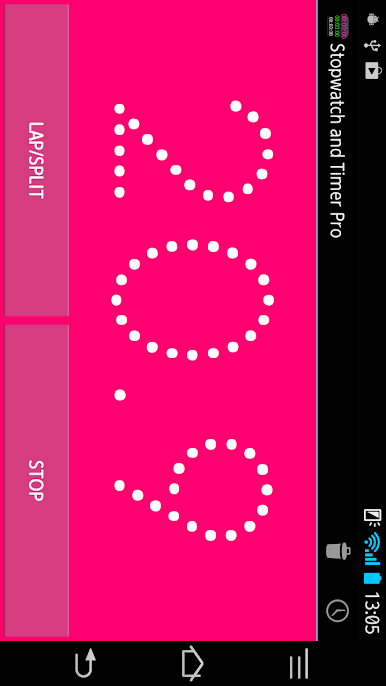
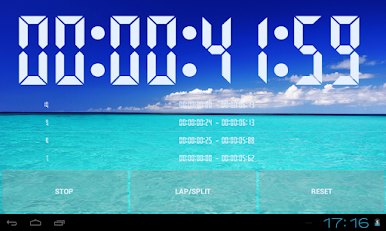
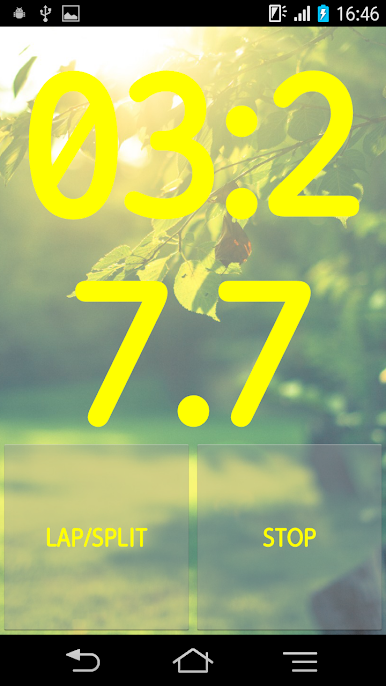
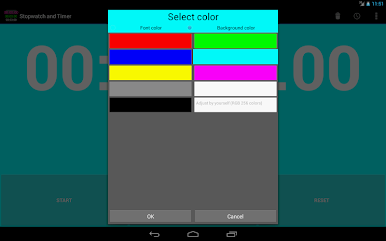
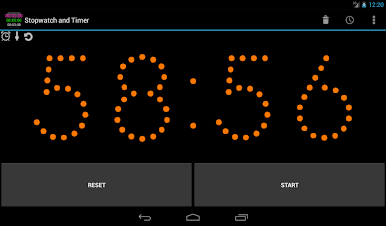
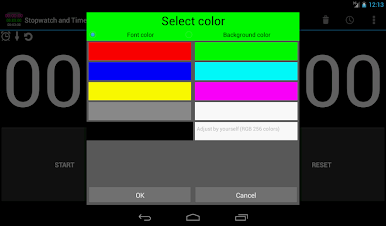
The real charm is how customizable it is. Colors, fonts, button size, even a background picture or wallpaper can be changed so it looks like something that belongs on the screen. Orientation can be fixed to full screen, and results can be exported if a log is needed. It is built to run with low battery use and will keep counting even if the device sleeps or shuts down. That reliability is handy when running an egg timer, a Tabata set, a chess clock, or a long countdown to an event. Running it on BlueStacks on a PC makes it feel like a tidy desktop timer that is simple, flexible, and quietly dependable.
BlueStacks gives you the much-needed freedom to experience your favorite apps on a bigger screen. Get it now.
Play Talking Stopwatch & Timer on PC. It’s easy to get started.
-
Download and install BlueStacks on your PC
-
Complete Google sign-in to access the Play Store, or do it later
-
Look for Talking Stopwatch & Timer in the search bar at the top right corner
-
Click to install Talking Stopwatch & Timer from the search results
-
Complete Google sign-in (if you skipped step 2) to install Talking Stopwatch & Timer
-
Click the Talking Stopwatch & Timer icon on the home screen to start playing

