

GFX Tool for BGMI & PUBG
Play on PC with BlueStacks – the Android Gaming Platform, trusted by 500M+ gamers.

Page Modified on: Jan 21, 2026
Overview
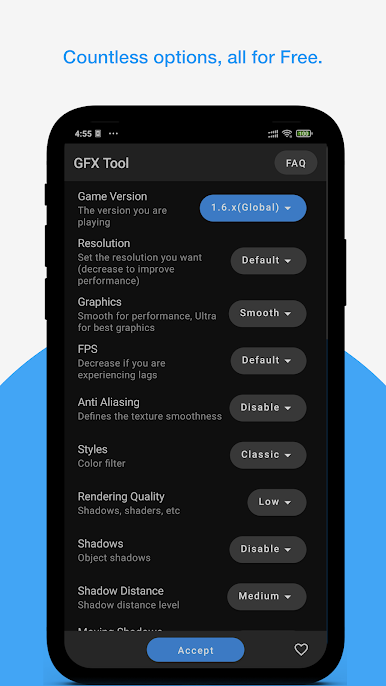
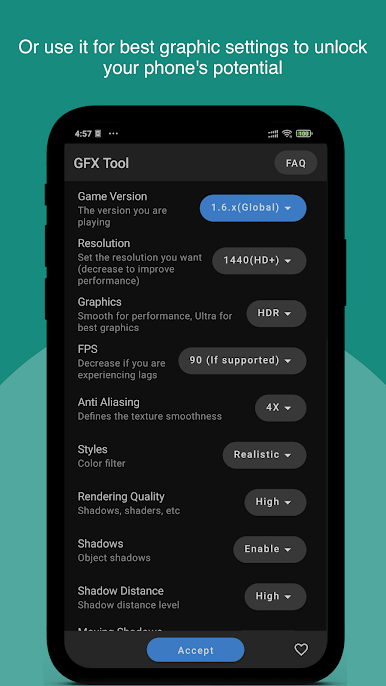
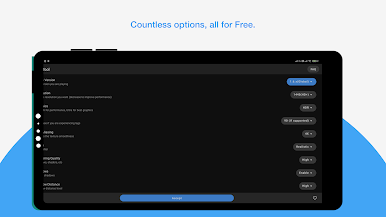
Best collection of GFX settings :
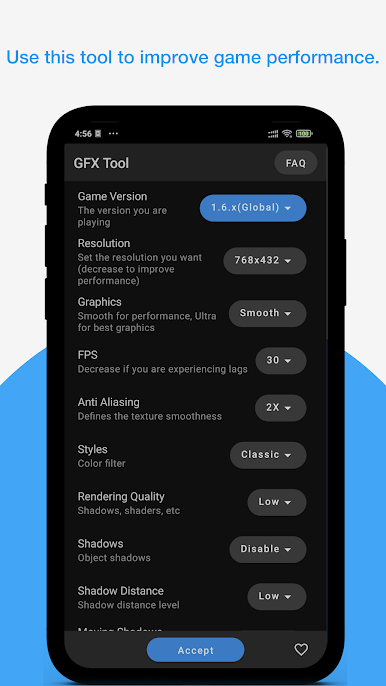
• Change Resolution
• Unlock HDR, Ultra graphics, and fps levels: 30, 40, 60 and 90.
• Anti aliasing options
• Styles
• Rendering Quality for shadows, shaders, etc.
• Configure shadows
• Change Texture Quality
• Ability to save controls and other user settings.
• Enable or Disable water reflection and sound quality, etc.
• And much more other useful options
Follow the video instructions(included within the app) for instructions to enable or disable or change GFX tool settings.
In our app "GFX Tool", you will find all the GFX Tool options cataloged for language translation, optimisations and quality settings change with just one click and ready in a few seconds to be used.
Play GFX Tool for BGMI & PUBG on PC. It’s easy to get started.
-
Download and install BlueStacks on your PC
-
Complete Google sign-in to access the Play Store, or do it later
-
Look for GFX Tool for BGMI & PUBG in the search bar at the top right corner
-
Click to install GFX Tool for BGMI & PUBG from the search results
-
Complete Google sign-in (if you skipped step 2) to install GFX Tool for BGMI & PUBG
-
Click the GFX Tool for BGMI & PUBG icon on the home screen to start playing

