


Lock Screen
Play on PC with BlueStacks – the Android Gaming Platform, trusted by 500M+ gamers.

Page Modified on: Jan 21, 2026
Run Lock Screen on PC or Mac
What’s better than using Lock Screen by highsecure? Well, try it on a big screen, on your PC or Mac, with BlueStacks to see the difference.
About the App
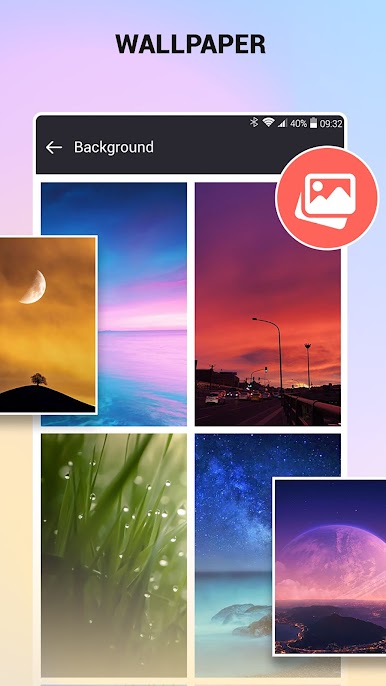
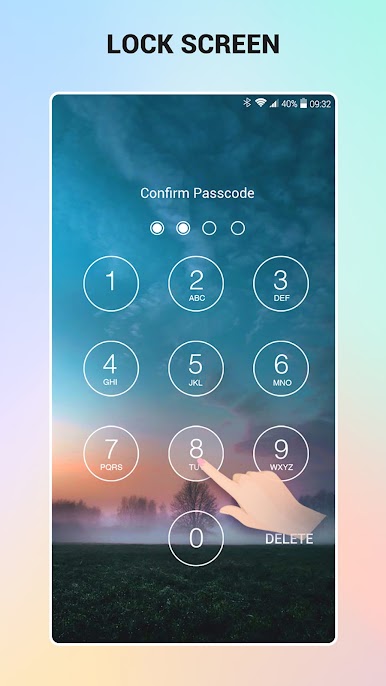
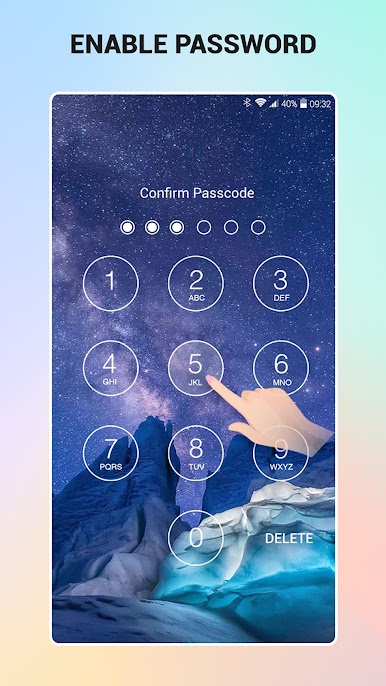
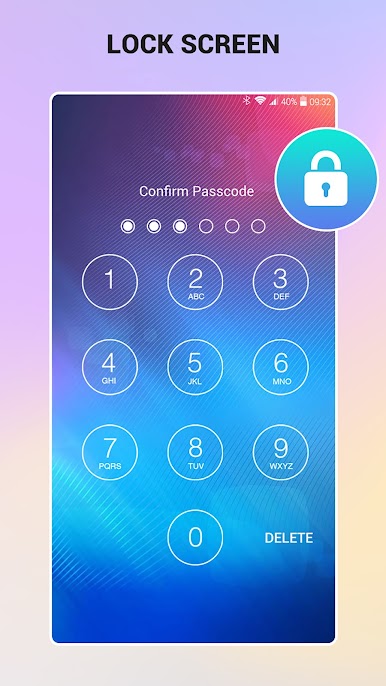
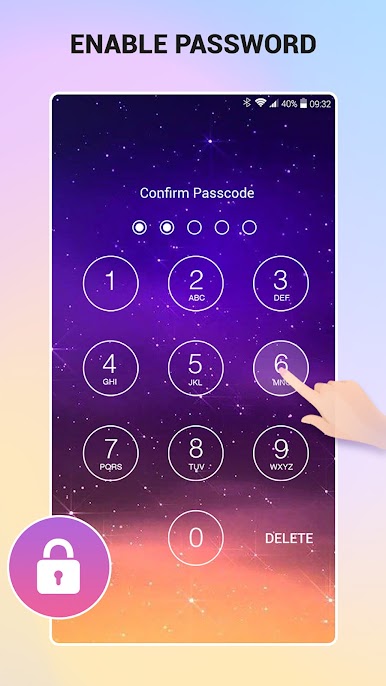
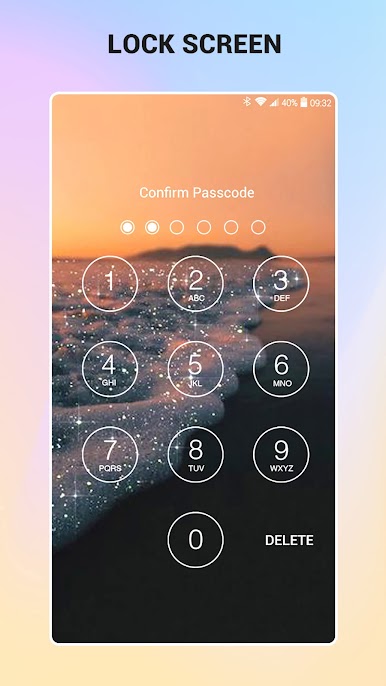
Lock Screen by highsecure is your go-to app for securing your phone effortlessly. With its eye-catching design and simple interface, setting up a keypad passcode is a breeze. Expect customizable backgrounds ranging from stunning wallpapers to personal photos, making your lock screen uniquely yours.
App Features
Easy Lock Activation
– Toggle your lock screen on or off with just a tap.
Personalize Your Experience
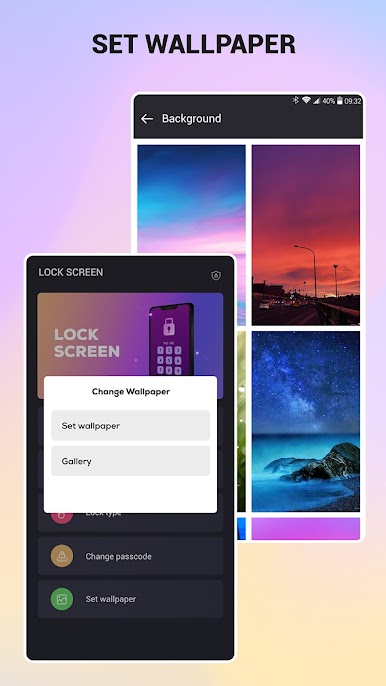
– Choose from a vast collection of beautiful wallpapers.
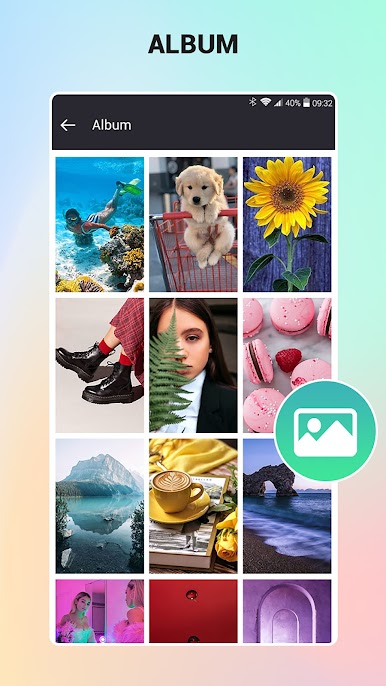
– Upload your own photos from the gallery to personalize your lock screen’s backdrop.
Hassle-Free Shortcuts
– Create custom shortcuts to quickly lock and turn off your screen, perfect for when your power button decides to act up.
Straightforward Setup
– Enable your lock screen with a simple password creation.
– Easily uninstall through the app’s settings if needed.
With Lock Screen’s handy features and intuitive design, managing your phone’s security has never been this effortless, especially when used alongside BlueStacks on your PC.
Switch to BlueStacks and make the most of your apps on your PC or Mac.
Play Lock Screen on PC. It’s easy to get started.
-
Download and install BlueStacks on your PC
-
Complete Google sign-in to access the Play Store, or do it later
-
Look for Lock Screen in the search bar at the top right corner
-
Click to install Lock Screen from the search results
-
Complete Google sign-in (if you skipped step 2) to install Lock Screen
-
Click the Lock Screen icon on the home screen to start playing

