


Smart lock screen
Play on PC with BlueStacks – the Android Gaming Platform, trusted by 500M+ gamers.

Page Modified on: Mar 20, 2026
Run Smart lock screen on PC or Mac
Upgrade your experience. Try Smart lock screen, the fantastic Tools app from highsecure, from the comfort of your laptop, PC, or Mac, only on BlueStacks.
About the App
Ever felt like your phone needs a security boost and a touch of personal flair? Smart lock screen by highsecure brings you just that—a smart way to safeguard your device and keep things looking fresh. Whether you’re all about maximum security or love switching up your screen’s vibe, this app makes it easy to do both, all in one place. Expect features that fit your lifestyle, no matter your age or tech know-how.
App Features
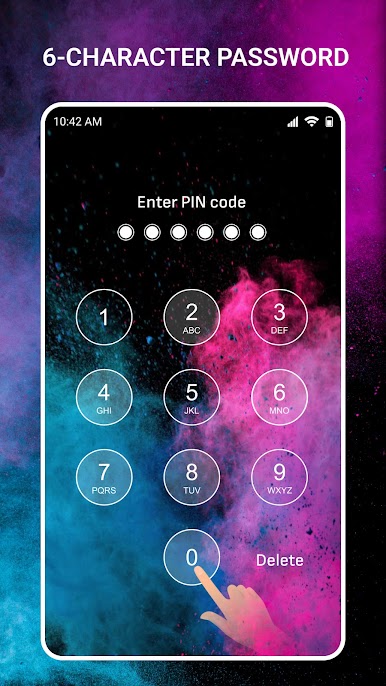
Multiple Ways to Lock
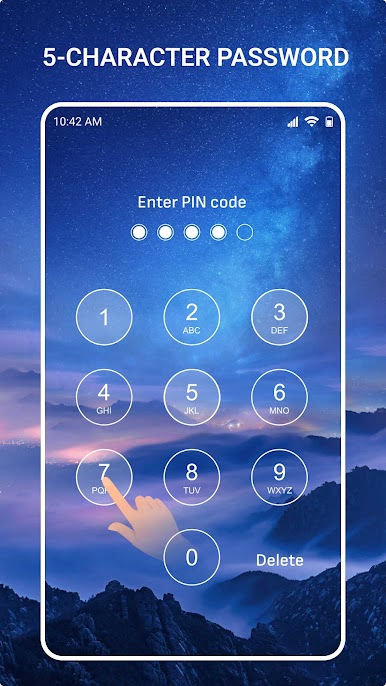
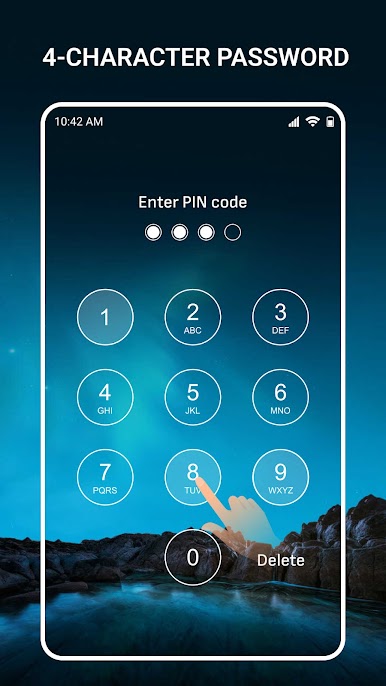
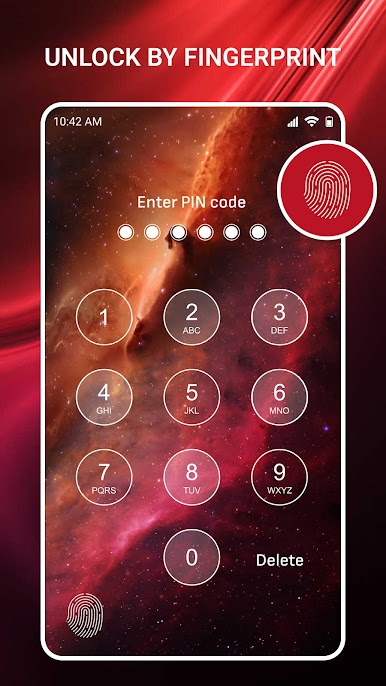
– Choose how you want to protect your device: go with a classic passcode, a quick fingerprint, or even set time-based passwords. If you’re always forgetting numbers, the timer option lets you avoid the hassle—your password changes by the hour or minute, adding a clever layer of security.
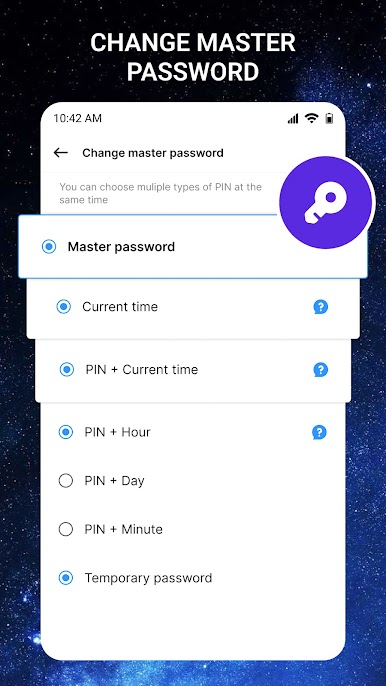
Custom Password Management
– Mix and match your locks. Use a master passcode, tie your password to the current time, or hand out a temporary access code if someone else needs your phone for a bit. Temporary codes come in clutch for parents sharing devices with kids—even set usage time so access expires automatically.
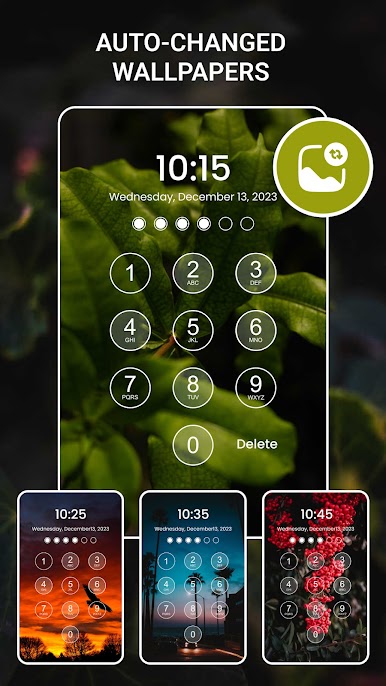
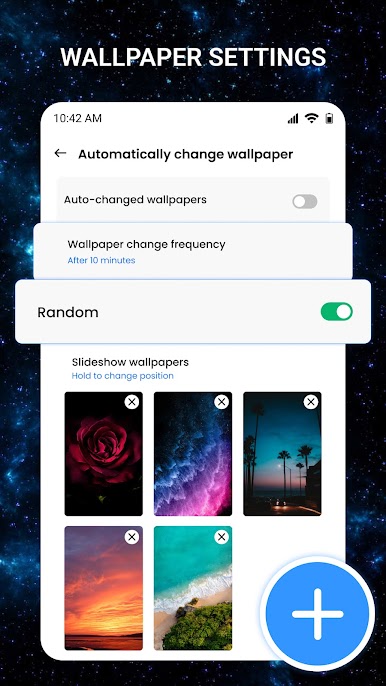
Auto-Changing Wallpapers
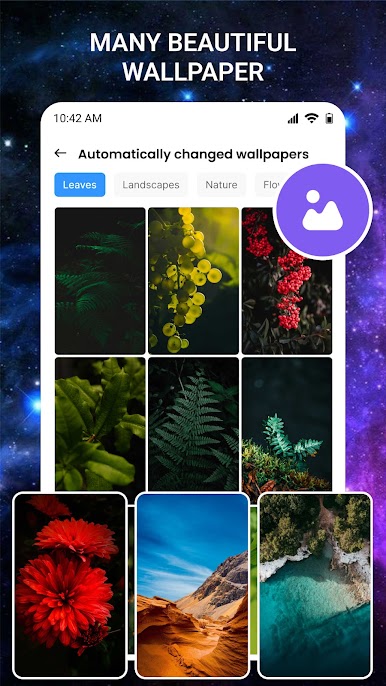
– Shake things up every time you unlock your phone. Pick images from the built-in library or upload your favorite shots, and let the app swap out your lock screen backgrounds automatically. There’s a whole spread of themes like Nature, Space, Landscapes, and more—pick whatever feels right each day.
Stealth Mode with Fake Icons
– Don’t want people knowing you’ve got a lock app? Switch up the icon! Choose from familiar looks like a camera, weather, or music icon so your security stays low-key. Even if someone’s savvy about your lock, the disguise makes accessing your security settings way harder.
You can also try out Smart lock screen on bigger screens using BlueStacks if you’re curious, adding flexibility to where and how you put your security settings to work.
Switch to BlueStacks and make the most of your apps on your PC or Mac.
Play Smart lock screen on PC. It’s easy to get started.
-
Download and install BlueStacks on your PC
-
Complete Google sign-in to access the Play Store, or do it later
-
Look for Smart lock screen in the search bar at the top right corner
-
Click to install Smart lock screen from the search results
-
Complete Google sign-in (if you skipped step 2) to install Smart lock screen
-
Click the Smart lock screen icon on the home screen to start playing

