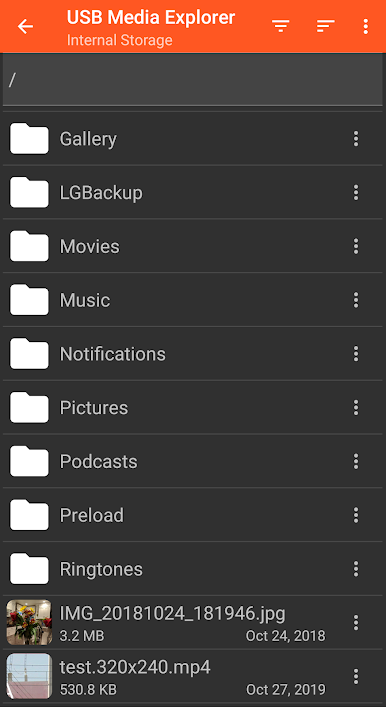
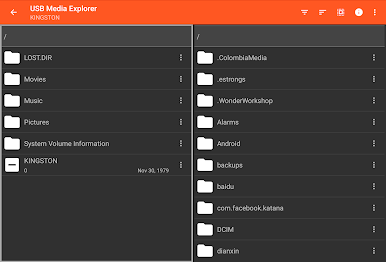
USB Media Explorer
Play on PC with BlueStacks – the Android Gaming Platform, trusted by 500M+ gamers.

Page Modified on: Aug 22, 2025
Play USB Media Explorer on PC
Supported Devices:
- Flash/Pen Drives
- Card Readers
- Hard Drives2
- Cameras3
- Other Android devices4
- MTP/UMS audio players5
- Some DVD drives6
Additional Hardware Requirements:
- Connecting most devices will require a microUSB OTG cable or USB C to USB adapter. These are available from most major retail websites.
Notes:
1. Video and audio formats not natively supported by Android (AVI, Dolby, DTS, WMV) may require a third party player like VLC.
2. Hard drives require considerable power and may require an external power source, like a powered USB hub.
3. Only cameras with storage are supported. Live image devices like endoscopes and webcams are not supported.
4. To access another Android device, put the target device in MTP/File Transfer Mode.
5. Most “i” devices use a proprietary protocol. These are NOT supported.
6. Only DVD drives that support AV Connect mode or similar are supported. See your DVD drive manual. Commercial DVDs are not supported.
Support:
- If you have an issue, you can tap "Homesoft" from the About screen for email support. I read and reply to reviews, but due to their one way nature, it’s difficult to resolve issues. If you have a support request, please include the Android device you are using, the USB device you are trying to use and a description of the problem.

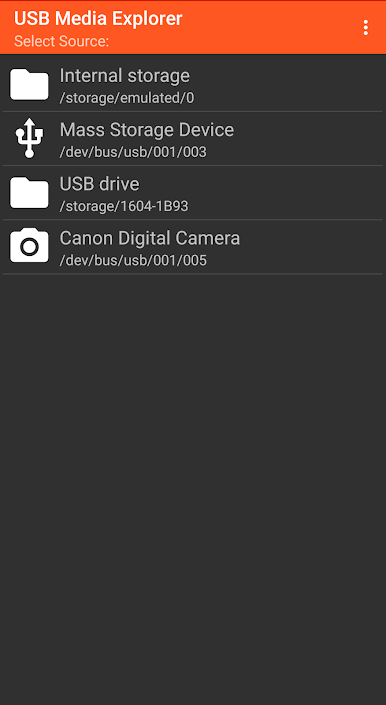
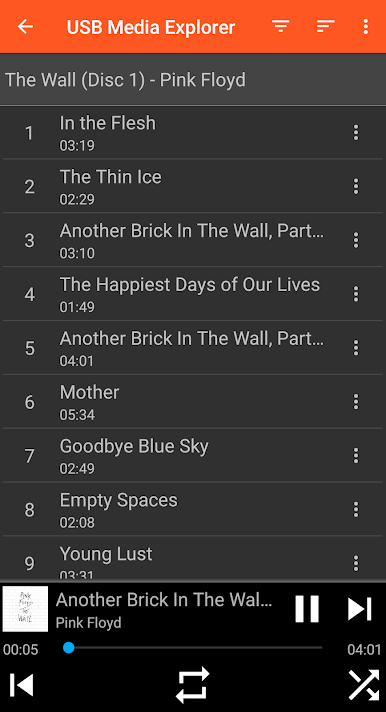
Play USB Media Explorer on PC. It’s easy to get started.
-
Download and install BlueStacks on your PC
-
Complete Google sign-in to access the Play Store, or do it later
-
Look for USB Media Explorer in the search bar at the top right corner
-
Click to install USB Media Explorer from the search results
-
Complete Google sign-in (if you skipped step 2) to install USB Media Explorer
-
Click the USB Media Explorer icon on the home screen to start playing