


Lock screen passcode
Play on PC with BlueStacks – the Android Gaming Platform, trusted by 500M+ gamers.

Page Modified on: Jan 14, 2026
Run lockscreen passcode on PC or Mac
Get freedom from your phone’s obvious limitations. Use lockscreen passcode, made by kunkun apps, a Tools app on your PC or Mac with BlueStacks, and level up your experience.
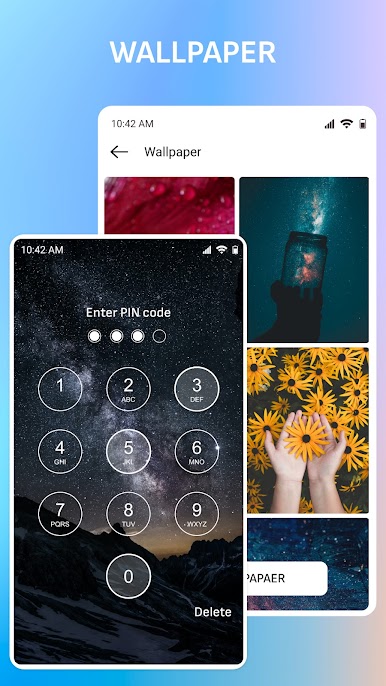
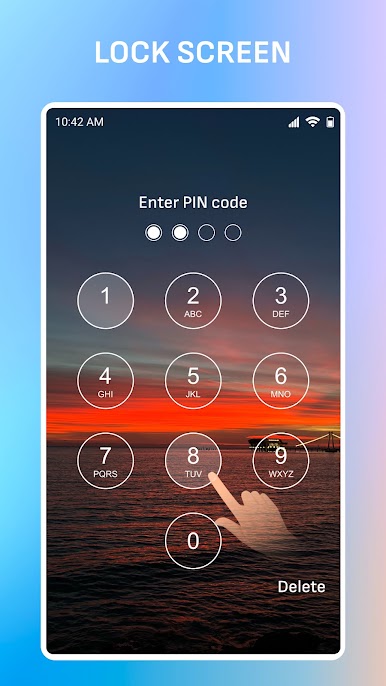
This app is basically a lockscreen that lets users set up a passcode, so no one can poke around in their stuff without permission. It keeps everything straightforward: punch in the code of your choice and the screen’s locked up, just like the classic smartphone stuff. It doesn’t overload with settings. The interface is pretty clean and easy to figure out in a few minutes, which is nice for anyone who just wants simple security without any complicated steps or extra hassle.
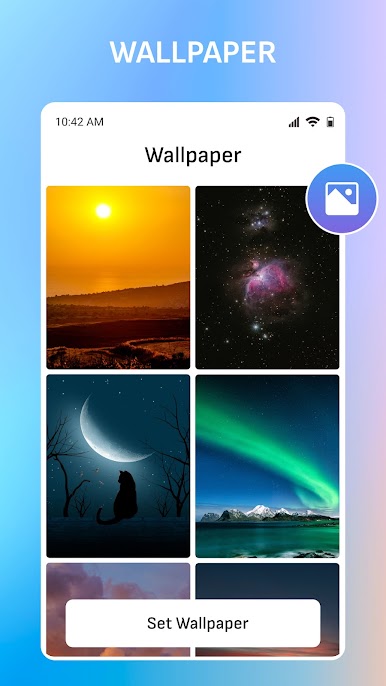
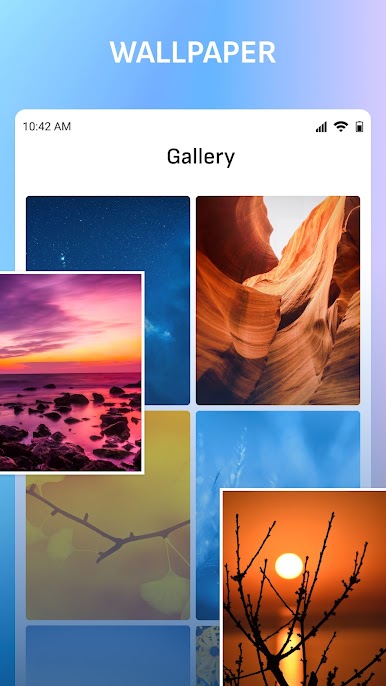
What’s a bit more fun is the wallpaper part. There are lots of different background designs, most of them pretty nicely put together, but it also lets anyone use a favorite photo or something personal. It works smoothly on PC with BlueStacks, too — opening it up feels just like being on a phone, but bigger. The lockscreen also displays info like battery life and network connection right there when it’s locked, which is kind of handy if someone wants to check those at a glance without having to unlock every time. Doesn’t seem to slow things down or use much power, since even on a low-spec machine or with other stuff open, it stays responsive. It’s not a flashy tool, but it does what it’s supposed to do. If keeping things private and a bit of visual customization is what someone wants, it just fits in without fuss.
Big screen. Bigger performance. Use BlueStacks on your PC or Mac to run your favorite apps.
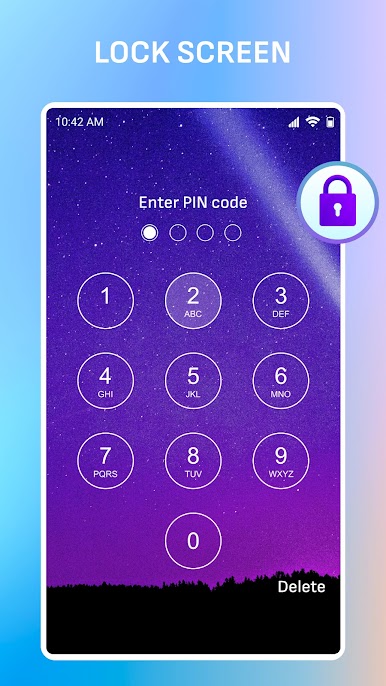
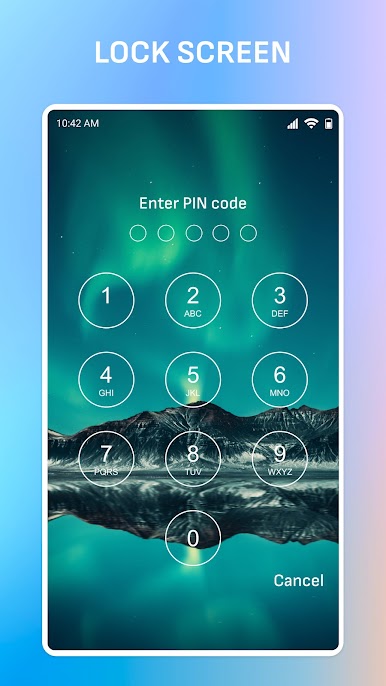
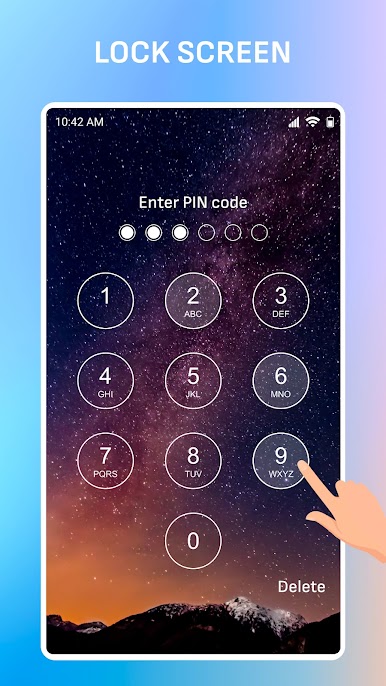
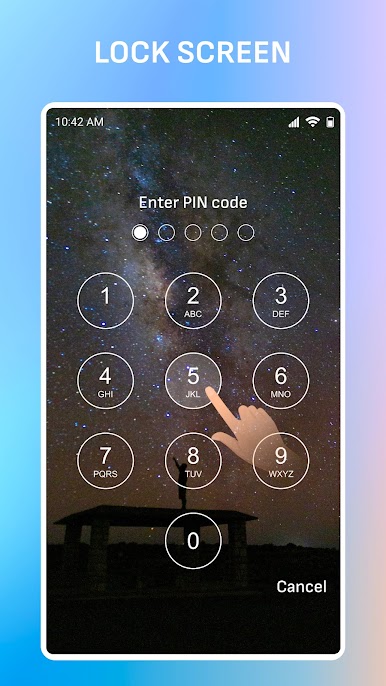
Play Lock screen passcode on PC. It’s easy to get started.
-
Download and install BlueStacks on your PC
-
Complete Google sign-in to access the Play Store, or do it later
-
Look for Lock screen passcode in the search bar at the top right corner
-
Click to install Lock screen passcode from the search results
-
Complete Google sign-in (if you skipped step 2) to install Lock screen passcode
-
Click the Lock screen passcode icon on the home screen to start playing

