

M8Bit Retro Emulator
Play on PC with BlueStacks – the Android Gaming Platform, trusted by 500M+ gamers.

Page Modified on: May 10, 2026
Play M8Bit Retro Emulator on PC
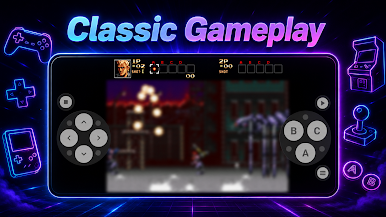
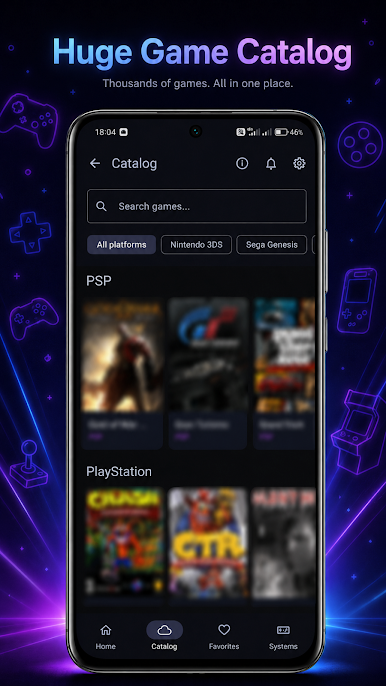
Play and manage your retro games in one clean app with fast emulation, smooth controls, save states, gamepad support and a modern game catalog.
Key features:
• Retro game emulator for classic console-style games
• Fast and stable emulation on Android devices
• Android TV support with a horizontal interface
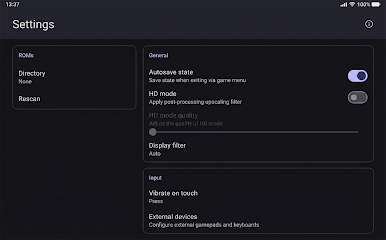
• External gamepad support
• Customizable touch controls
• Save states to continue your progress anytime
• Background installation and unpacking
• Resume downloads if your internet connection stops
• Adaptive game filter in the catalog
• Updated emulator cores for better compatibility
• Tilt sensor support in supported games
M8Bit is designed for players who want a simple way to enjoy retro gaming on Android without complicated setup. Open the app, choose a game, configure controls if needed, and start playing.
The app is optimized for smartphones, tablets and Android TV devices. Use touch controls on mobile or connect a Bluetooth gamepad for a console-like experience.
Perfect for fans of classic arcade games, retro handheld games, old-school platformers, racing games, fighting games, action games and adventure games.
Important:
M8Bit does not include copyrighted games. Users should only use game files they legally own.

Play M8Bit Retro Emulator on PC. It’s easy to get started.
-
Download and install BlueStacks on your PC
-
Complete Google sign-in to access the Play Store, or do it later
-
Look for M8Bit Retro Emulator in the search bar at the top right corner
-
Click to install M8Bit Retro Emulator from the search results
-
Complete Google sign-in (if you skipped step 2) to install M8Bit Retro Emulator
-
Click the M8Bit Retro Emulator icon on the home screen to start playing

