


Intune Managed Browser
Play on PC with BlueStacks – the Android Gaming Platform, trusted by 500M+ gamers.

Page Modified on: Dec 29, 2025
Overview
Features:
- Full compatibility with the Microsoft Office apps, protecting sensitive company data without impacting any of your personal information
- Enables you to open rights-restricted data in a more secure app
- Allows you to safely cut/copy/paste between apps managed with Microsoft Intune
- Helps you get to work faster by signing in once and getting access to all your SaaS apps using Microsoft MyApps
Important: This app works best with your work account and a connection to your company’s subscription to Microsoft Intune. Some functionality is unavailable in certain countries. If you have issues with this software or questions about its use (including your company’s privacy policy), contact your IT administrator. Do not contact your network operator, the device manufacturer, or Microsoft for support.
Microsoft Application License Terms
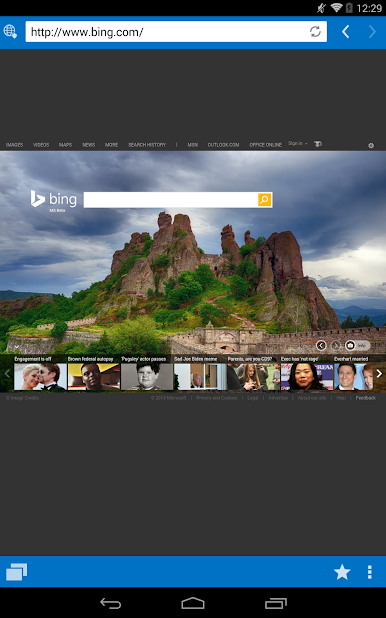
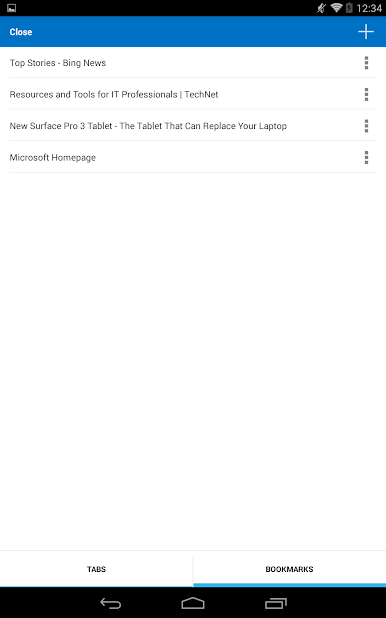
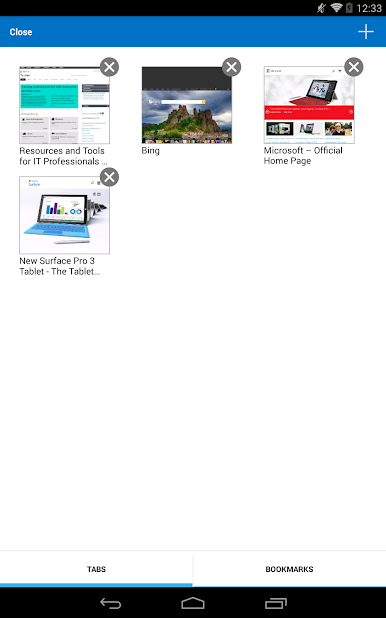
Play Intune Managed Browser on PC. It’s easy to get started.
-
Download and install BlueStacks on your PC
-
Complete Google sign-in to access the Play Store, or do it later
-
Look for Intune Managed Browser in the search bar at the top right corner
-
Click to install Intune Managed Browser from the search results
-
Complete Google sign-in (if you skipped step 2) to install Intune Managed Browser
-
Click the Intune Managed Browser icon on the home screen to start playing

