


Pass2U Wallet - Add store card
Play on PC with BlueStacks – the Android Gaming Platform, trusted by 500M+ gamers.

Page Modified on: Aug 5, 2025
Play Pass2U Wallet - Add store card on PC
Why choosing Pass2U Wallet?
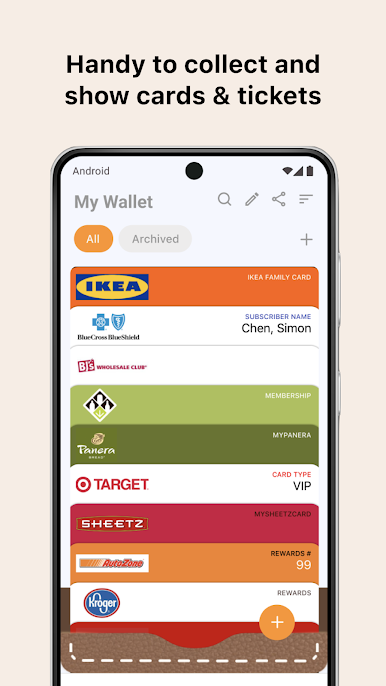
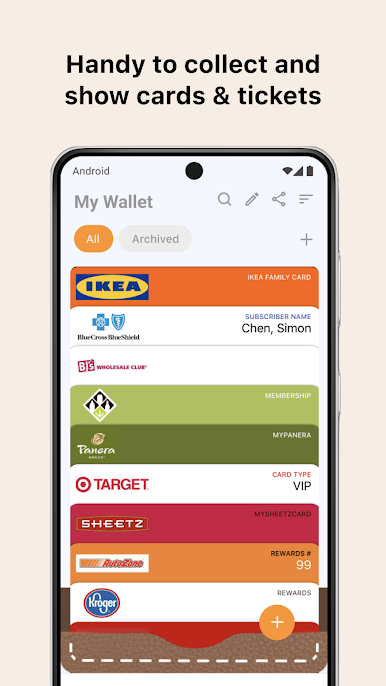
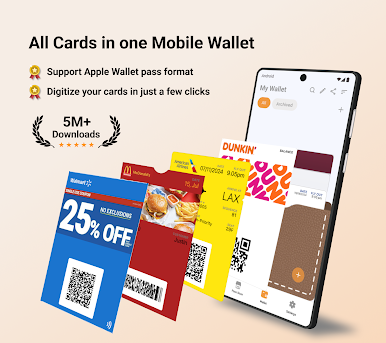
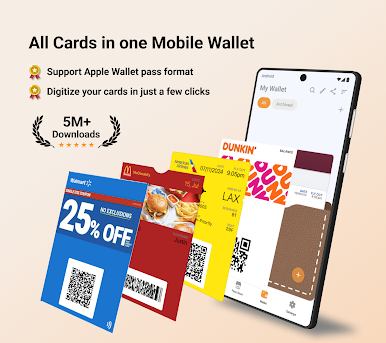
1. Create and customize a variety of digital passes: boarding passes, transport tickets, concert tickets, coupons, loyalty cards, event tickets, and more!
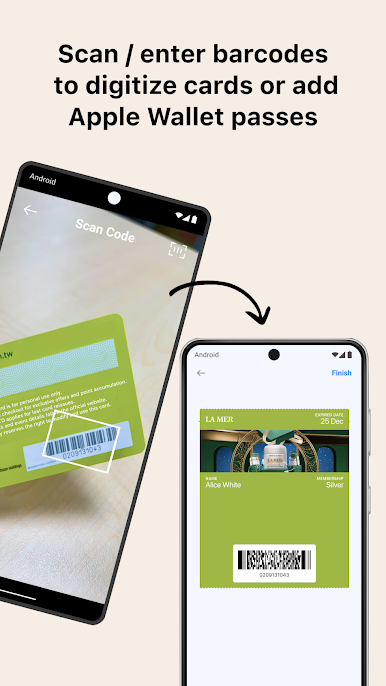
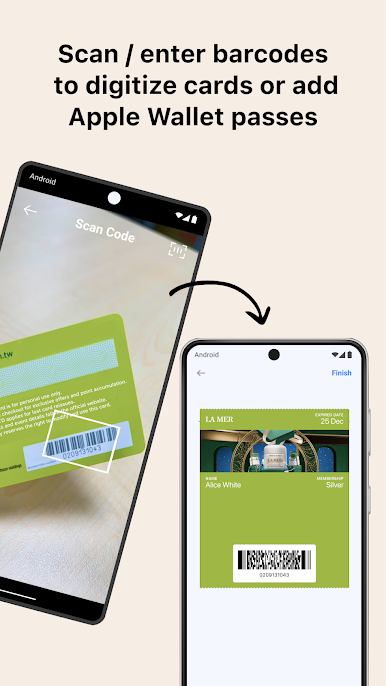
2. Scan barcodes containing web link, convert images and pdfs into passes, or download .pkpass files to add passes into Pass2U Wallet.
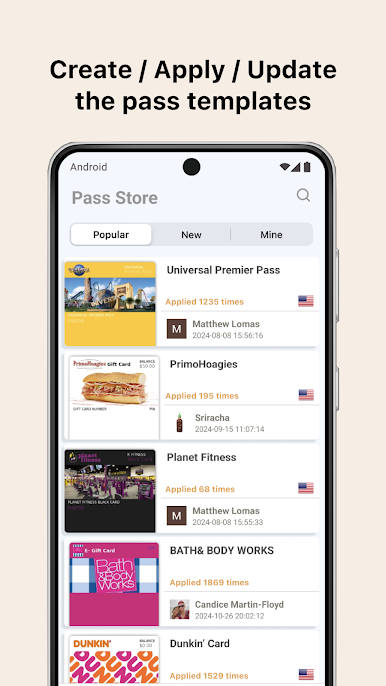
3. Design your own pass template, then apply it and add the pass to Google Wallet.
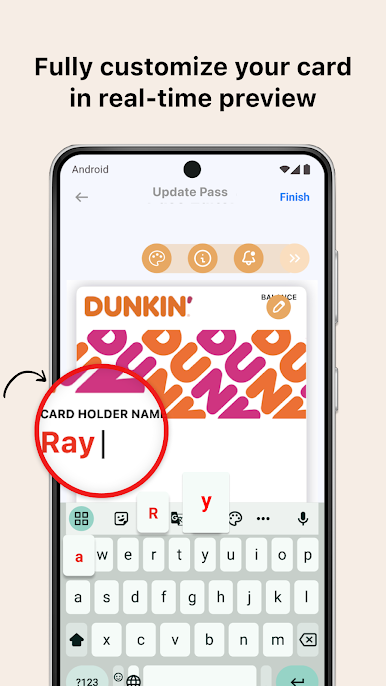
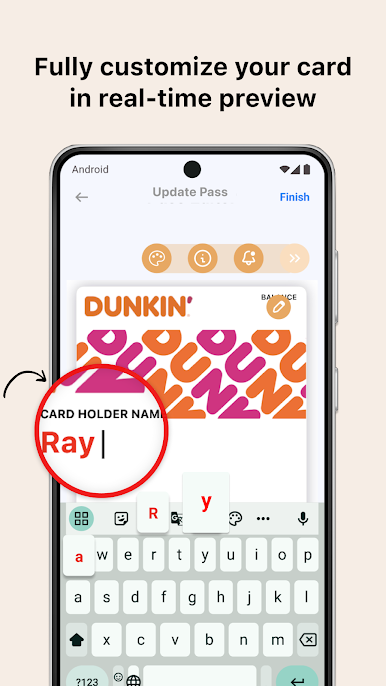
4. Edit your passes with real-time preview mode.
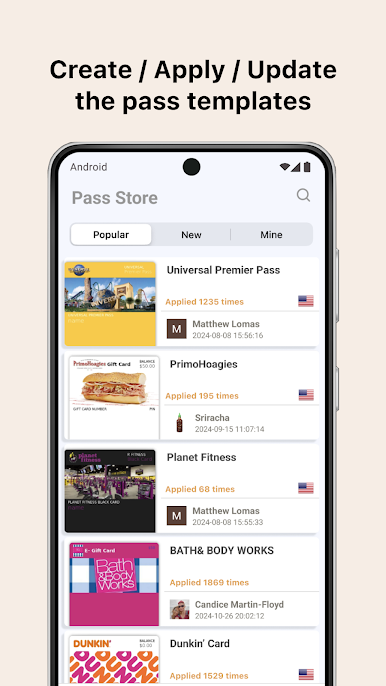
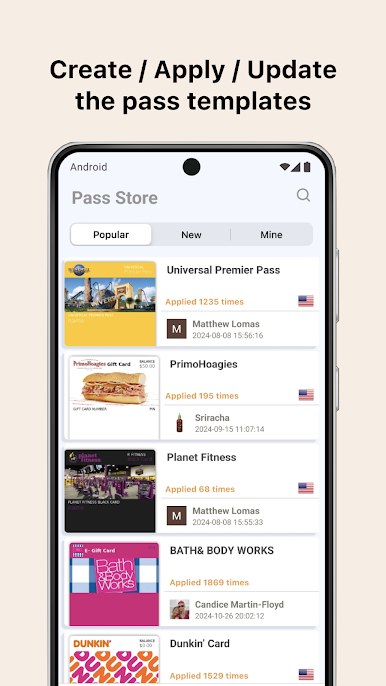
5. Choose from hundreds of popular templates in our Pass Store.
6. Backup and restore your passes via Google Drive for seamless cross-platform syncing.
7. Compatible with .pkpass files (iOS Wallet/Passbook format).
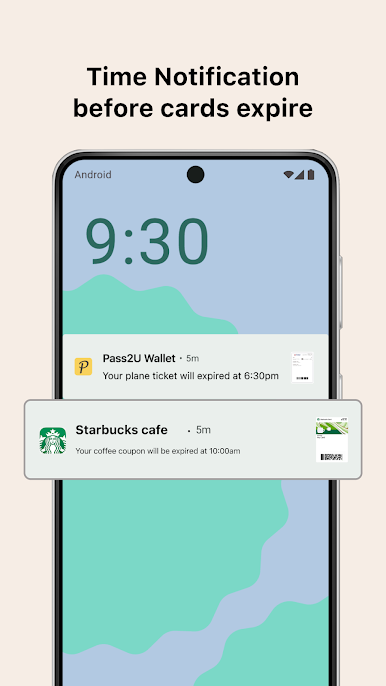
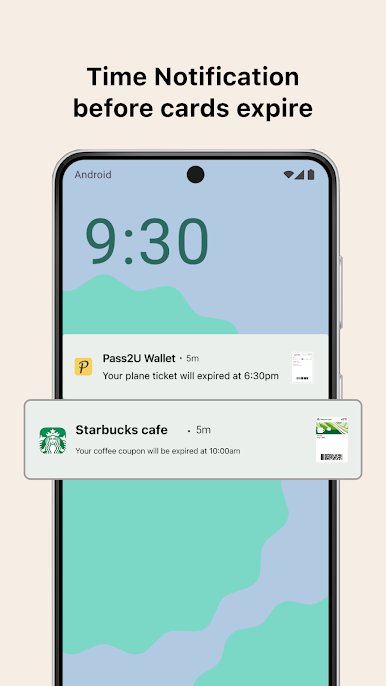
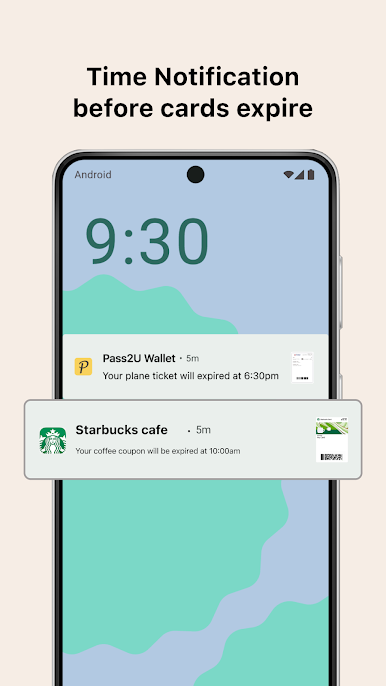
8. Receive notifications before your passes expire.
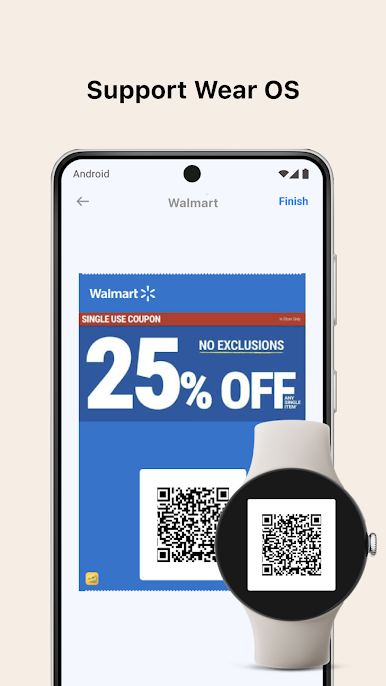
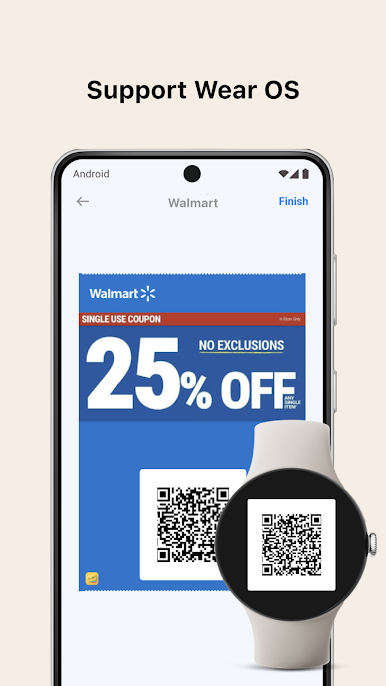
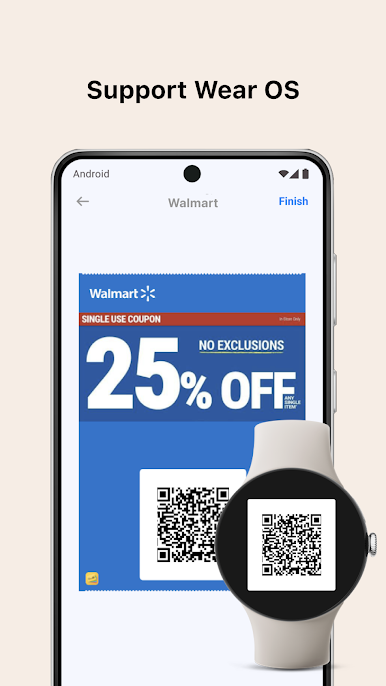
9. Use Wear OS for quick access to your digital cards.
※ Some features are included in Pro version.
Identity:Choose Google accounts to backup and restore passes
Photos/Media/Files:Add pass files of devices to Pass2U Wallet
Camera:Scan barcodes to add passes to Pass2U Wallet
Wi-Fi connection information:When Wi-Fi is connected, and re-register the failed registration of pass
Device ID:Need device IDs to update passes
Frequently Asked Questions:
1. How can I add a pass to Google Wallet?
When creating your pass template, make sure to enable the “Support Google Wallet” option. Once enabled, a Google Wallet icon will appear. After you apply the pass, you’ll be able to add it directly to Google Wallet.
2. How can I backup all of my passes?
You could go to setting of Pass2U Wallet > tap Backup > Choose the Google Drive account. Or Pass2U Wallet will help you automatically backup, while your phone on charging, connecting with Wi-fi, idling with over 24 hours.
3.How can I transfer all of my passes from old device to new device?
You could backup all of your passes to the Google Drive account in the old device. Then go to setting of Pass2U Wallet > tap Restore > Choose the Google Drive account.
4.How can I issue a lot of passes?
You could go to https://www.pass2u.net to design the pass what you want and send the pass to your customers.

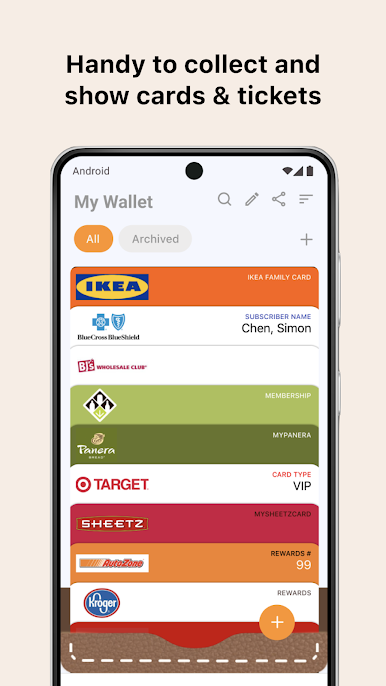
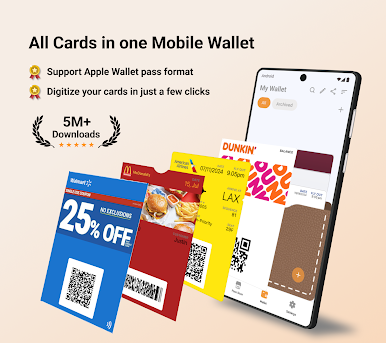
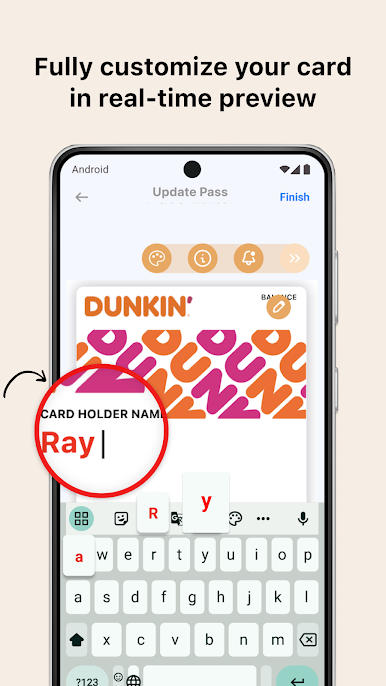
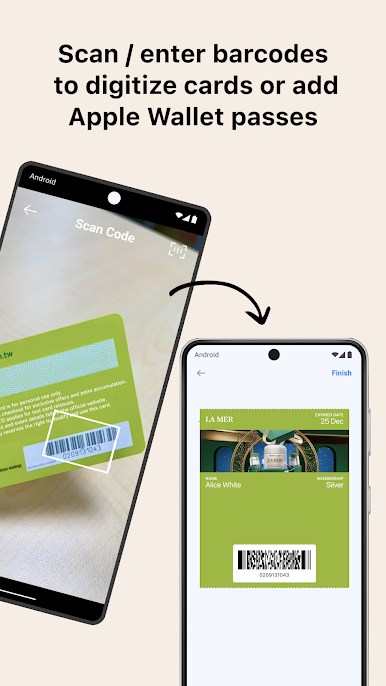
Play Pass2U Wallet - Add store card on PC. It’s easy to get started.
-
Download and install BlueStacks on your PC
-
Complete Google sign-in to access the Play Store, or do it later
-
Look for Pass2U Wallet - Add store card in the search bar at the top right corner
-
Click to install Pass2U Wallet - Add store card from the search results
-
Complete Google sign-in (if you skipped step 2) to install Pass2U Wallet - Add store card
-
Click the Pass2U Wallet - Add store card icon on the home screen to start playing

