

SD Card Test
Play on PC with BlueStacks – the Android Gaming Platform, trusted by 500M+ gamers.

Page Modified on: Mar 10, 2026
Run SD Card Test on PC or Mac
Multitask effortlessly on your PC or Mac as you try out SD Card Test, a Tools app by Zoltán Pallagi on BlueStacks.
About the App
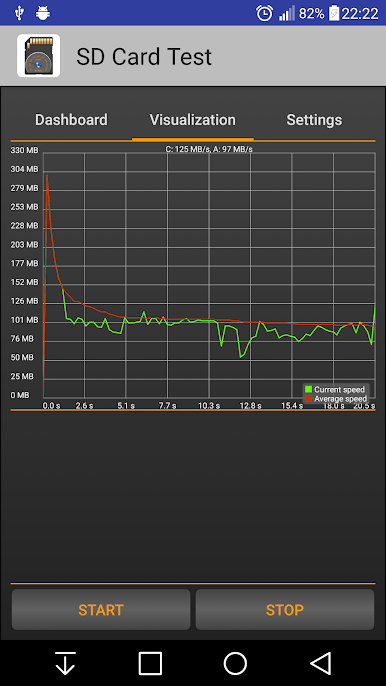
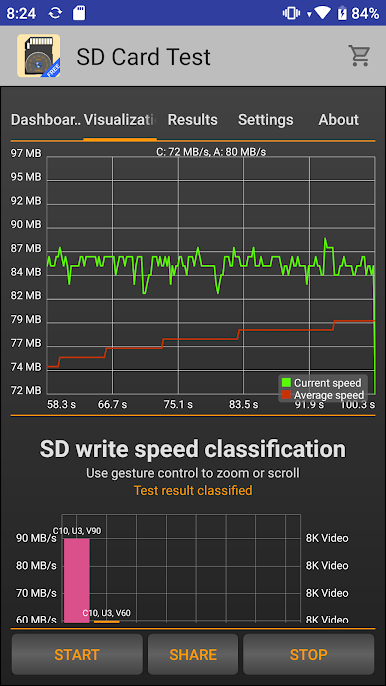
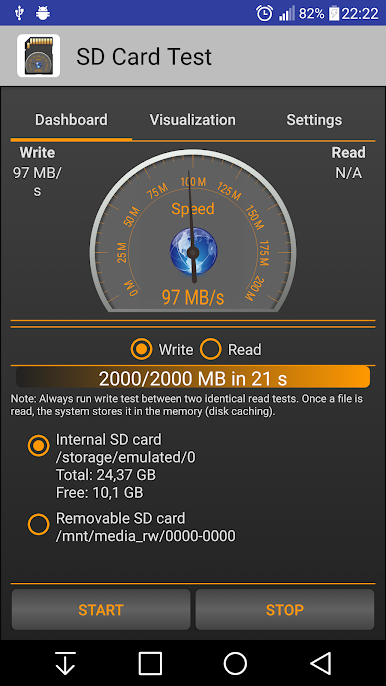
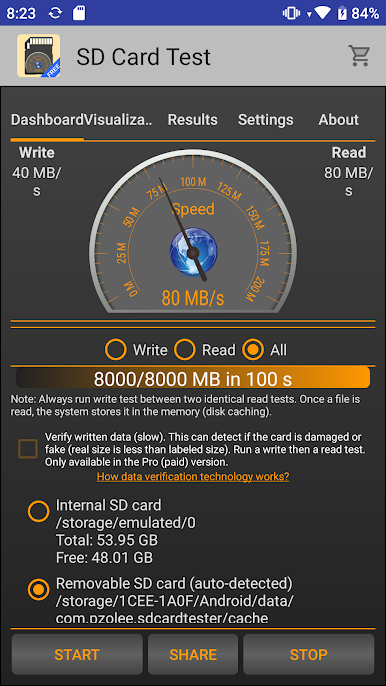
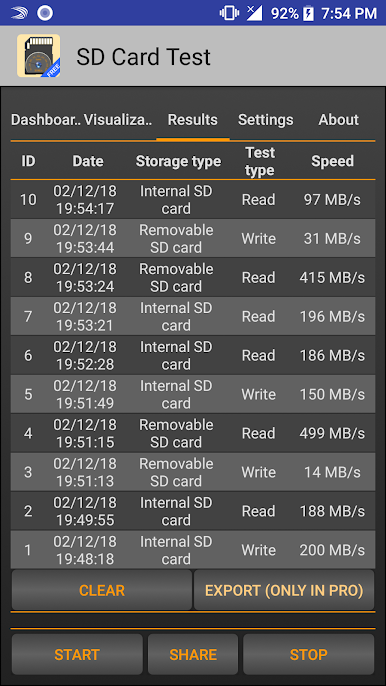
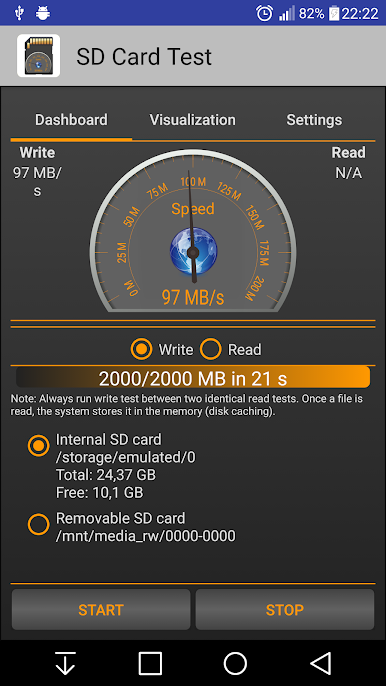
SD Card Test is the straightforward way to check how fast your phone’s storage really is. Built by Zoltán Pallagi, this Tools app runs honest, no-nonsense speed tests and shows you what’s happening behind the scenes. Wondering if that new card is legit or just slow? You’ll find out in minutes.
App Features
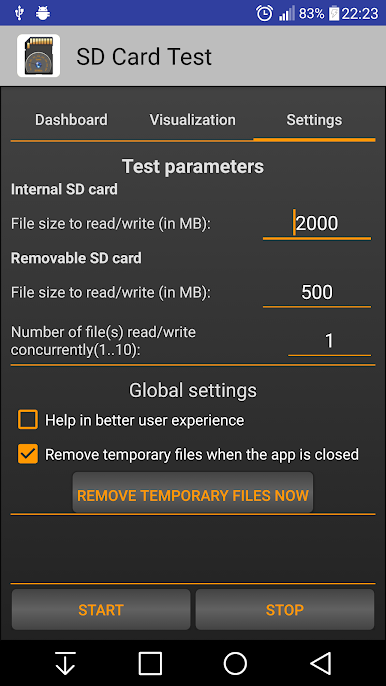
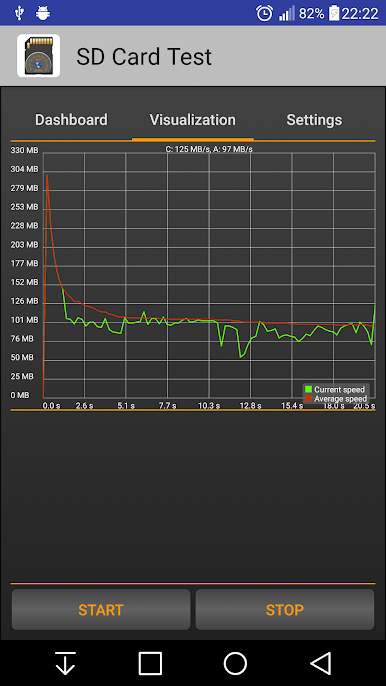
- Real-world speed tests: Measures read and write performance for your internal storage and removable SD cards using multiple test patterns, so results reflect everyday use.
- Works across storage types: Test built-in memory as well as Micro SD, SDHC, and SDXC cards. It supports both portable and adoptable storage setups.
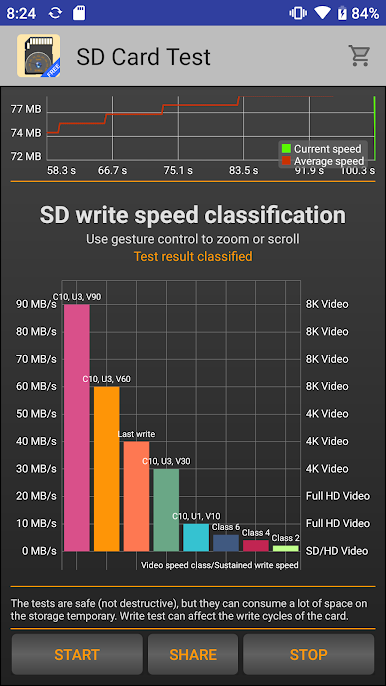
- Clear hardware info: Quickly see whether your device uses eMMC or UFS (2.0, 2.1, and newer), along with card class ratings like Class 2/4/6/10 and UHS-I/II/III.
- File system friendly: Handles common formats including ext4, exFAT, and FAT/FAT32 without extra steps.
- Useful storage details: Check free and total space, mount options, and device names to understand exactly what you’re testing.
- Quick and beginner-friendly: Short tests, clean results, and zero jargon—great even if you’ve never benchmarked storage before.
- Spot problem areas: If speeds look low, that’s the real performance—often due to fake cards, slow readers, or device issues—helpful for troubleshooting.
- Desktop view with BlueStacks: Prefer a larger screen while reviewing results? You can run SD Card Test on your PC using BlueStacks.
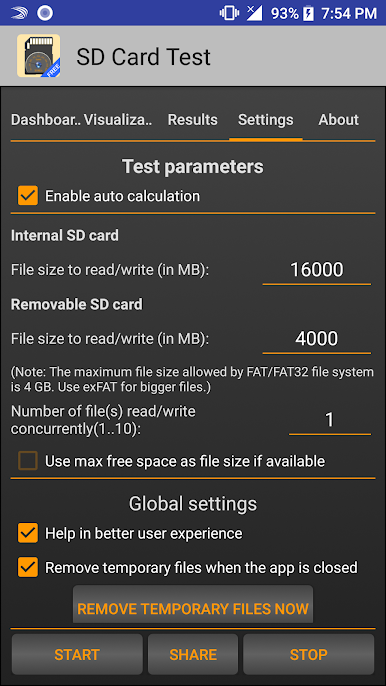
- Tip for adoptable storage: If a card set as adoptable doesn’t appear, move the app to that storage or switch the card back to portable to test it.
Ready to experience SD Card Test on a bigger screen, in all its glory? Download BlueStacks now.
Play SD Card Test on PC. It’s easy to get started.
-
Download and install BlueStacks on your PC
-
Complete Google sign-in to access the Play Store, or do it later
-
Look for SD Card Test in the search bar at the top right corner
-
Click to install SD Card Test from the search results
-
Complete Google sign-in (if you skipped step 2) to install SD Card Test
-
Click the SD Card Test icon on the home screen to start playing

