


Fishbowl Meeting Room Display
Play on PC with BlueStacks – the Android Gaming Platform, trusted by 500M+ gamers.

Page Modified on: Sep 10, 2025
Play Fishbowl Meeting Room Display on PC
Fishbowl does not require administrator access or a service account, and your private data never leaves your tablets.
300+ organizations in over 50 countries trust Fishbowl, including Toyota, Travelex, United Nations, Deutsche Bahn, Decathlon, Siemens, and Verifone.
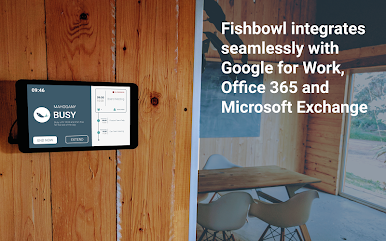
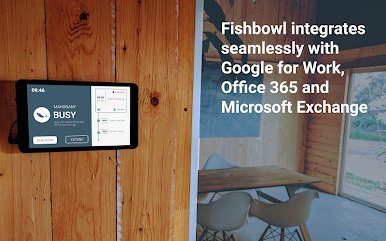
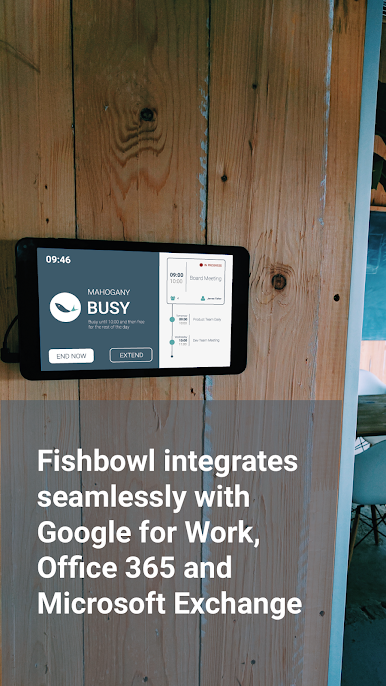
Fishbowl securely syncs with your Google, Microsoft and Teamup calendars.
The following features are available:
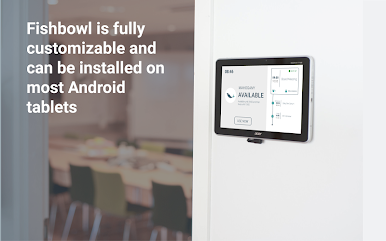
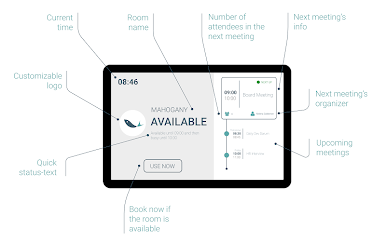
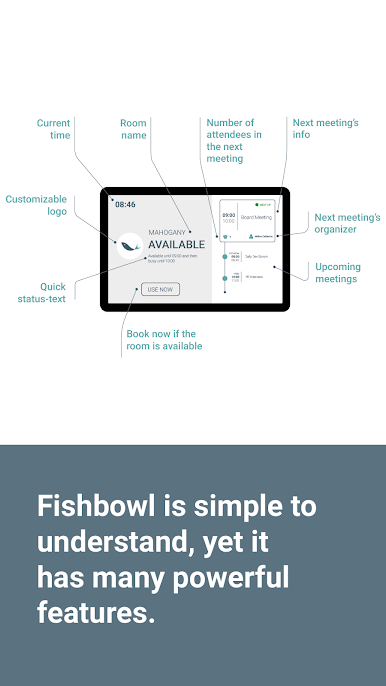
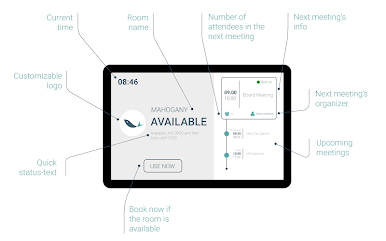
• Sync your room calendars and display the status of the room on the tablet
• Display upcoming meetings
• Quick booking outside the room (Use Now)
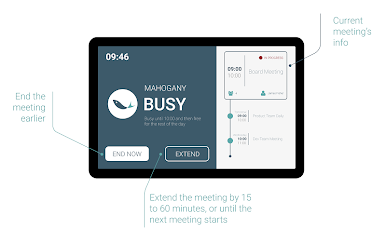
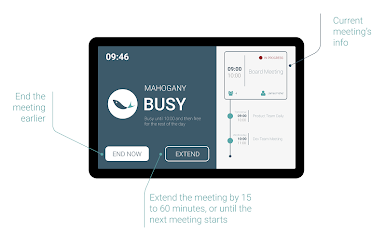
• Extend and end meetings directly
• Book in future
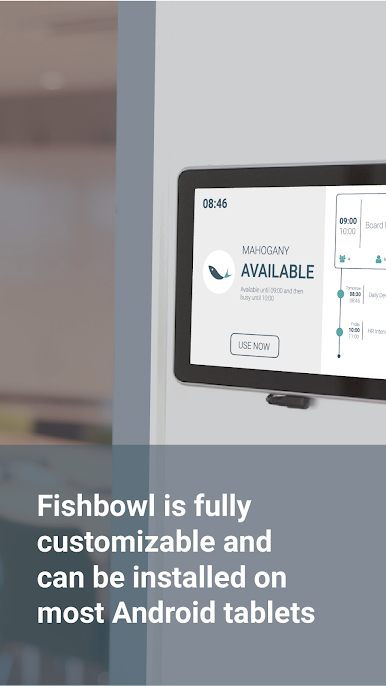
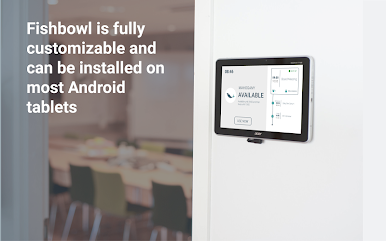
• Customize your logo, room name, and color palette
• Require check-in
• Power-saving (sleep) mode
• Configure devices remotely on the web
• View logs and debug errors remotely
• Receive disconnection email alerts
• View anonymous analytics, such as room utilization
• Configure privacy and security settings
• Set a PIN code to prevent unauthorized access
• Compatible with popular kiosk displays with LED side panels
• Translated into 15 languages (let us know if you do not see yours!)
For a full comparison and pricing details, please visit https://fishbowlmeetings.com/pricing
Try Fishbowl free for 14 days, no credit card required. We also offer bulk discounts and charity/NGO pricing.
Reach out to us at support@fishbowlmeetings.com if you have any questions.
Play Fishbowl Meeting Room Display on PC. It’s easy to get started.
-
Download and install BlueStacks on your PC
-
Complete Google sign-in to access the Play Store, or do it later
-
Look for Fishbowl Meeting Room Display in the search bar at the top right corner
-
Click to install Fishbowl Meeting Room Display from the search results
-
Complete Google sign-in (if you skipped step 2) to install Fishbowl Meeting Room Display
-
Click the Fishbowl Meeting Room Display icon on the home screen to start playing

