


Translate Text, Voice & Images
Play on PC with BlueStacks – the Android Gaming Platform, trusted by 500M+ gamers.

Page Modified on: Jul 11, 2023
Run Translate Text, Voice & Images on PC or Mac
Upgrade your experience. Try Translate Text, Voice & Images, the fantastic Tools app from YayApps, LLC, from the comfort of your laptop, PC, or Mac, only on BlueStacks.
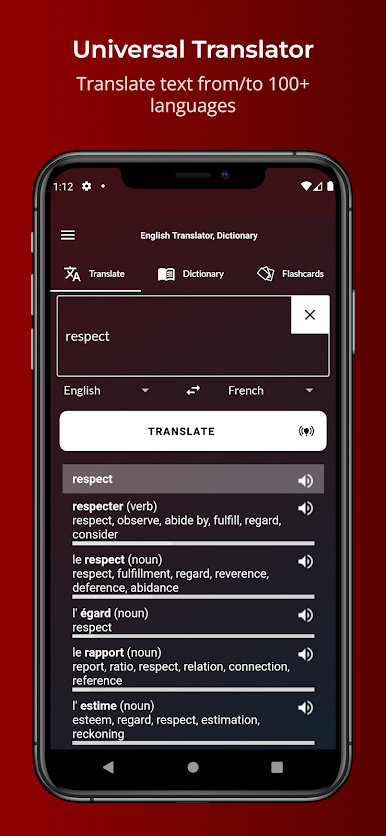
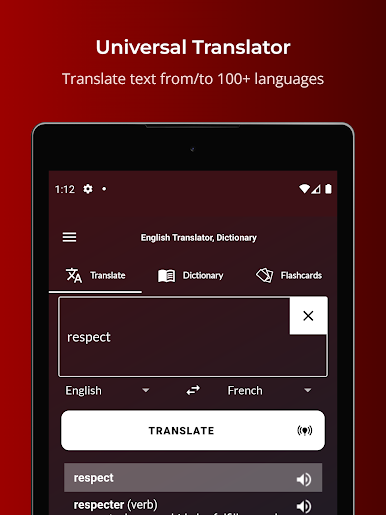
Translate Text, Voice & Images feels like a Swiss army knife for language stuff, just all in one place. On PC with BlueStacks it behaves almost like a desktop tool, which is nice when there is a longer sentence to type or when copying results into notes. Pick the language pair from a simple drop down, hit translate, and it gets out of the way. It supports well over a hundred languages and switches directions without any fuss, so Spanish to English or the other way feels the same.
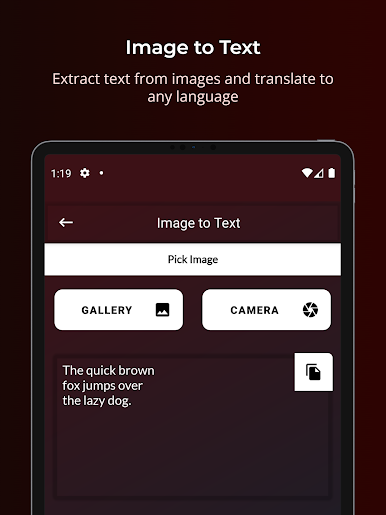
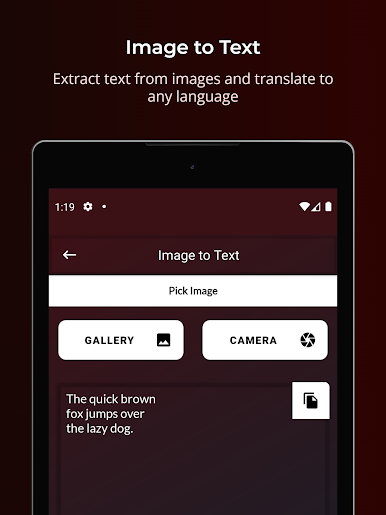
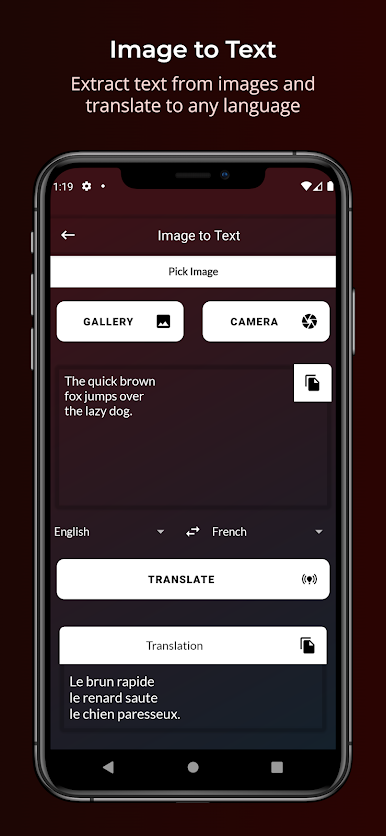
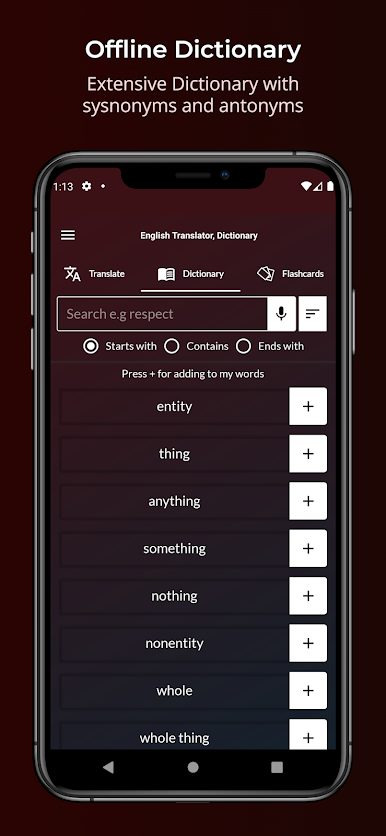
The best bit is how many ways it lets someone translate. Talk into the mic and it turns speech into text, then reads the translation aloud with text to speech. There is a quick toggle between American and British accents, which is useful for practicing. Tap any word to open a full dictionary view with definitions, examples, synonyms and antonyms, and save favorites to study later. The image tool is great for signs, menus, or screenshots. Snap a picture and it runs OCR to grab the text, then translates it right away, no typing needed.
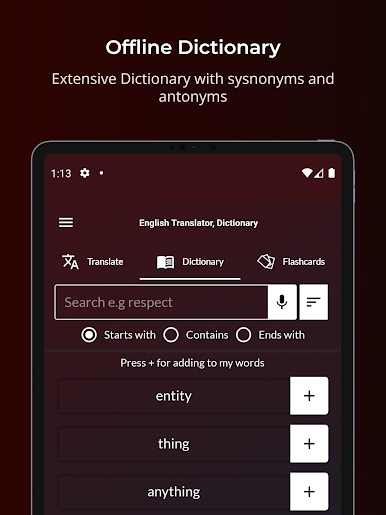
There is a floating translator for chats that can sit over messaging apps. Long press a message and it shows the meaning on the spot, though it does ask for draw over and accessibility permissions to work. Flashcards and daily words make quiet study easy, with audio for pronunciation and the same accent switch. The offline dictionary holds up when the connection drops, and the quick links to check a term deeper online help when a word has more than one sense. Using it through BlueStacks makes copying and pasting between the app and documents fast, so it fits travel planning, homework, or that random message that shows up in another language.
Eager to take your app experience to the next level? Start right away by downloading BlueStacks on your PC or Mac.


Play Translate Text, Voice & Images on PC. It’s easy to get started.
-
Download and install BlueStacks on your PC
-
Complete Google sign-in to access the Play Store, or do it later
-
Look for Translate Text, Voice & Images in the search bar at the top right corner
-
Click to install Translate Text, Voice & Images from the search results
-
Complete Google sign-in (if you skipped step 2) to install Translate Text, Voice & Images
-
Click the Translate Text, Voice & Images icon on the home screen to start playing

