


USB Lockit - Pendrive Password
Play on PC with BlueStacks – the Android Gaming Platform, trusted by 500M+ gamers.

Page Modified on: Mar 8, 2026
Run USB Lockit - Pendrive Password on PC or Mac
Multitask effortlessly on your PC or Mac as you try out USB Lockit – Pendrive Password, a Tools app by Nicola Bezze on BlueStacks.
About the App
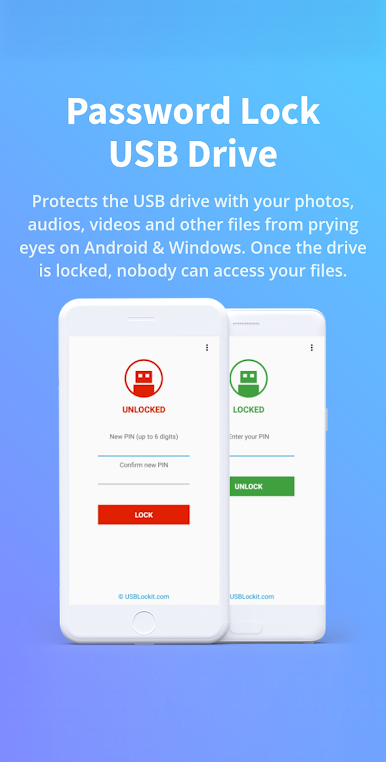
Worried about someone snooping through your stuff on a USB drive? With USB Lockit – Pendrive Password, you get a hassle-free way to protect your important files, photos, and videos. Whether you’re on Android or Windows, this simple app by Nicola Bezze puts your security front and center—just set a PIN, and your files stay safe from prying eyes. Quick to set up, easy to use, and no IT expertise required!
App Features
-
Super Simple Locking
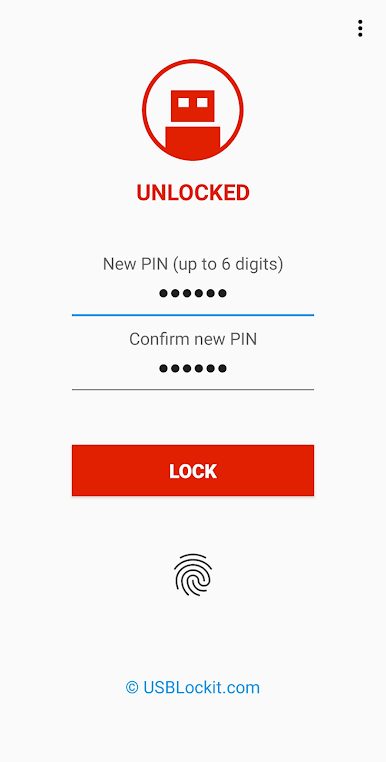
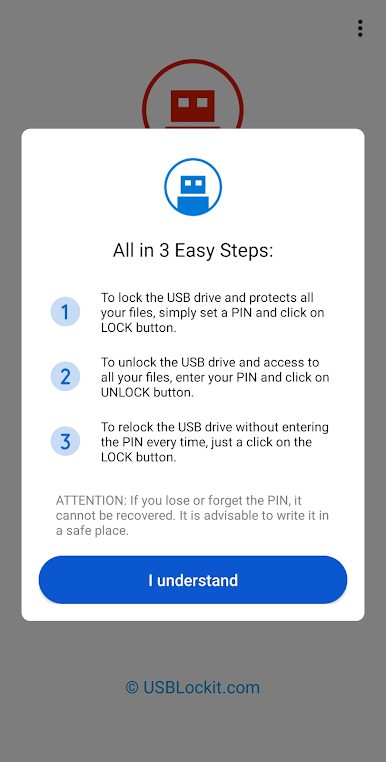
Got a flash drive full of files you’d rather keep private? Just pick a PIN, hit the lock button, and you’re all set. It literally takes seconds to secure everything on your USB stick. -
Easy Unlock
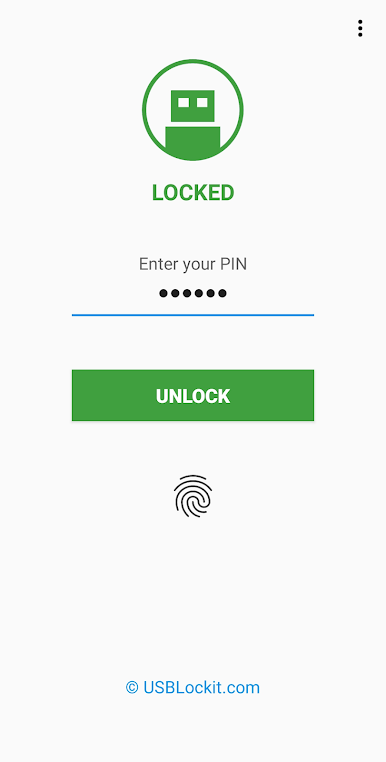
Need your files back? Punch in your PIN and unlock with a tap. You’re instantly back in control of every photo, song, or document. -
One-Tap Relock
When you’re done, locking things up again is just a single tap. You don’t have to re-enter your PIN every single time, so it’s super convenient if you’re always on the go. -
Cross-Platform Coverage
Whether you plug your USB drive into Android or Windows, your locked files stay locked. That means peace of mind, no matter where you access your drive. -
Works with Most Drives
USB Lockit – Pendrive Password is ready to use with nearly any USB flash drive formatted in FAT32 or exFAT—no quirky requirements here. -
Totally Portable
No need to mess with admin rights, root access, or complicated setup. Just launch the app and start protecting your stuff, wherever you are. -
Multiple Languages
The app supports English, German, French, Spanish, Italian, Portuguese, Russian, and Chinese—so you’re covered even if you switch languages.
Oh, and if you ever want to use it through BlueStacks, go for it! The app is snappy and smooth, whether you’re working from a phone, tablet, or your PC.
Ready to experience USB Lockit – Pendrive Password on a bigger screen, in all its glory? Download BlueStacks now.
Play USB Lockit - Pendrive Password on PC. It’s easy to get started.
-
Download and install BlueStacks on your PC
-
Complete Google sign-in to access the Play Store, or do it later
-
Look for USB Lockit - Pendrive Password in the search bar at the top right corner
-
Click to install USB Lockit - Pendrive Password from the search results
-
Complete Google sign-in (if you skipped step 2) to install USB Lockit - Pendrive Password
-
Click the USB Lockit - Pendrive Password icon on the home screen to start playing

