

Steam
Play on PC with BlueStacks – the Android Gaming Platform, trusted by 500M+ gamers.

Page Modified on: Mar 5, 2026
Main Steam on PC
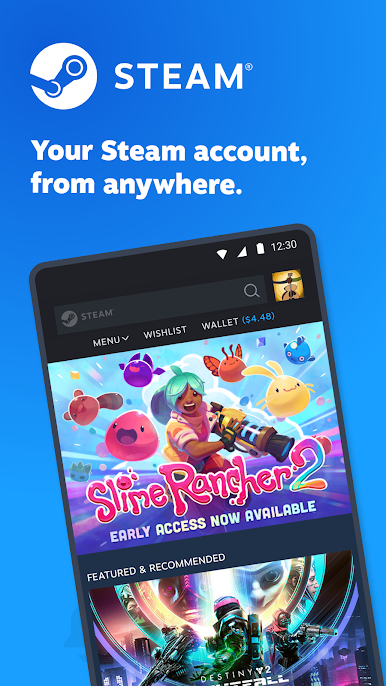
Shop Steam
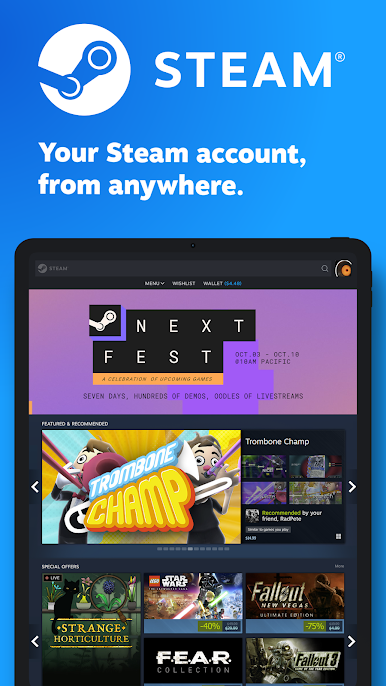
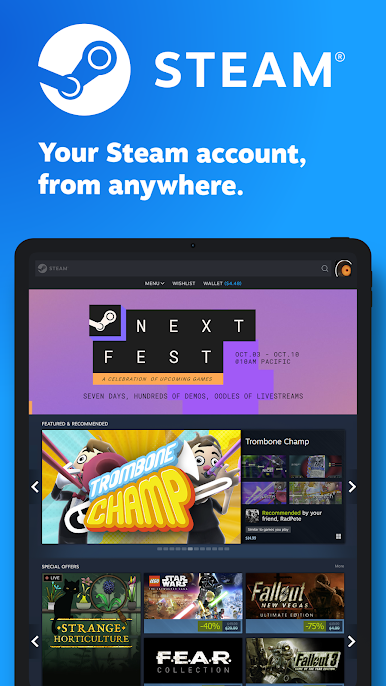
Browse the Steam catalog of PC games from your phone. Never miss a sale again.
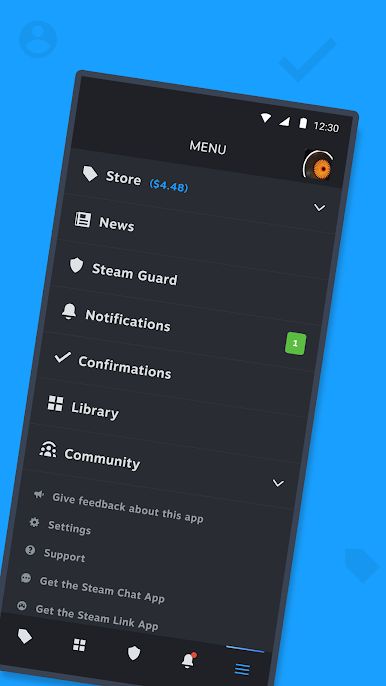
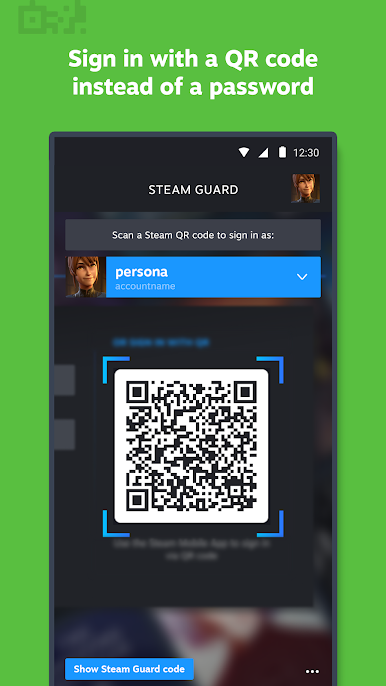
Steam Guard
Protect your Steam account and make sign in faster with two-factor authentication.
• Two-factor authentication to ensure you’re the only one with access to your account
• QR code sign in - Scan a QR code to sign into Steam instead of entering a password or…
• Sign in confirmation - Confirm your regular Steam sign ins with simple “approve” or “deny”
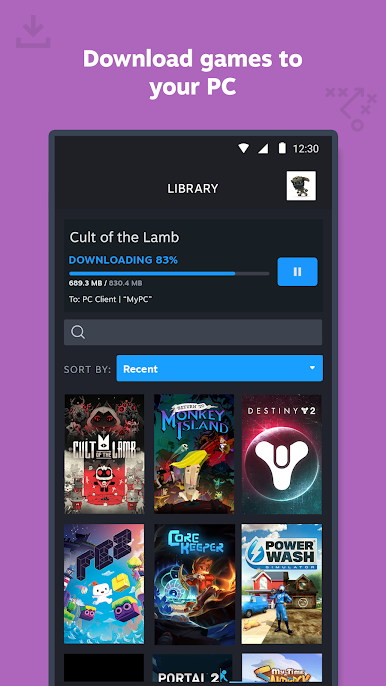
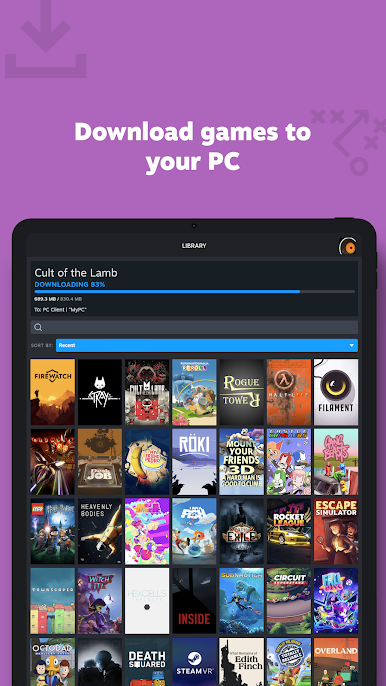
Library & Remote downloads
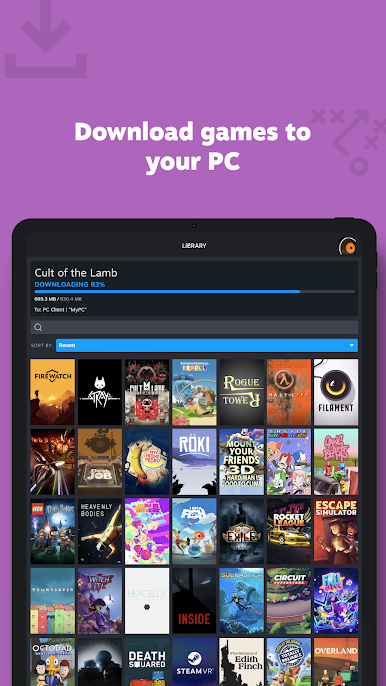
The new Library view makes it easy to view game content, discussions, guides, support, and more. Plus you can manage game downloads and updates to your PC from your phone.
Trade and Market Confirmations
Speed up item trades and sales by using your phone to confirm them.
Plus
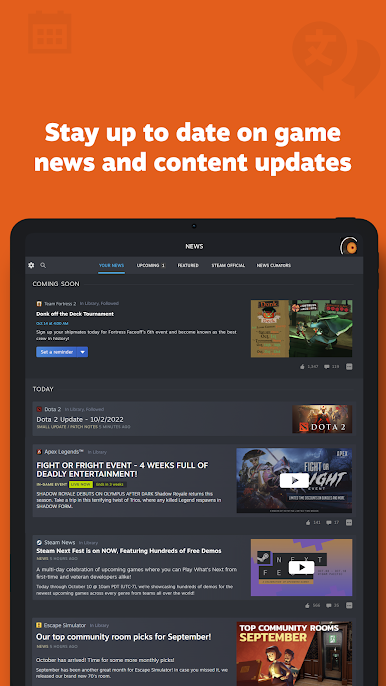
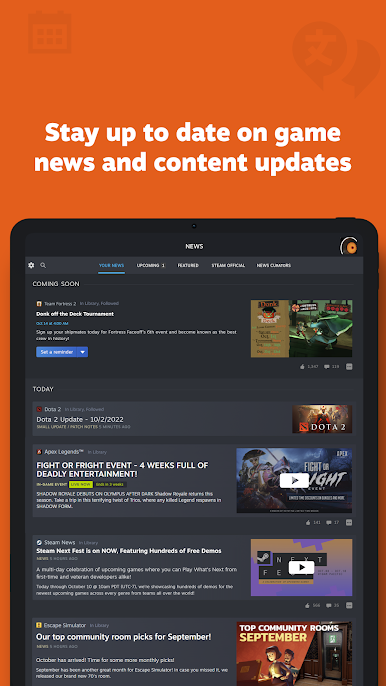
• A personalized News feed based on your Library with the latest news, events, and content updates direct from publishers and game developers.
• Customizable Steam notifications: wishlist, sales, comments, trades, discussions, friend requests, and more.
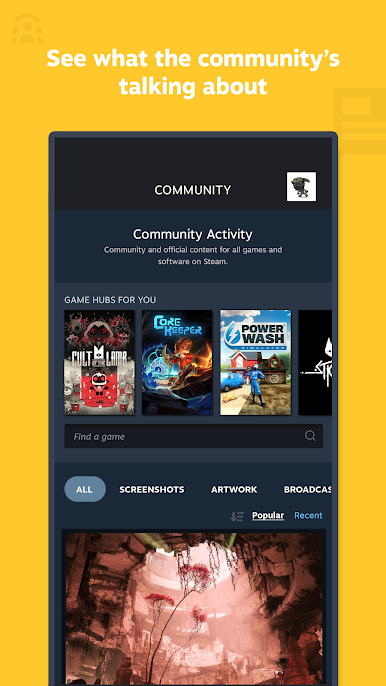
• Access to the entire Steam Community - discussions, groups, guides, Market, Workshop, broadcasts, and more.
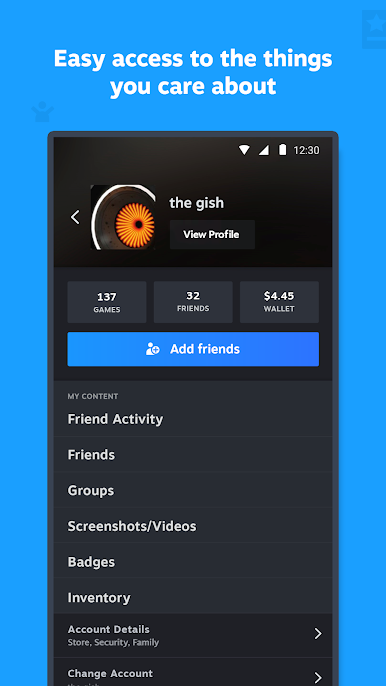
• Access to your friends, friend activity, groups, screenshots, inventory, wallet, and more.
• Authorized Devices - Manage access to the devices your account has signed in
• An improved Store browsing experience for mobile screens
• Support for using multiple Steam accounts in the app
• Support for customizing your app's main tabs

Play Steam on PC. It’s easy to get started.
-
Download and install BlueStacks on your PC
-
Complete Google sign-in to access the Play Store, or do it later
-
Look for Steam in the search bar at the top right corner
-
Click to install Steam from the search results
-
Complete Google sign-in (if you skipped step 2) to install Steam
-
Click the Steam icon on the home screen to start playing

