Morning Arrows
Play on PC with BlueStacks – the Android Gaming Platform, trusted by 500M+ gamers.

Page Modified on: Sep 28, 2026
Play Morning Arrows on PC
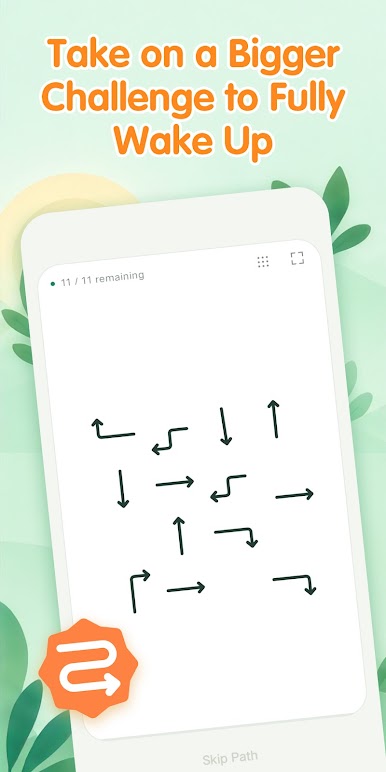
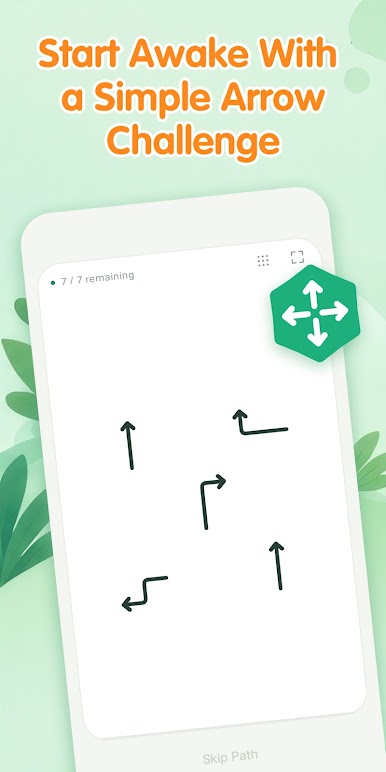
A basic alarm can be too easy to ignore. One tap can end the sound, but it does not always get you out of bed. Morning Arrows helps change that by adding an optional arrow-based task before the alarm stops.
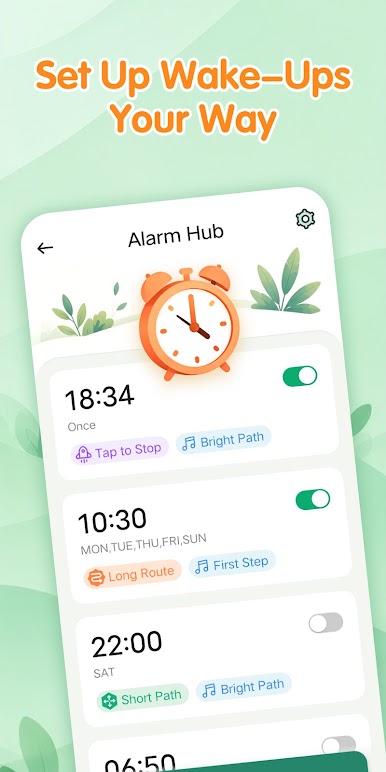
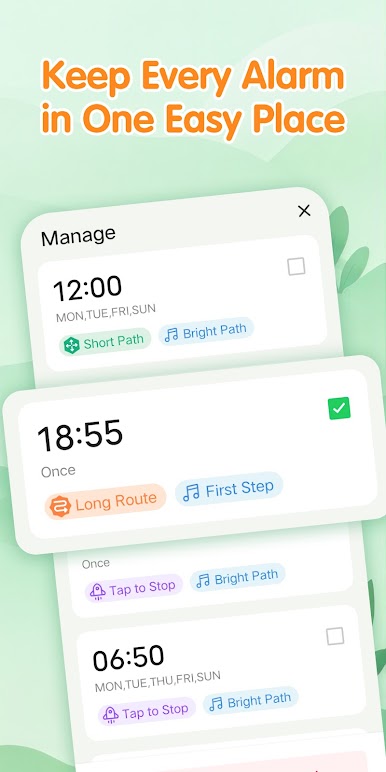
🕒 Set alarms for work, school, appointments, medication, or daily routines. Choose the time, select repeat days, pick your ringtone, and turn vibration on or off. Then choose how each alarm should work: stop it normally, or require an arrow task before it can be turned off.
➡️ The arrow task adds a quick moment of attention when you need it most. It is simple to understand, easy to follow, and more effective than a standard tap for many people who struggle with half-awake alarm habits.
Morning Arrows is built to be easy to use every day while giving you more control over how strong or active your wake-up routine should feel.
What you can do with Morning Arrows
- Set multiple alarms for different parts of your day
- Use one-time alarms or repeat by weekday
- Choose ringtone and vibration settings
- Stop alarms normally or with an arrow task
- Use different arrow task levels depending on your routine
- Manage everything in a clear, simple layout
Why people use it
- Standard alarms are too easy to dismiss
- Snoozing turns into oversleeping
- A small task helps them wake up more fully
- They want a stronger alarm without a confusing setup
✅ If you need something more effective than a basic alarm clock, Morning Arrows gives you a more active way to wake up and stay on schedule.
Play Morning Arrows on PC. It’s easy to get started.
-
Download and install BlueStacks on your PC
-
Complete Google sign-in to access the Play Store, or do it later
-
Look for Morning Arrows in the search bar at the top right corner
-
Click to install Morning Arrows from the search results
-
Complete Google sign-in (if you skipped step 2) to install Morning Arrows
-
Click the Morning Arrows icon on the home screen to start playing