


VoiceClock -Miku-
Play on PC with BlueStacks – the Android Gaming Platform, trusted by 500M+ gamers.

Page Modified on: Dec 1, 2023
Run VoiceClock -Miku- on PC or Mac
What’s better than using VoiceClock -Miku- by IceImo-P? Well, try it on a big screen, on your PC or Mac, with BlueStacks to see the difference.
So, VoiceClock -Miku- is one of those apps for people who love having something different announcing the time. Instead of just getting a regular beep or chime when it’s time to wake up or check the time, Hatsune Miku herself actually says the time out loud. It works as both an alarm and a talking clock, so she’ll read out the hours either on a set schedule, like every 30 minutes or every hour, or whenever you want by setting an alarm. The coolest part is probably tapping on the home screen widget and hearing her read the current time in her voice, instead of searching for a clock or squinting at tiny numbers.
The app also lets you pause the time announcements for certain periods, like during sleep or work, so Miku won’t be randomly talking when you need quiet. There are some cute Miku illustrations from a fan artist that make the look of the app way more charming. And when running this on a PC using BlueStacks, it actually feels pretty smooth — seeing and hearing Miku from a bigger screen is just fun, especially for fans. If someone just likes quirky alarm apps or Vocaloid stuff, it’s kind of hard not to like how simple and cheerful this is. The whole thing is lightweight and straightforward, not loaded with a million complicated settings. Having a familiar voice remind you what time it is just feels a bit more fun than another generic ringtone.
BlueStacks brings your apps to life on a bigger screen—seamless and straightforward.
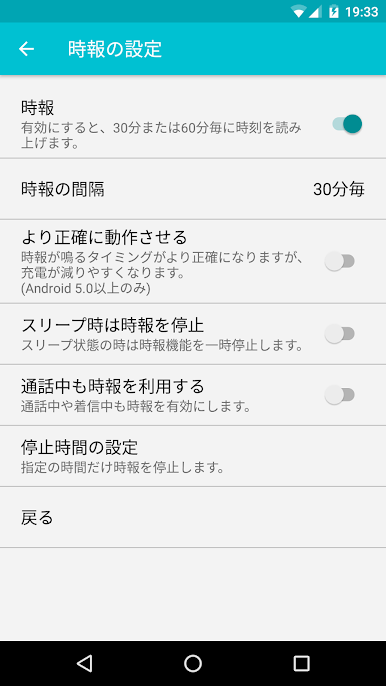
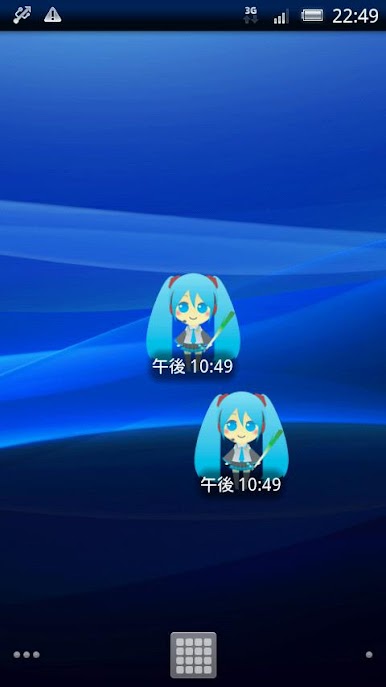
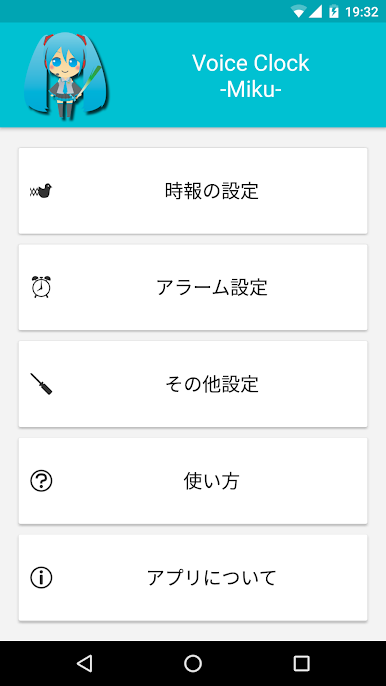
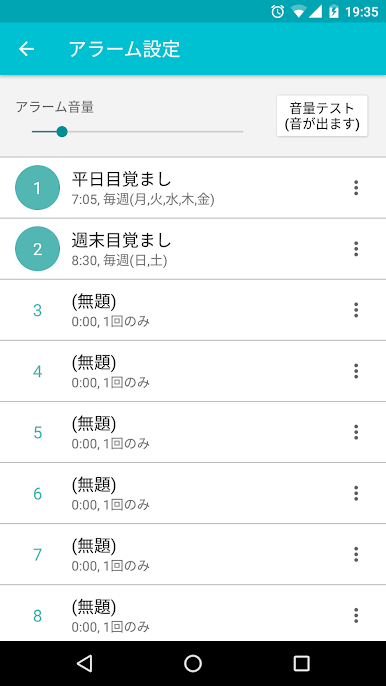
Play VoiceClock -Miku- on PC. It’s easy to get started.
-
Download and install BlueStacks on your PC
-
Complete Google sign-in to access the Play Store, or do it later
-
Look for VoiceClock -Miku- in the search bar at the top right corner
-
Click to install VoiceClock -Miku- from the search results
-
Complete Google sign-in (if you skipped step 2) to install VoiceClock -Miku-
-
Click the VoiceClock -Miku- icon on the home screen to start playing

