BlueStacks For Android [GUIDE]
Play on PC with BlueStacks – the Android Gaming Platform, trusted by 500M+ gamers.

Page Modified on: Oct 29, 2026
Play BlueStacks For Android [GUIDE] on PC
As there are standart Android Studio emulator or similar emulators, they are either slow or in some cases (like i had) you can not make these emulator works because of some hardware problems. If your computer supports virtualization technology but the emulators still give error, this guide can show you an alternative.
The very known BlueStacks android emulator can be used as a debugging/deployment emulator for programming / coding your android applications.
As this emulator is very strong and reliable, it can be a good alternative to standart emulators.
If you have problem running all the other emulators in your PC, you may want to give BlueStack a go for a try.
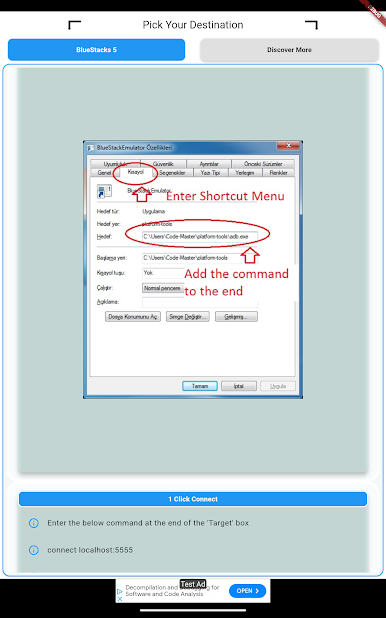
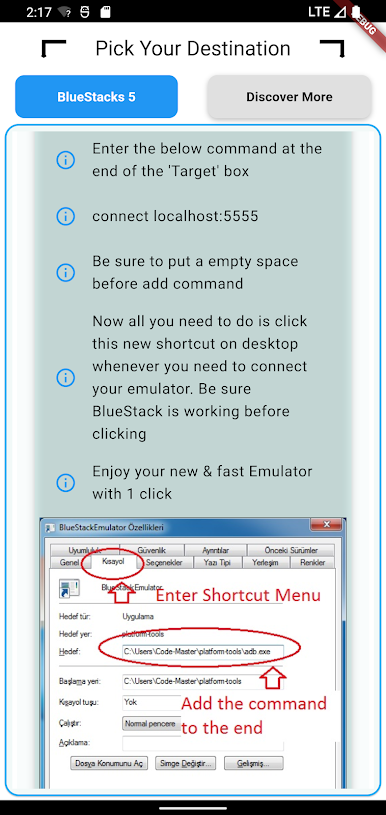
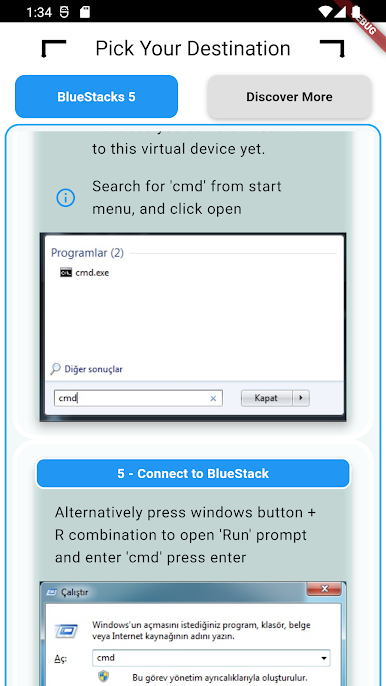
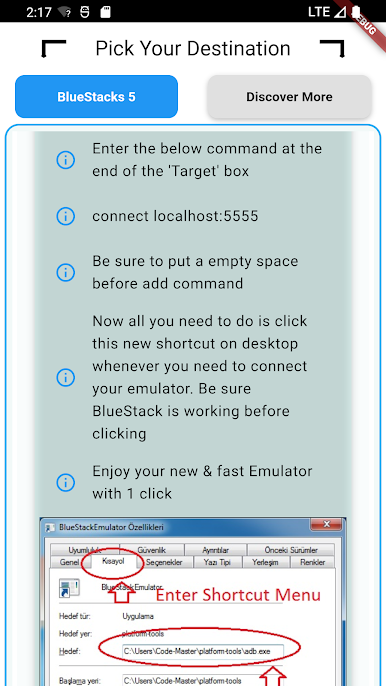
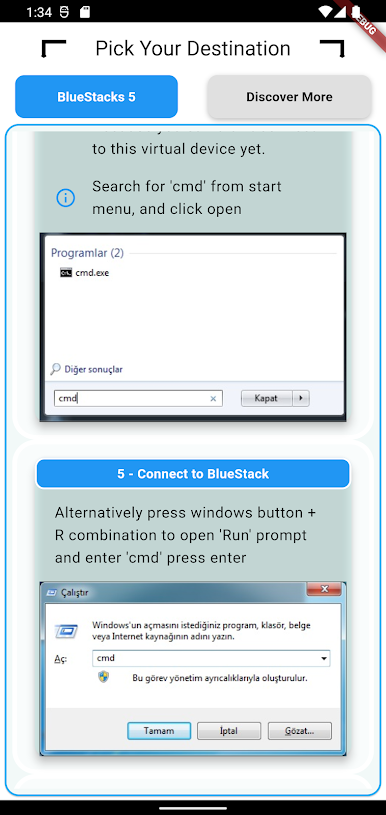
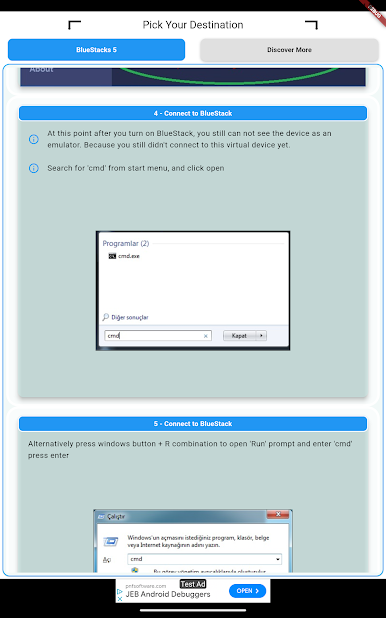
Unfortunately it doesn't work out of box and you need to use some extra tools and use command prompt and manually connect BlueStack.
This tutorial/guide is showing the steps with pictures and explanations that even a complete new developer can do it.
Best Luck!
Play BlueStacks For Android [GUIDE] on PC. It’s easy to get started.
-
Download and install BlueStacks on your PC
-
Complete Google sign-in to access the Play Store, or do it later
-
Look for BlueStacks For Android [GUIDE] in the search bar at the top right corner
-
Click to install BlueStacks For Android [GUIDE] from the search results
-
Complete Google sign-in (if you skipped step 2) to install BlueStacks For Android [GUIDE]
-
Click the BlueStacks For Android [GUIDE] icon on the home screen to start playing