Window Meow
Window Meow

Window Meow

Casual

| SKYWALK

Play on PC with BlueStacks or from our cloud

  • Overview
  • Game Features
  • How to Play

Page Modified On: June 04, 2026

Play Window Meow on PC or Mac

Window Meow brings the Casual genre to life, and throws up exciting challenges for gamers. Developed by SKYWALK, this Android game is best experienced on BlueStacks, the World’s #1 app player for PC and Mac users.

About the Game

Window Meow is a cozy Casual sim about earning the trust of visiting neighborhood cats from the comfort of your garden window. It’s slow, warm, and wonderfully simple: set out the basics, be patient, and watch shy little faces peek in. Prefer a bigger screen? It plays nicely on PC with BlueStacks, too.

Game Features

  • Gentle cat care: Put out food and water, offer a few treats, and play a little. With steady attention, curious cats start showing up more often—and lingering longer.

  • Trust that grows over time: As you care for each visitor, their guard drops bit by bit. When that bond finally clicks, a special “Chosen” moment happens and the cat officially chooses you.

  • Invite rare visitors: Place cozy furniture and toys in your garden to make it feel safe and interesting. Timid or hard-to-spot kitties might just gather the courage to stop by.

  • Your own cat album: Snap photos of every whiskered guest, then dress them up with cute stickers and captions. Build a scrapbook of tiny moments you don’t want to forget.

  • Life together indoors: Once a cat becomes family, you can share a quiet routine at home. Arrange comfy furniture, try on outfits, chat, and handle small daily tasks side by side.

  • A garden that changes: Watch your yard shift with the seasons and new decor. Tweak the vibe over time until it feels like a little sanctuary.

  • Easygoing, no-pressure play: Check in for a few minutes or settle in for a calm session. There’s no rush—just a soothing rhythm of simple care and sweet surprises.

  • Comfy on any screen: Touch-friendly on mobile and relaxed with a mouse and keyboard when played through BlueStacks.

Start your journey now. Download the game on BlueStacks, invite your friends, and march on a new adventure.


Game Features

Enhancements

  • Macros
  • Multi Instance
  • Script
  • Repeated Tap
  • Enhancements
Macros

Macros

Automate the predictable in Window Meow and transform your gameplay with Macros. Get access to inventive Macros in the BlueStacks Macro Community
Multi Instance

Multi Instance

Play Window Meow on one window. And chat with your friend on the other. Press CTRL + Shift + 8 to open the Multi-Instance Manager. And start creating fresh instances or clone an existing one.
Script

Script

Script your way to gaming glory in Window Meow with BlueStacks Script. Write and run a set of commands to automate repeated tasks. Trigger the command by assigning it to any key.
Repeated Tap

Repeated Tap

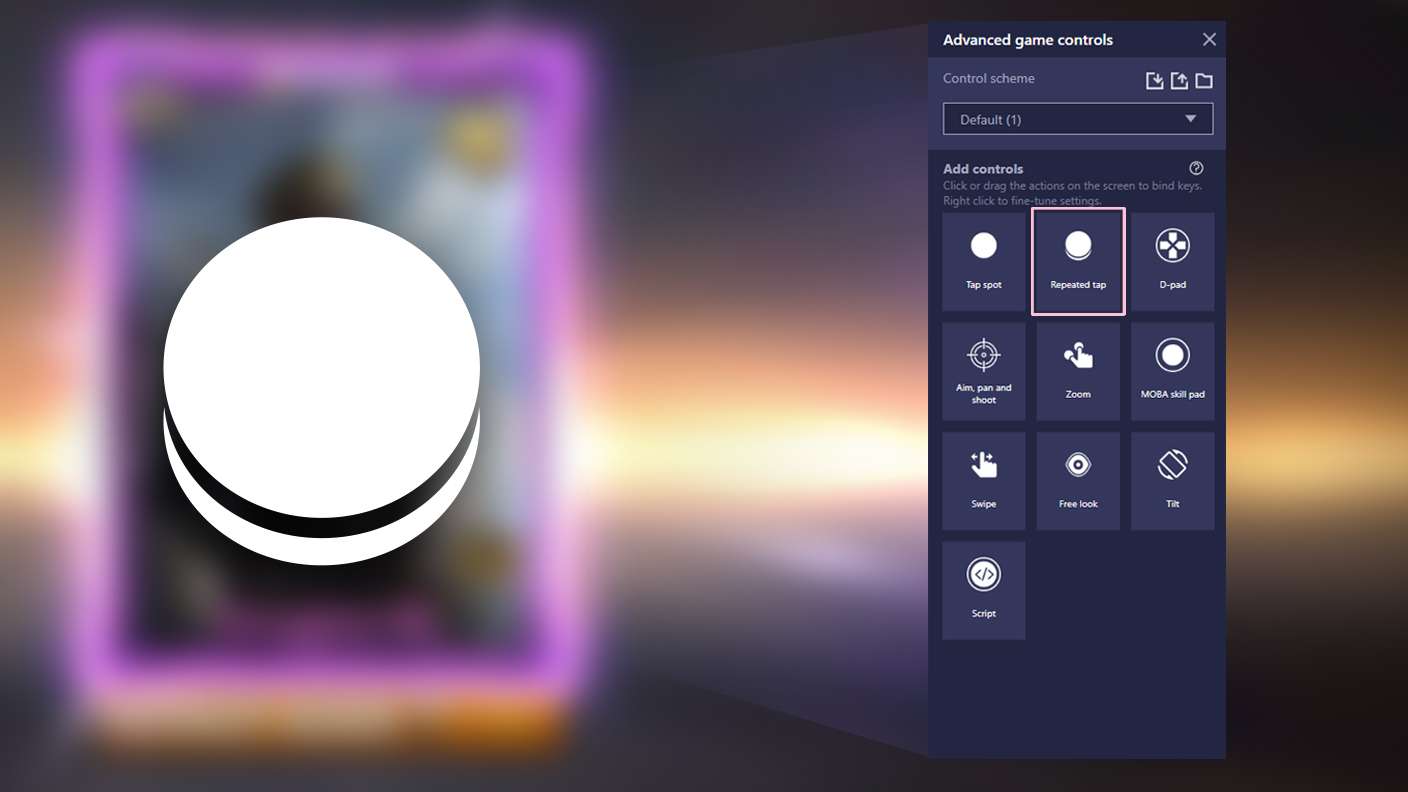
BlueStacks lets you master Window Meow with useful features like the Repeated Tap. Now you do not have to press the same key repeatedly to initiate an action. Just assign it to one key and you are good to go.
Read More

How to Download and Play Window Meow on PC or Mac

  • Download and install BlueStacks on your PC or Mac

  • Complete Google sign-in to access the Play Store, or do it later

  • Look for Window Meow in the search bar at the top right corner

  • Click to install Window Meow from the search results

  • Complete Google sign-in (if you skipped step 2) to install Window Meow

  • Click the Window Meow icon on the home screen to start playing

video
Watch Video

Minimum System Requirements

With BlueStacks 5, you can get started on a PC that fulfills the following requirements.

  • Operating System

    Microsoft Windows 7 or above, macOS 11 (Big Sur) or above

  • Processor

    Intel, AMD or Apple Silicon Processor

  • RAM

    at least 4GB

  • HDD

    10GB Free Disk Space

Note:

* You must be an Administrator on your PC. Up to date graphics drivers from Microsoft or the chipset vendor.

Window Meow - FAQs

  • How to play Window Meow on Windows PC & Mac?

    Play Window Meow on your PC or Mac by following these simple steps.

    • Click on 'Play Window Meow on PC’ to download BlueStacks
    • Install it and log-in to Google Play Store
    • Launch and play the game.
  • Why is BlueStacks the fastest and safest platform to play games on PC?

    BlueStacks respects your privacy and is always safe and secure to use. It does not carry any malware, spyware, or any sort of additional software that could harm your PC.

    It is engineered to optimize speed and performance for a seamless gaming experience.

  • What are Window Meow PC requirements?

    Minimum requirement to run Window Meow on your PC

    • OS: Microsoft Windows 7 or above MacOS 11 (Big Sur) or above
    • Processor: Intel, AMD or Apple Silicon Processor
    • RAM: Your PC must have at least 4GB of RAM. (Note that having 4GB or more disk space is not a substitute for RAM)
    • HDD: 10GB Free Disk Space.
    • You must be an Administrator on your PC.