Safe Notes Pro Secure NotePad

Safe Notes Pro Secure NotePad

Productivity

| YouGoSoft.com

Play on PC with BlueStacks or from our cloud

  • Overview
  • How to Download

Page Modified On: December 22, 2025

Run Safe Notes Pro Secure NotePad on PC or Mac

Get freedom from your phone’s obvious limitations. Use Safe Notes Pro Secure NotePad, made by YouGoSoft.com, a Productivity app on your PC or Mac with BlueStacks, and level up your experience.

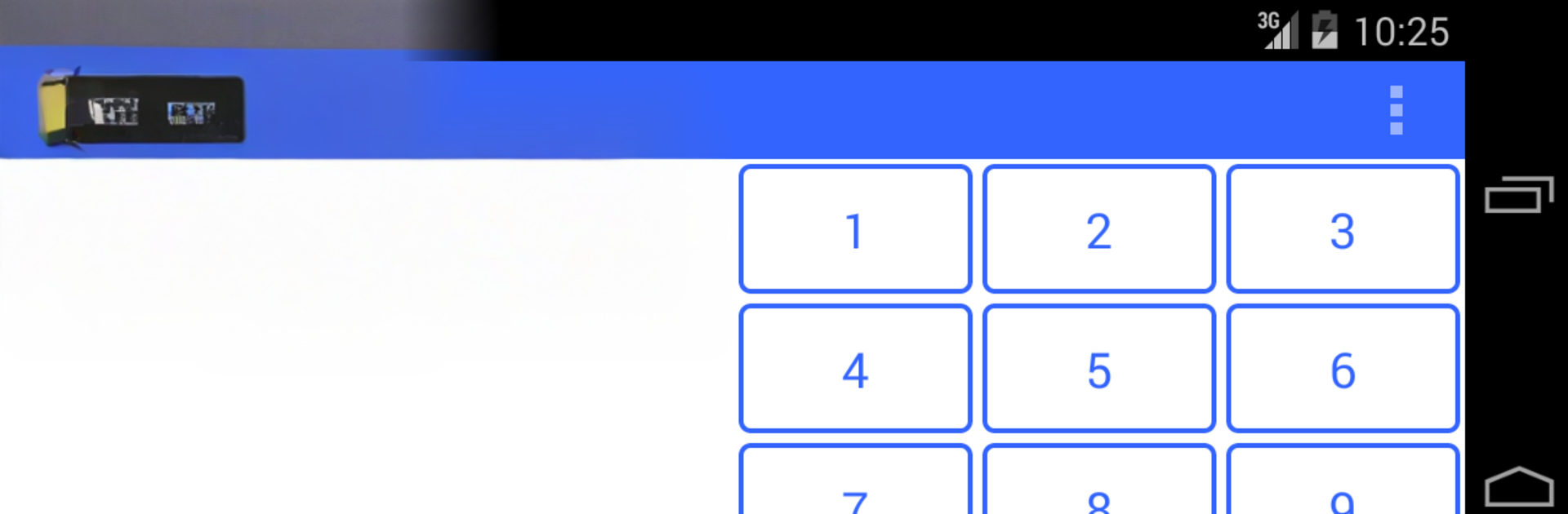
Safe Notes Pro Secure NotePad feels like a straightforward notebook that happens to be locked up tight. The whole thing is local, so notes stay on the device and are wrapped with 128 bit encryption, not quietly pushed online. Unlocking is simple with a PIN, or a secret question and answer that works like a password if a PIN is not wanted. It even remembers the login for about a minute, so switching apps for a second does not force another unlock. On a PC with BlueStacks, the bigger keyboard makes typing long lists or journals easier, and it is nice to keep the window off to the side while working.

The interface is bare and quick, which suits a notes app. Each note gets a proper title instead of relying on the first line, and notes can go up to a decent length without hitting a wall. Sorting by ascending or descending and a clean search make finding stuff fast. Deleting is done by a long press on a note, which keeps accidental taps from ruining a page. There is auto save, so text is not lost, and optional backups exist if needed, including email backup or a Google Cloud auto backup toggle. For the cautious, there is even a destroy database option for a clean slate. Sending a note out as email or SMS is built in, and there are help screens if anything looks confusing. It is simple on purpose, more notebook than gadget, but it covers the essentials well.

Switch to BlueStacks and make the most of your apps on your PC or Mac.

How to Download and Run Safe Notes Pro Secure NotePad on PC or Mac

  • Download and install BlueStacks on your PC or Mac

  • Complete Google sign-in to access the Play Store, or do it later

  • Look for Safe Notes Pro Secure NotePad in the search bar at the top right corner

  • Click to install Safe Notes Pro Secure NotePad from the search results

  • Complete Google sign-in (if you skipped step 2) to install Safe Notes Pro Secure NotePad

  • Click the Safe Notes Pro Secure NotePad icon on the home screen to start playing

video
Watch Video

Minimum System Requirements

With BlueStacks 5, you can get started on a PC that fulfills the following requirements.

  • Operating System

    Microsoft Windows 7 or above, macOS 11 (Big Sur) or above

  • Processor

    Intel, AMD or Apple Silicon Processor

  • RAM

    at least 4GB

  • HDD

    10GB Free Disk Space

Note:

* You must be an Administrator on your PC. Up to date graphics drivers from Microsoft or the chipset vendor.

Safe Notes Pro Secure NotePad - FAQs

  • How to Run Safe Notes Pro Secure NotePad on Windows PC & Mac?

    Run Safe Notes Pro Secure NotePad on your PC or Mac by following these simple steps.

    • Click on ‘Download Safe Notes Pro Secure NotePad on PC’ to download BlueStacks
    • Install it and log-in to Google Play Store
    • Launch and run the app.
  • Why is BlueStacks the fastest and safest platform to play games on PC?

    BlueStacks respects your privacy and is always safe and secure to use. It does not carry any malware, spyware, or any sort of additional software that could harm your PC.

    It is engineered to optimize speed and performance for a seamless gaming experience.

  • What are Safe Notes Pro Secure NotePad PC requirements?

    Minimum requirement to run Safe Notes Pro Secure NotePad on your PC

    • OS: Microsoft Windows 7 and above:
    • Processor: Intel or AMD Processor:
    • RAM: Your PC must have at least 2GB of RAM. (Note that having 2GB or more disk space is not a substitute for RAM):
    • HDD: 5GB Free Disk Space.
    • You must be an Administrator on your PC.