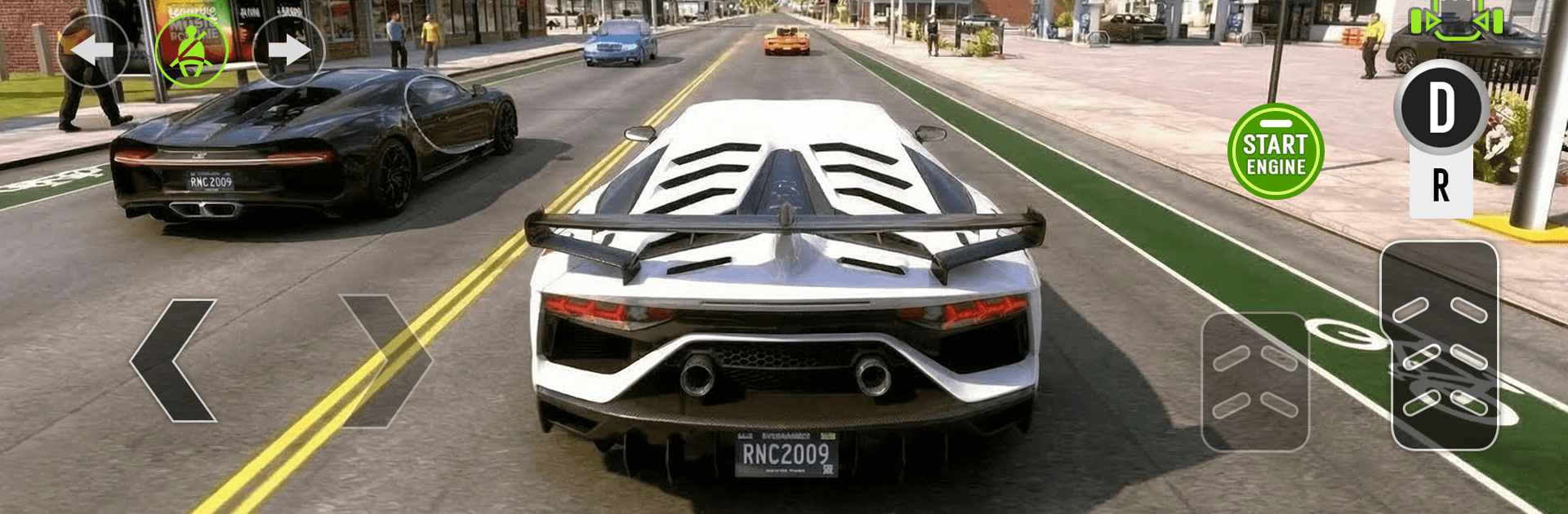
Driving School: Car Parking 3D

Driving School: Car Parking 3D

Simulation

| Cheetah Game Studios

Play on PC with BlueStacks or from our cloud

  • Overview
  • Game Features
  • How to Play

Page Modified On: April 07, 2026

Play Driving School: Car Parking 3D on PC or Mac

Explore a whole new adventure with Driving School: Car Parking 3D, a Simulation game created by Cheetah Game Studios. Experience great gameplay with BlueStacks, the most popular gaming platform to play Android games on your PC or Mac.

About the Game

Driving School: Car Parking 3D turns everyday driving into a hands-on challenge you actually want to practice. It’s a smart blend of careful parking, smooth cruising, and learning real road habits without the pressure of a real commute. Made by Cheetah Game Studios, this Simulation title focuses on believable physics and clear feedback, whether you’re just starting out or chasing spotless, scratch-free runs. Prefer a bigger screen and tighter control options? It plays nicely on BlueStacks too.

Game Features

  • Varied Modes: Tackle busy city routes with traffic lights and signs, precision parking scenarios that get trickier over time, and relaxed free-drive sessions when you just want to roam.
  • Realistic Physics: Feel the car’s weight shift as you steer, brake, and ease into tight spots—small mistakes matter, and clean lines are rewarded.
  • Traffic-Rule Focus: Practice real-world road behavior, from stopping correctly to reading lane markings, then apply it as challenges ramp up.
  • Diverse Vehicle Roster: Unlock a range of believable cars, each with its own handling personality—light compacts, sturdy sedans, and more to master.
  • Deep Customization: Make every ride yours with paint colors, bold decals, playful roof add-ons, and custom license plates that show a bit of flair.
  • Crisp 3D Visuals: Explore detailed streets and parking lots with convincing lighting and reflections, plus car models that look the part up close.
  • Comfortable Controls: Pick a control setup that suits you and refine those maneuvers—nudge forward, feather the brake, straighten out, done.

Get ready for a buttery smooth, high-performance gaming action only on BlueStacks.

Game Features

Enhancements

  • Macros
  • Multi Instance
  • Multi Instance Sync
  • Script
  • Enhancements
Macros

Macros

Automate the predictable in Driving School: Car Parking 3D and transform your gameplay with Macros. Get access to inventive Macros in the BlueStacks Macro Community
Multi Instance

Multi Instance

Play Driving School: Car Parking 3D on one window. And chat with your friend on the other. Press CTRL + Shift + 8 to open the Multi-Instance Manager. And start creating fresh instances or clone an existing one.
Multi Instance Sync

Multi Instance Sync

Play Driving School: Car Parking 3D with the power of Multi-Instance Sync. Replicate what you are doing on the main instance on all other instances. Level up faster, play more.
Script

Script

Script your way to gaming glory in Driving School: Car Parking 3D with BlueStacks Script. Write and run a set of commands to automate repeated tasks. Trigger the command by assigning it to any key.
Read More

How to Download and Play Driving School: Car Parking 3D on PC or Mac

  • Download and install BlueStacks on your PC or Mac

  • Complete Google sign-in to access the Play Store, or do it later

  • Look for Driving School: Car Parking 3D in the search bar at the top right corner

  • Click to install Driving School: Car Parking 3D from the search results

  • Complete Google sign-in (if you skipped step 2) to install Driving School: Car Parking 3D

  • Click the Driving School: Car Parking 3D icon on the home screen to start playing

video
Watch Video

Minimum System Requirements

With BlueStacks 5, you can get started on a PC that fulfills the following requirements.

  • Operating System

    Microsoft Windows 7 or above, macOS 11 (Big Sur) or above

  • Processor

    Intel, AMD or Apple Silicon Processor

  • RAM

    at least 4GB

  • HDD

    10GB Free Disk Space

Note:

* You must be an Administrator on your PC. Up to date graphics drivers from Microsoft or the chipset vendor.

Driving School: Car Parking 3D - FAQs

  • How to play Driving School: Car Parking 3D on Windows PC & Mac?

    Play Driving School: Car Parking 3D on your PC or Mac by following these simple steps.

    • Click on 'Play Driving School: Car Parking 3D on PC’ to download BlueStacks
    • Install it and log-in to Google Play Store
    • Launch and play the game.
  • Why is BlueStacks the fastest and safest platform to play games on PC?

    BlueStacks respects your privacy and is always safe and secure to use. It does not carry any malware, spyware, or any sort of additional software that could harm your PC.

    It is engineered to optimize speed and performance for a seamless gaming experience.

  • What are Driving School: Car Parking 3D PC requirements?

    Minimum requirement to run Driving School: Car Parking 3D on your PC

    • OS: Microsoft Windows 7 or above MacOS 11 (Big Sur) or above
    • Processor: Intel, AMD or Apple Silicon Processor
    • RAM: Your PC must have at least 4GB of RAM. (Note that having 4GB or more disk space is not a substitute for RAM)
    • HDD: 10GB Free Disk Space.
    • You must be an Administrator on your PC.