SoulStar Games
SoulStar Games

SoulStar Games

Casual

| Tomotomo Team

Play on PC with BlueStacks or from our cloud

  • Overview
  • Game Features
  • How to Play

Page Modified On: January 09, 2026

Play SoulStar Games on PC or Mac

Step into the World of SoulStar Games, a thrilling Casual game from the house of Tomotomo Team. Play this Android game on BlueStacks App Player and experience immersive gaming on PC or Mac.

SoulStar Games feels like a little digital arcade mixed with a group voice hangout. You jump into a room, talk in real time, then spin up a quick match without a lot of waiting. The voice chat keeps running while the game is on, so teammates cheer when the board clears or groan when a plan goes sideways. Gift animations fly across the screen when someone pulls off a clutch win, big sparkly stuff that makes the room laugh. It is casual first, social always.

There are a bunch of bite sized games, so it suits short breaks or a slow evening. The quick matches are snappy, like a triple match puzzle that ramps up speed, a bubble popping duel where timing matters, or domino rounds that are easy to read but still sneaky. Tabletop fans can swap to Ludo, Jackaroo style card battles, or a very simple Snakes and Ladders that is all luck and chat. Then there are brainy picks like linking tiles in a chain, a UMO deck game with take that moments, and a carrom style aim and flick that feels best with steady hands. Titles and leaderboards give bragging rights, you see names like Puzzle Legend or Ludo King float around the rooms. On PC with BlueStacks the controls are clean, mouse aiming helps in carrom and matching, and typing in chat is quicker, so the whole hop between games feels smooth. There is alot of color, lots of noise, and the pace stays friendly even when people get competitive.

Start your journey now. Download the game on BlueStacks, invite your friends, and march on a new adventure.


Game Features

Enhancements

  • Macros
  • Multi Instance
  • Script
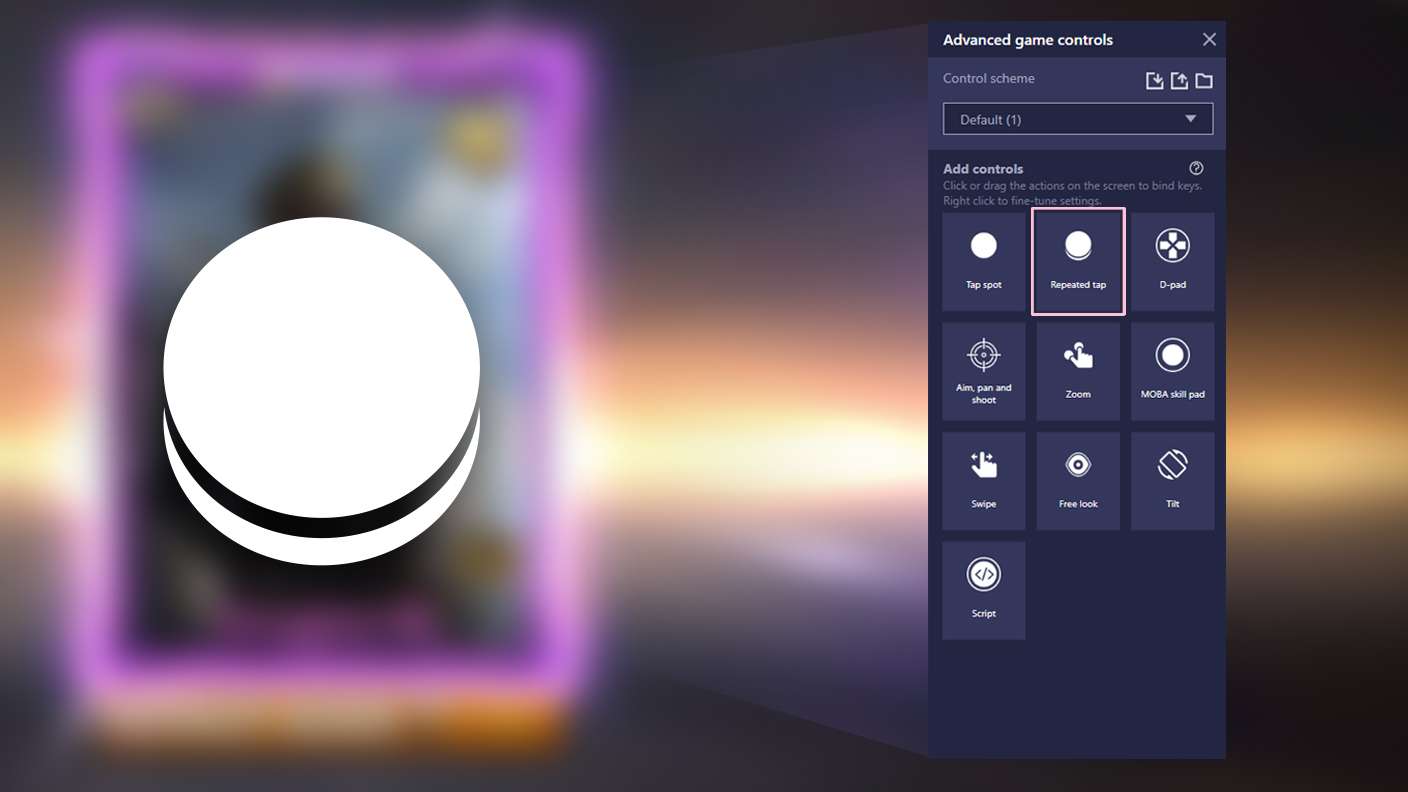
  • Repeated Tap
  • Enhancements
Macros

Macros

Automate the predictable in SoulStar Games and transform your gameplay with Macros. Get access to inventive Macros in the BlueStacks Macro Community
Multi Instance

Multi Instance

Play SoulStar Games on one window. And chat with your friend on the other. Press CTRL + Shift + 8 to open the Multi-Instance Manager. And start creating fresh instances or clone an existing one.
Script

Script

Script your way to gaming glory in SoulStar Games with BlueStacks Script. Write and run a set of commands to automate repeated tasks. Trigger the command by assigning it to any key.
Repeated Tap

Repeated Tap

BlueStacks lets you master SoulStar Games with useful features like the Repeated Tap. Now you do not have to press the same key repeatedly to initiate an action. Just assign it to one key and you are good to go.
Read More

How to Download and Play SoulStar Games on PC or Mac

  • Download and install BlueStacks on your PC or Mac

  • Complete Google sign-in to access the Play Store, or do it later

  • Look for SoulStar Games in the search bar at the top right corner

  • Click to install SoulStar Games from the search results

  • Complete Google sign-in (if you skipped step 2) to install SoulStar Games

  • Click the SoulStar Games icon on the home screen to start playing

video
Watch Video

Minimum System Requirements

With BlueStacks 5, you can get started on a PC that fulfills the following requirements.

  • Operating System

    Microsoft Windows 7 or above, macOS 11 (Big Sur) or above

  • Processor

    Intel, AMD or Apple Silicon Processor

  • RAM

    at least 4GB

  • HDD

    10GB Free Disk Space

Note:

* You must be an Administrator on your PC. Up to date graphics drivers from Microsoft or the chipset vendor.

SoulStar Games - FAQs

  • How to play SoulStar Games on Windows PC & Mac?

    Play SoulStar Games on your PC or Mac by following these simple steps.

    • Click on 'Play SoulStar Games on PC’ to download BlueStacks
    • Install it and log-in to Google Play Store
    • Launch and play the game.
  • Why is BlueStacks the fastest and safest platform to play games on PC?

    BlueStacks respects your privacy and is always safe and secure to use. It does not carry any malware, spyware, or any sort of additional software that could harm your PC.

    It is engineered to optimize speed and performance for a seamless gaming experience.

  • What are SoulStar Games PC requirements?

    Minimum requirement to run SoulStar Games on your PC

    • OS: Microsoft Windows 7 or above MacOS 11 (Big Sur) or above
    • Processor: Intel, AMD or Apple Silicon Processor
    • RAM: Your PC must have at least 4GB of RAM. (Note that having 4GB or more disk space is not a substitute for RAM)
    • HDD: 10GB Free Disk Space.
    • You must be an Administrator on your PC.