All Email Providers
All Email Providers

All Email Providers

Communication

| LondonNut.com

Play on PC with BlueStacks or from our cloud

  • Overview
  • How to Download

Page Modified On: October 23, 2025

Run All Email Providers on PC or Mac

Multitask effortlessly on your PC or Mac as you try out All Email Providers, a Communication app by LondonNut.com on BlueStacks.

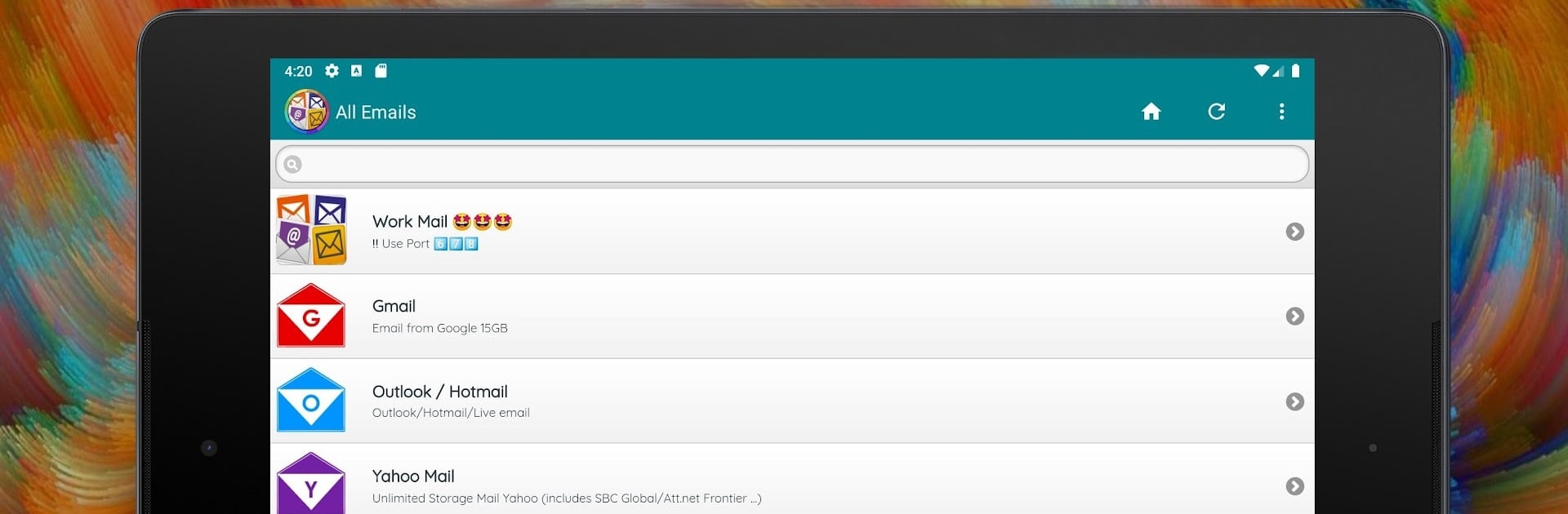
All Email Providers is basically an inbox hub for people who juggle a bunch of accounts. It lines up a ton of services in one simple screen, so there is no bouncing between separate apps. There are more than a hundred providers ready out of the box, and if one is missing, they can plug in their own webmail link and keep going. The layout feels clean and fast, nothing flashy, just straight to the point. They can pin favorites to the top so the daily accounts show first, and hide the ones that will never be used. Little touches help too, like text templates for quick replies and customisation for the look, so the app does not feel generic.

On a PC with BlueStacks, it works like a neat control panel for email. Mouse clicks make switching providers feel instant, and typing longer messages is easier on a keyboard. It does not try to reinvent email, it just removes the clutter of managing multiple places. The template feature is handy for stuff that gets typed over and over, and adding a webmail that is not on the list is a two minute thing, no drama. Anyone who wants a fast way to check several inboxes without digging through folders will get the idea right away, and the app stays out of the way so they can just read, send, move on.

Eager to take your app experience to the next level? Start right away by downloading BlueStacks on your PC or Mac.


How to Download and Run All Email Providers on PC or Mac

  • Download and install BlueStacks on your PC or Mac

  • Complete Google sign-in to access the Play Store, or do it later

  • Look for All Email Providers in the search bar at the top right corner

  • Click to install All Email Providers from the search results

  • Complete Google sign-in (if you skipped step 2) to install All Email Providers

  • Click the All Email Providers icon on the home screen to start playing

video
Watch Video

Minimum System Requirements

With BlueStacks 5, you can get started on a PC that fulfills the following requirements.

  • Operating System

    Microsoft Windows 7 or above, macOS 11 (Big Sur) or above

  • Processor

    Intel, AMD or Apple Silicon Processor

  • RAM

    at least 4GB

  • HDD

    10GB Free Disk Space

Note:

* You must be an Administrator on your PC. Up to date graphics drivers from Microsoft or the chipset vendor.

All Email Providers - FAQs

  • How to Run All Email Providers on Windows PC & Mac?

    Run All Email Providers on your PC or Mac by following these simple steps.

    • Click on ‘Download All Email Providers on PC’ to download BlueStacks
    • Install it and log-in to Google Play Store
    • Launch and run the app.
  • Why is BlueStacks the fastest and safest platform to play games on PC?

    BlueStacks respects your privacy and is always safe and secure to use. It does not carry any malware, spyware, or any sort of additional software that could harm your PC.

    It is engineered to optimize speed and performance for a seamless gaming experience.

  • What are All Email Providers PC requirements?

    Minimum requirement to run All Email Providers on your PC

    • OS: Microsoft Windows 7 and above:
    • Processor: Intel or AMD Processor:
    • RAM: Your PC must have at least 2GB of RAM. (Note that having 2GB or more disk space is not a substitute for RAM):
    • HDD: 5GB Free Disk Space.
    • You must be an Administrator on your PC.