ABRSM Violin Practice Partner

ABRSM Violin Practice Partner

Education

| ABRSM Publishing Ltd

Play on PC with BlueStacks or from our cloud

  • Overview
  • How to Download

Page Modified On: January 02, 2026

Run ABRSM Violin Practice Partner on PC or Mac

Let BlueStacks turn your PC, Mac, or laptop into the perfect home for ABRSM Violin Practice Partner, a fun Education app from ABRSM Publishing Ltd.

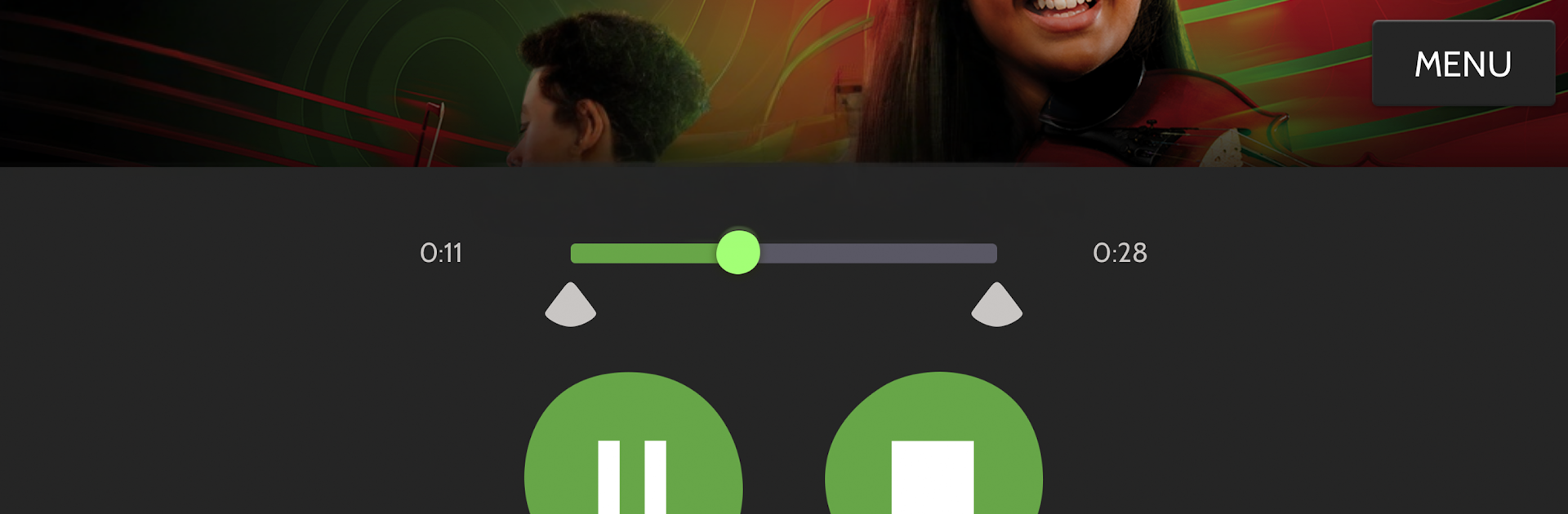
ABRSM Violin Practice Partner feels like having a calm, patient accompanist on tap. It plays the piano part for official ABRSM exam pieces and lets a player switch between three views of the music world it builds: full duo recording, piano only, or violin on its own. That last one is handy for hearing phrasing and little details that get lost in the room. Tempo can go slower for careful work or faster when confidence grows, and there is a simple loop control so the same tricky bar can be repeated until it finally clicks. It even lets someone pick from a bunch of virtual partners, nine in total, which is a small touch but makes practice feel less stale.

Content wise, it covers the new 2024 ABRSM violin pieces across the grades, and still has options from the 2020 to 2023 and 2016 to 2019 books. There are two sample tracks included, one from Grade 4 and one from Grade 8, so it is possible to try the feel of it before buying any piece packs. Just a heads up that this is all about accompanied pieces, so solo works are not in here, and there is no way to import outside audio. It is worth testing the sample playback first to make sure it behaves well on the device.

Running it on a PC with BlueStacks makes the controls easier to hit, especially the tempo slider and loop points, and speakers give the piano part some weight. The app itself is straightforward and not fussy, so practice time goes into bow and intonation, not menu hunting.

Eager to take your app experience to the next level? Start right away by downloading BlueStacks on your PC or Mac.


How to Download and Run ABRSM Violin Practice Partner on PC or Mac

  • Download and install BlueStacks on your PC or Mac

  • Complete Google sign-in to access the Play Store, or do it later

  • Look for ABRSM Violin Practice Partner in the search bar at the top right corner

  • Click to install ABRSM Violin Practice Partner from the search results

  • Complete Google sign-in (if you skipped step 2) to install ABRSM Violin Practice Partner

  • Click the ABRSM Violin Practice Partner icon on the home screen to start playing

video
Watch Video

Minimum System Requirements

With BlueStacks 5, you can get started on a PC that fulfills the following requirements.

  • Operating System

    Microsoft Windows 7 or above, macOS 11 (Big Sur) or above

  • Processor

    Intel, AMD or Apple Silicon Processor

  • RAM

    at least 4GB

  • HDD

    10GB Free Disk Space

Note:

* You must be an Administrator on your PC. Up to date graphics drivers from Microsoft or the chipset vendor.

ABRSM Violin Practice Partner - FAQs

  • How to Run ABRSM Violin Practice Partner on Windows PC & Mac?

    Run ABRSM Violin Practice Partner on your PC or Mac by following these simple steps.

    • Click on ‘Download ABRSM Violin Practice Partner on PC’ to download BlueStacks
    • Install it and log-in to Google Play Store
    • Launch and run the app.
  • Why is BlueStacks the fastest and safest platform to play games on PC?

    BlueStacks respects your privacy and is always safe and secure to use. It does not carry any malware, spyware, or any sort of additional software that could harm your PC.

    It is engineered to optimize speed and performance for a seamless gaming experience.

  • What are ABRSM Violin Practice Partner PC requirements?

    Minimum requirement to run ABRSM Violin Practice Partner on your PC

    • OS: Microsoft Windows 7 and above:
    • Processor: Intel or AMD Processor:
    • RAM: Your PC must have at least 2GB of RAM. (Note that having 2GB or more disk space is not a substitute for RAM):
    • HDD: 5GB Free Disk Space.
    • You must be an Administrator on your PC.