Fruits Cards Games
Fruits Cards Games

Fruits Cards Games

Education

| KidsEdu studio

Play on PC with BlueStacks or from our cloud

  • Overview
  • How to Download

Page Modified On: January 09, 2026

Run Fruits Cards Games on PC or Mac

What’s better than using Fruits Cards Games by KidsEdu studio? Well, try it on a big screen, on your PC or Mac, with BlueStacks to see the difference.

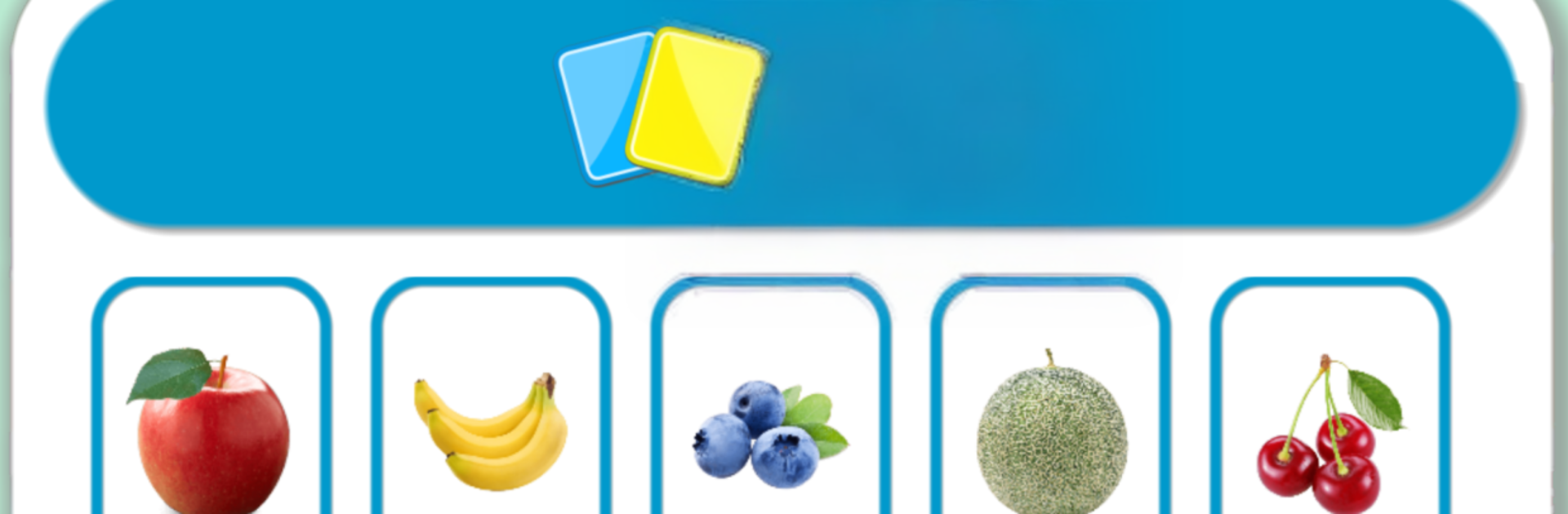
Fruits Cards Games feels like a bright little toolbox for learning fruit names without any fuss. It is mostly flashcards, but with enough extras to keep it from getting dull. Tap a card and it speaks the word, shows a clear picture, and swaps languages on the spot. English, Spanish, Chinese, Japanese, Korean are all there, so someone can flip between them and hear the differences. There is about 40 fruits, from the obvious ones like apple and banana to a few that feel new, and the voices are clear enough that even small kids would follow along.

The mini games give it some life. A memory match for quick recall, five jigsaw puzzles that use the same fruit images, a simple quiz, and a little drawing pen for tracing or scribbling on top of the fruit pictures. There is even a cut feature that lets players slice a fruit and see the cross section, which sounds tiny but actually makes the pictures stick better. It is calm, no big pressure or timers, and everything loops back to practicing the words. On a PC with BlueStacks, the bigger screen makes the pictures and slicing feel nicer, and dragging puzzle pieces with a mouse is smooth. It is not fancy, but it is steady, clear, and very kid friendly, while also useful for anyone wanting to pick up basic vocabulary in more than one language.

BlueStacks brings your apps to life on a bigger screen—seamless and straightforward.

How to Download and Run Fruits Cards Games on PC or Mac

  • Download and install BlueStacks on your PC or Mac

  • Complete Google sign-in to access the Play Store, or do it later

  • Look for Fruits Cards Games in the search bar at the top right corner

  • Click to install Fruits Cards Games from the search results

  • Complete Google sign-in (if you skipped step 2) to install Fruits Cards Games

  • Click the Fruits Cards Games icon on the home screen to start playing

video
Watch Video

Minimum System Requirements

With BlueStacks 5, you can get started on a PC that fulfills the following requirements.

  • Operating System

    Microsoft Windows 7 or above, macOS 11 (Big Sur) or above

  • Processor

    Intel, AMD or Apple Silicon Processor

  • RAM

    at least 4GB

  • HDD

    10GB Free Disk Space

Note:

* You must be an Administrator on your PC. Up to date graphics drivers from Microsoft or the chipset vendor.

Fruits Cards Games - FAQs

  • How to Run Fruits Cards Games on Windows PC & Mac?

    Run Fruits Cards Games on your PC or Mac by following these simple steps.

    • Click on ‘Download Fruits Cards Games on PC’ to download BlueStacks
    • Install it and log-in to Google Play Store
    • Launch and run the app.
  • Why is BlueStacks the fastest and safest platform to play games on PC?

    BlueStacks respects your privacy and is always safe and secure to use. It does not carry any malware, spyware, or any sort of additional software that could harm your PC.

    It is engineered to optimize speed and performance for a seamless gaming experience.

  • What are Fruits Cards Games PC requirements?

    Minimum requirement to run Fruits Cards Games on your PC

    • OS: Microsoft Windows 7 and above:
    • Processor: Intel or AMD Processor:
    • RAM: Your PC must have at least 2GB of RAM. (Note that having 2GB or more disk space is not a substitute for RAM):
    • HDD: 5GB Free Disk Space.
    • You must be an Administrator on your PC.