GrapeSEED Student
GrapeSEED Student

GrapeSEED Student

Education

| GrapeSEED International Pte. Ltd.

Play on PC with BlueStacks or from our cloud

  • Overview
  • How to Download

Page Modified On: July 21, 2025

Run GrapeSEED Student on PC or Mac

Get freedom from your phone’s obvious limitations. Use GrapeSEED Student, made by GrapeSEED Media Limited., a Education app on your PC or Mac with BlueStacks, and level up your experience.

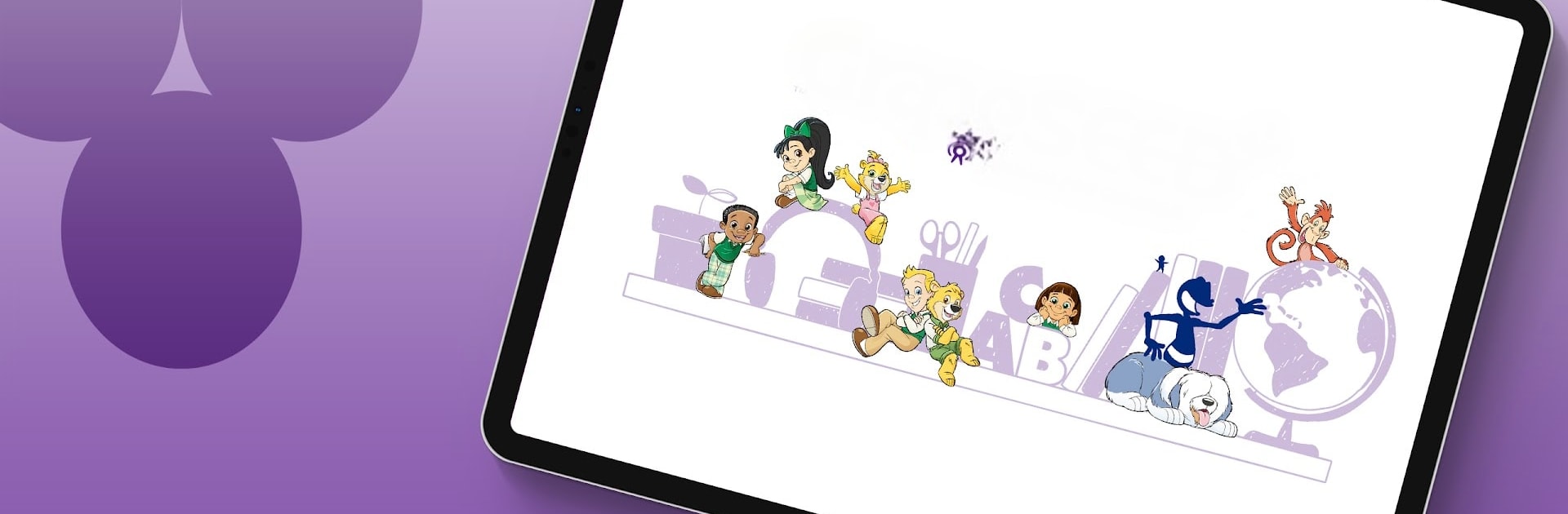
GrapeSEED Student is built for kids already enrolled in GrapeSEED classes, and it really feels like an extra set of tools for getting comfortable with English. The app lays out everything in daily playlists, so instead of cramming grammar rules, kids spend time listening to stories, songs, chants, and actually using the language. There’s animation and lots of visual stuff, so it isn’t just text or dull exercises. Progress happens in steps as students move through units—it’s meant for ages 4 to 12, so things are kid-friendly and designed to keep them focused even if they’re not super into studying.

Parents and teachers don’t have to guess how things are going—there’s tracking features so they can keep tabs on all the little wins along the way. What stands out is that GrapeSEED doesn’t make students translate in their heads. Instead, there’s a lot of focus on hearing, understanding, and repeating, which lines up with how people naturally pick up language. There are badges and a media library for each unit, so learning feels kind of rewarding and complete. BlueStacks lets this run on a computer, so all the videos and interactive stuff work well on a bigger screen, which is a nice bonus if someone prefers that setup over a tablet or phone. The app keeps things lively with art and music, and the activities switch between listening, speaking, reading, and writing, so it never gets monotonous. It’s practical and keeps kids using real English in context, not just isolated words.

BlueStacks gives you the much-needed freedom to experience your favorite apps on a bigger screen. Get it now.


How to Download and Run GrapeSEED Student on PC or Mac

  • Download and install BlueStacks on your PC or Mac

  • Complete Google sign-in to access the Play Store, or do it later

  • Look for GrapeSEED Student in the search bar at the top right corner

  • Click to install GrapeSEED Student from the search results

  • Complete Google sign-in (if you skipped step 2) to install GrapeSEED Student

  • Click the GrapeSEED Student icon on the home screen to start playing

video
Watch Video

Minimum System Requirements

With BlueStacks 5, you can get started on a PC that fulfills the following requirements.

  • Operating System

    Microsoft Windows 7 or above, macOS 11 (Big Sur) or above

  • Processor

    Intel, AMD or Apple Silicon Processor

  • RAM

    at least 4GB

  • HDD

    10GB Free Disk Space

Note:

* You must be an Administrator on your PC. Up to date graphics drivers from Microsoft or the chipset vendor.

GrapeSEED Student - FAQs

  • How to Run GrapeSEED Student on Windows PC & Mac?

    Run GrapeSEED Student on your PC or Mac by following these simple steps.

    • Click on ‘Download GrapeSEED Student on PC’ to download BlueStacks
    • Install it and log-in to Google Play Store
    • Launch and run the app.
  • Why is BlueStacks the fastest and safest platform to play games on PC?

    BlueStacks respects your privacy and is always safe and secure to use. It does not carry any malware, spyware, or any sort of additional software that could harm your PC.

    It is engineered to optimize speed and performance for a seamless gaming experience.

  • What are GrapeSEED Student PC requirements?

    Minimum requirement to run GrapeSEED Student on your PC

    • OS: Microsoft Windows 7 and above:
    • Processor: Intel or AMD Processor:
    • RAM: Your PC must have at least 2GB of RAM. (Note that having 2GB or more disk space is not a substitute for RAM):
    • HDD: 5GB Free Disk Space.
    • You must be an Administrator on your PC.