Notas U Pro: School Planner

Notas U Pro: School Planner

Education

| Jorge de la Hoz

Play on PC with BlueStacks or from our cloud

  • Overview
  • How to Download

Page Modified On: November 20, 2025

Run Notas U Pro: School Planner on PC or Mac

Let BlueStacks turn your PC, Mac, or laptop into the perfect home for Notas U Pro: School Planner, a fun Education app from Jorge de la Hoz.

Notas U Pro: School Planner feels like a tidy backpack turned into an app. The layout is clean and quick, so it does not get in the way while sorting out school life. A student can set up semesters, add subjects, pick a color for each course, and plug in the grading range, number of periods, and the weight of each one. It then keeps track of averages and goals, and there is even a quick calculator to see what grade is still needed to hit a target. The today summary is handy when the day is busy and there is no time to check everything.

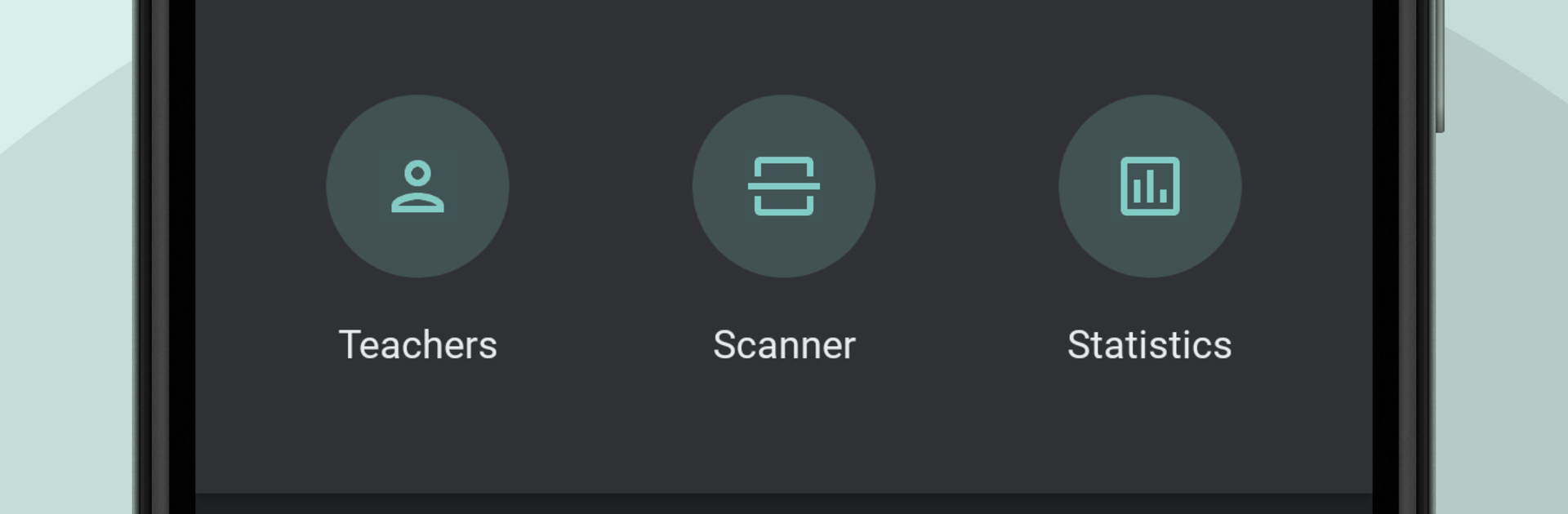
What stands out is how much it covers without feeling heavy. There is a timetable and a simple schedule view, plus a calendar and widget, with reminders for classes, tasks, exams, events, and even books. Alarms and notifications help cut down on late or missed work. Absences, teachers, and topics can be logged so everything stays in one place. A notes section, a basic scanner, and some light statistics make study sessions easier to organise. There is password protection, backup options, and dark mode for late nights. It even has a small meme creator tucked in, which is unexpected but fun when a group project needs a laugh.

Running it on PC with BlueStacks makes typing long tasks and skimming the weekly timetable on a bigger screen feel smoother, and it plays nicely with a keyboard and mouse.

Big screen. Bigger performance. Use BlueStacks on your PC or Mac to run your favorite apps.

How to Download and Run Notas U Pro: School Planner on PC or Mac

  • Download and install BlueStacks on your PC or Mac

  • Complete Google sign-in to access the Play Store, or do it later

  • Look for Notas U Pro: School Planner in the search bar at the top right corner

  • Click to install Notas U Pro: School Planner from the search results

  • Complete Google sign-in (if you skipped step 2) to install Notas U Pro: School Planner

  • Click the Notas U Pro: School Planner icon on the home screen to start playing

video
Watch Video

Minimum System Requirements

With BlueStacks 5, you can get started on a PC that fulfills the following requirements.

  • Operating System

    Microsoft Windows 7 or above, macOS 11 (Big Sur) or above

  • Processor

    Intel, AMD or Apple Silicon Processor

  • RAM

    at least 4GB

  • HDD

    10GB Free Disk Space

Note:

* You must be an Administrator on your PC. Up to date graphics drivers from Microsoft or the chipset vendor.

Notas U Pro: School Planner - FAQs

  • How to Run Notas U Pro: School Planner on Windows PC & Mac?

    Run Notas U Pro: School Planner on your PC or Mac by following these simple steps.

    • Click on ‘Download Notas U Pro: School Planner on PC’ to download BlueStacks
    • Install it and log-in to Google Play Store
    • Launch and run the app.
  • Why is BlueStacks the fastest and safest platform to play games on PC?

    BlueStacks respects your privacy and is always safe and secure to use. It does not carry any malware, spyware, or any sort of additional software that could harm your PC.

    It is engineered to optimize speed and performance for a seamless gaming experience.

  • What are Notas U Pro: School Planner PC requirements?

    Minimum requirement to run Notas U Pro: School Planner on your PC

    • OS: Microsoft Windows 7 and above:
    • Processor: Intel or AMD Processor:
    • RAM: Your PC must have at least 2GB of RAM. (Note that having 2GB or more disk space is not a substitute for RAM):
    • HDD: 5GB Free Disk Space.
    • You must be an Administrator on your PC.