Planet Orbiter VR
Planet Orbiter VR

Planet Orbiter VR

Education

| INOVE, s.r.o.

Play on PC with BlueStacks or from our cloud

  • Overview
  • How to Download

Page Modified On: November 28, 2025

Run Planet Orbiter VR on PC or Mac

Why limit yourself to your small screen on the phone? Run Planet Orbiter VR, an app by INOVE, s.r.o., best experienced on your PC or Mac with BlueStacks, the world’s #1 Android emulator.

About the App

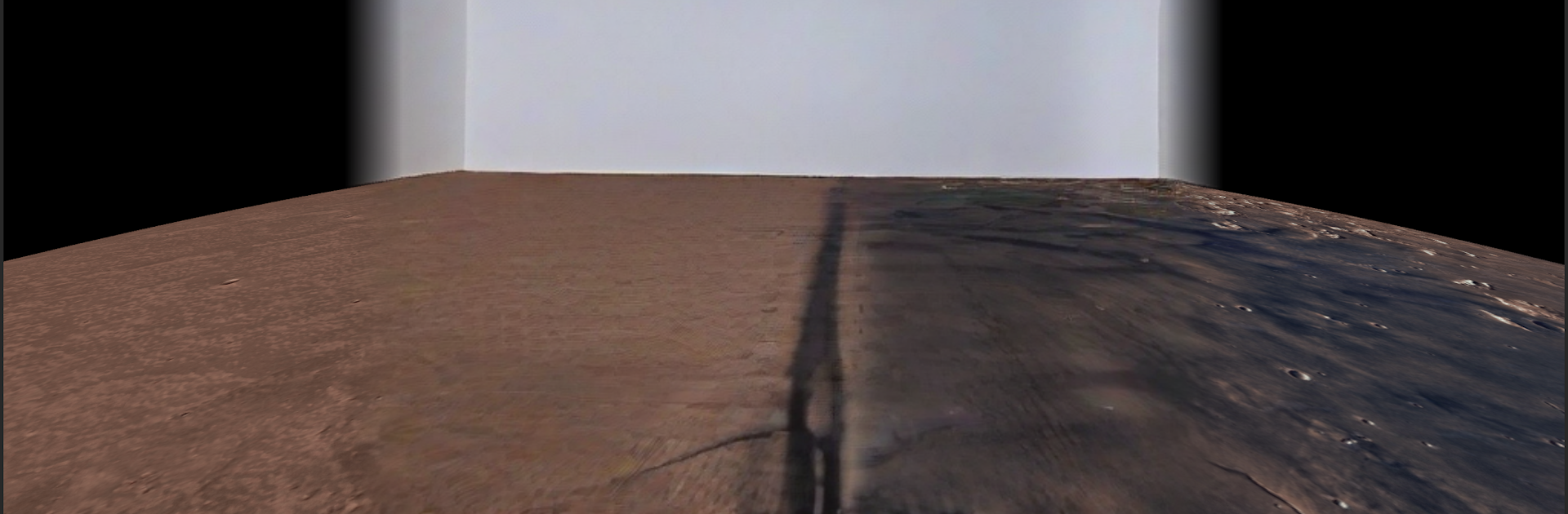
Planet Orbiter VR puts you right in the window seat of a spacecraft skimming the planet in lower orbit. Glide over Earth and Mars, soak up sweeping views, and poke around places you’ve always wanted to see—plus a few you’ve never heard of. Built as an Education experience by INOVE, s.r.o., it works great with VR glasses, but you can explore on your phone or on your computer with BlueStacks, too.

App Features

  • Earth and Mars flyovers: Switch between two worlds and circle them from a crisp, lower-orbit perspective that makes everything feel close and real.
  • Real surface data visuals: Views are based on extensive planet surface data, so coastlines, mountains, deserts, and ice caps look like they should.
  • VR or no VR—your call: Pop on VR glasses for that “I’m up here” feeling, or use the standard mode when you just want to browse from the couch.
  • Free-roam exploration: No fixed path. Pan, tilt, and move to explore remote regions or jump to well-known spots. Want to float over a famous landmark or skim past a quiet stretch of tundra? Up to you.
  • Comfortable, simple controls: Designed to feel natural whether you’re in a headset or on a screen, so you can focus on the view, not the buttons.
  • Lower-orbit vantage: Experience that sweet spot where surface details stay visible while the planet’s curve fills your view.
  • Actively evolving: Planet Orbiter VR is still in development, with more lower-orbit experiences planned as it grows.

Ready to experience Planet Orbiter VR on a bigger screen, in all its glory? Download BlueStacks now.


How to Download and Run Planet Orbiter VR on PC or Mac

  • Download and install BlueStacks on your PC or Mac

  • Complete Google sign-in to access the Play Store, or do it later

  • Look for Planet Orbiter VR in the search bar at the top right corner

  • Click to install Planet Orbiter VR from the search results

  • Complete Google sign-in (if you skipped step 2) to install Planet Orbiter VR

  • Click the Planet Orbiter VR icon on the home screen to start playing

video
Watch Video

Minimum System Requirements

With BlueStacks 5, you can get started on a PC that fulfills the following requirements.

  • Operating System

    Microsoft Windows 7 or above, macOS 11 (Big Sur) or above

  • Processor

    Intel, AMD or Apple Silicon Processor

  • RAM

    at least 4GB

  • HDD

    10GB Free Disk Space

Note:

* You must be an Administrator on your PC. Up to date graphics drivers from Microsoft or the chipset vendor.

Planet Orbiter VR - FAQs

  • How to Run Planet Orbiter VR on Windows PC & Mac?

    Run Planet Orbiter VR on your PC or Mac by following these simple steps.

    • Click on ‘Download Planet Orbiter VR on PC’ to download BlueStacks
    • Install it and log-in to Google Play Store
    • Launch and run the app.
  • Why is BlueStacks the fastest and safest platform to play games on PC?

    BlueStacks respects your privacy and is always safe and secure to use. It does not carry any malware, spyware, or any sort of additional software that could harm your PC.

    It is engineered to optimize speed and performance for a seamless gaming experience.

  • What are Planet Orbiter VR PC requirements?

    Minimum requirement to run Planet Orbiter VR on your PC

    • OS: Microsoft Windows 7 and above:
    • Processor: Intel or AMD Processor:
    • RAM: Your PC must have at least 2GB of RAM. (Note that having 2GB or more disk space is not a substitute for RAM):
    • HDD: 5GB Free Disk Space.
    • You must be an Administrator on your PC.