Quiz - French Departments, Regions and Cities

Quiz - French Departments, Regions and Cities

Education

| Michal Ivaska

Play on PC with BlueStacks or from our cloud

  • Overview
  • How to Download

Page Modified On: January 13, 2026

Run Quiz - French Departments, Regions and Cities on PC or Mac

Multitask effortlessly on your PC or Mac as you try out Quiz – French Departments, Regions and Cities, a Education app by Michal Ivaska on BlueStacks.

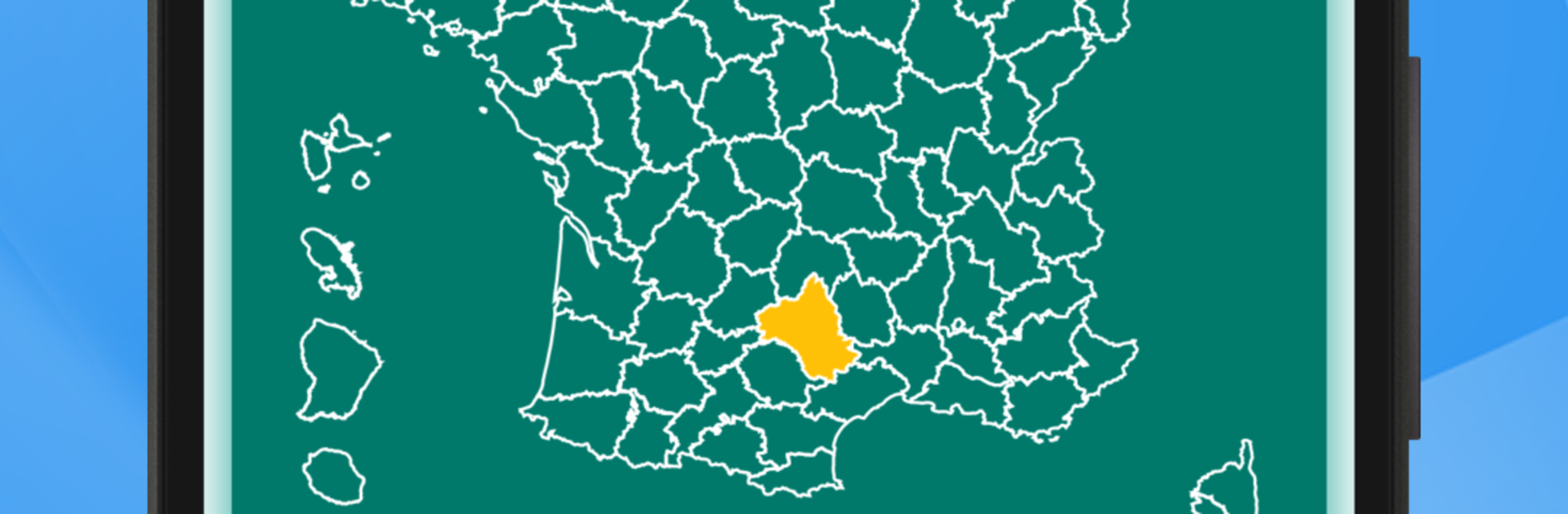
Quiz – French Departments, Regions and Cities feels like a clean, no-fuss way to actually learn the map of France instead of just staring at it. It opens with a big map and a simple learning mode where a click on any department shows handy details like its region, code, prefecture, area, and population. It is very visual and moves fast, so it does not feel like homework. On PC with BlueStacks, the mouse makes picking the right spot a lot easier, especially with those small and crowded departments, and the bigger screen helps the labels read clearly.

The quiz options are the fun part. There are several ways to play, from naming the department that is highlighted, to finding one by name on the map, to matching regions, guessing the prefecture, or linking big cities to the correct department. Codes get their own challenges too, both name to code and code to name. All of that can be mixed together if someone wants a tougher run. Each quiz lets players pick 2, 4, or 6 choices, so it can be gentle or a bit demanding. Right answers push the difficulty up, wrong ones nudge a retry without making anyone feel stuck. It is great for short sessions, quick study breaks, or just brushing up before a trip, and the structure makes French geography click surprisingly fast.

Switch to BlueStacks and make the most of your apps on your PC or Mac.

How to Download and Run Quiz - French Departments, Regions and Cities on PC or Mac

  • Download and install BlueStacks on your PC or Mac

  • Complete Google sign-in to access the Play Store, or do it later

  • Look for Quiz - French Departments, Regions and Cities in the search bar at the top right corner

  • Click to install Quiz - French Departments, Regions and Cities from the search results

  • Complete Google sign-in (if you skipped step 2) to install Quiz - French Departments, Regions and Cities

  • Click the Quiz - French Departments, Regions and Cities icon on the home screen to start playing

video
Watch Video

Minimum System Requirements

With BlueStacks 5, you can get started on a PC that fulfills the following requirements.

  • Operating System

    Microsoft Windows 7 or above, macOS 11 (Big Sur) or above

  • Processor

    Intel, AMD or Apple Silicon Processor

  • RAM

    at least 4GB

  • HDD

    10GB Free Disk Space

Note:

* You must be an Administrator on your PC. Up to date graphics drivers from Microsoft or the chipset vendor.

Quiz - French Departments, Regions and Cities - FAQs

  • How to Run Quiz - French Departments, Regions and Cities on Windows PC & Mac?

    Run Quiz - French Departments, Regions and Cities on your PC or Mac by following these simple steps.

    • Click on ‘Download Quiz - French Departments, Regions and Cities on PC’ to download BlueStacks
    • Install it and log-in to Google Play Store
    • Launch and run the app.
  • Why is BlueStacks the fastest and safest platform to play games on PC?

    BlueStacks respects your privacy and is always safe and secure to use. It does not carry any malware, spyware, or any sort of additional software that could harm your PC.

    It is engineered to optimize speed and performance for a seamless gaming experience.

  • What are Quiz - French Departments, Regions and Cities PC requirements?

    Minimum requirement to run Quiz - French Departments, Regions and Cities on your PC

    • OS: Microsoft Windows 7 and above:
    • Processor: Intel or AMD Processor:
    • RAM: Your PC must have at least 2GB of RAM. (Note that having 2GB or more disk space is not a substitute for RAM):
    • HDD: 5GB Free Disk Space.
    • You must be an Administrator on your PC.