Schoox Classic
Schoox Classic

Schoox Classic

Education

| Schoox, Inc.

Play on PC with BlueStacks or from our cloud

  • Overview
  • How to Download

Page Modified On: November 10, 2025

Run Schoox Classic on PC or Mac

Multitask effortlessly on your PC or Mac as you try out Schoox Classic, a Education app by Schoox, Inc. on BlueStacks.

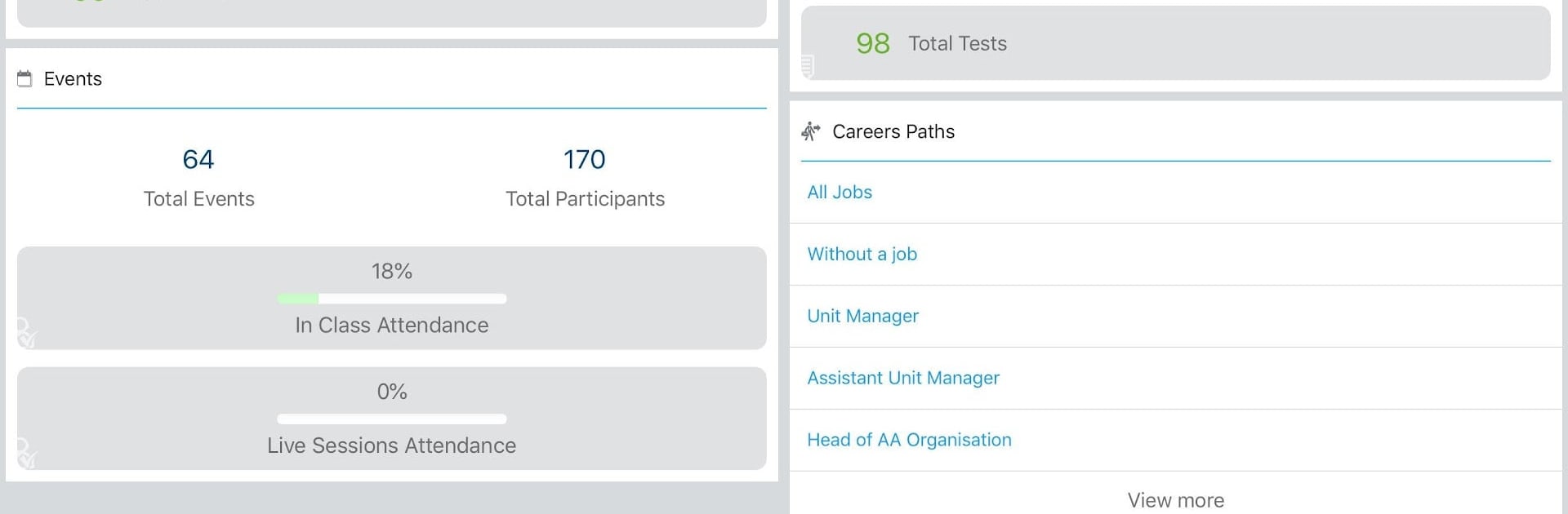
Schoox Classic feels like a straightforward training hub for work, not flashy, just practical. It is the older app and there is a newer one out there, but this still gets the job done. On PC with BlueStacks, it is easy to keep open next to email and switch between modules with a mouse. Courses, videos, quizzes, and certificates are all in one place, and the progress bars make it clear what is finished and what is due. Notifications help with deadlines and assignments, so nothing sneaks past. It also tracks career paths and goals, which is nice if someone likes seeing how their learning ties to a role or skill set. Offline access works for downloaded content, then it syncs when the connection comes back. Moving between the web version at a desk and the app on a phone is smooth, so it feels consistent wherever it is used.

There is some light social stuff for team communication and announcements, which keeps training from feeling isolated. For managers or L&D folks, the mobile tools cover the basics without feeling cramped. Assign training, run assessments, check compliance, manage on the job tasks with checklists, share company news, even track attendance at in person events with QR codes if the device supports it. Dashboards and recognition are there too, so teams can see wins and gaps in one glance. Just a heads up, this is meant for companies already on Schoox, so an academy login is required. If someone cannot sign in, the company admin is the person to ping.

Big screen. Bigger performance. Use BlueStacks on your PC or Mac to run your favorite apps.

How to Download and Run Schoox Classic on PC or Mac

  • Download and install BlueStacks on your PC or Mac

  • Complete Google sign-in to access the Play Store, or do it later

  • Look for Schoox Classic in the search bar at the top right corner

  • Click to install Schoox Classic from the search results

  • Complete Google sign-in (if you skipped step 2) to install Schoox Classic

  • Click the Schoox Classic icon on the home screen to start playing

video
Watch Video

Minimum System Requirements

With BlueStacks 5, you can get started on a PC that fulfills the following requirements.

  • Operating System

    Microsoft Windows 7 or above, macOS 11 (Big Sur) or above

  • Processor

    Intel, AMD or Apple Silicon Processor

  • RAM

    at least 4GB

  • HDD

    10GB Free Disk Space

Note:

* You must be an Administrator on your PC. Up to date graphics drivers from Microsoft or the chipset vendor.

Schoox Classic - FAQs

  • How to Run Schoox Classic on Windows PC & Mac?

    Run Schoox Classic on your PC or Mac by following these simple steps.

    • Click on ‘Download Schoox Classic on PC’ to download BlueStacks
    • Install it and log-in to Google Play Store
    • Launch and run the app.
  • Why is BlueStacks the fastest and safest platform to play games on PC?

    BlueStacks respects your privacy and is always safe and secure to use. It does not carry any malware, spyware, or any sort of additional software that could harm your PC.

    It is engineered to optimize speed and performance for a seamless gaming experience.

  • What are Schoox Classic PC requirements?

    Minimum requirement to run Schoox Classic on your PC

    • OS: Microsoft Windows 7 and above:
    • Processor: Intel or AMD Processor:
    • RAM: Your PC must have at least 2GB of RAM. (Note that having 2GB or more disk space is not a substitute for RAM):
    • HDD: 5GB Free Disk Space.
    • You must be an Administrator on your PC.