MyUniPa
MyUniPa

MyUniPa

Educational

| Università degli Studi di Palermo

Play on PC with BlueStacks or from our cloud

  • Overview
  • How to Download

Page Modified On: January 12, 2026

Run MyUniPa on PC or Mac

Why limit yourself to your small screen on the phone? Run MyUniPa, an app by Università degli Studi di Palermo, best experienced on your PC or Mac with BlueStacks, the world’s #1 Android emulator.

About the Game

MyUniPa is your campus life wingman in your pocket. Built for students of Università degli Studi di Palermo (and anyone planning to enroll), this Educational app keeps your courses, exams, and updates organized so you don’t have to. It’s straightforward, fast, and surprisingly handy when deadlines stack up.

Game Features

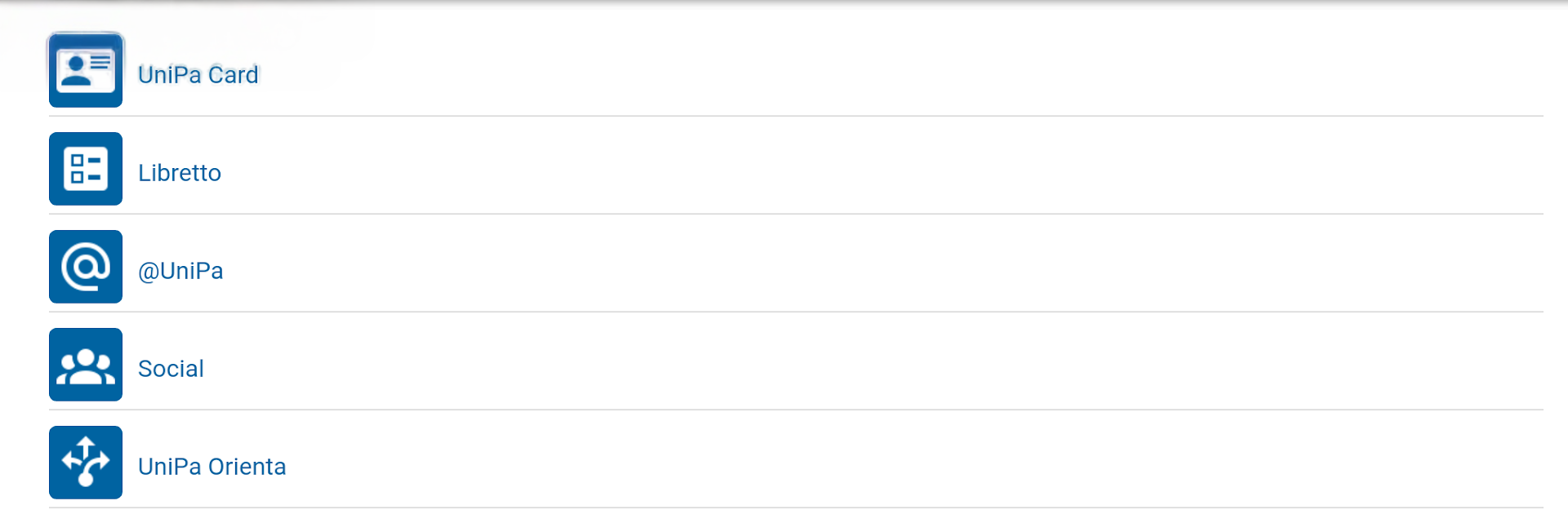
  • Course Guide
    Browse study programs and explore what each course offers, so picking your path feels less like guessing and more like planning.
  • Digital Record Book
    Keep your academic record with you at all times. Check grades, see what’s pending, and stay on top of your progress without digging through paperwork.
  • Exam Booking + GPA Snapshot
    Book exam sessions in a couple of taps and get an instant look at your GPA. It’s a clean, quick way to track where you stand.
  • Admissions and Calls
    Want in on a program or test? Find official calls and entry notices right in the app, so you catch important windows when they open.
  • Notifications and Messages
    Get timely alerts about exams, deadlines, and updates. No more finding out too late—your phone will nudge you when it matters.
  • Sign-in Tips
    Ran into a login error because of invalid credentials? Update your password on the portal, then sign in again—usually does the trick.
  • Big-Screen Friendly
    Prefer typing and browsing on a computer? You can run MyUniPa on your PC with BlueStacks for a roomier view while you plan your semester.

BlueStacks brings your apps to life on a bigger screen—seamless and straightforward.

How to Download and Run MyUniPa on PC or Mac

  • Download and install BlueStacks on your PC or Mac

  • Complete Google sign-in to access the Play Store, or do it later

  • Look for MyUniPa in the search bar at the top right corner

  • Click to install MyUniPa from the search results

  • Complete Google sign-in (if you skipped step 2) to install MyUniPa

  • Click the MyUniPa icon on the home screen to start playing

video
Watch Video

Minimum System Requirements

With BlueStacks 5, you can get started on a PC that fulfills the following requirements.

  • Operating System

    Microsoft Windows 7 or above, macOS 11 (Big Sur) or above

  • Processor

    Intel, AMD or Apple Silicon Processor

  • RAM

    at least 4GB

  • HDD

    10GB Free Disk Space

Note:

* You must be an Administrator on your PC. Up to date graphics drivers from Microsoft or the chipset vendor.

MyUniPa - FAQs

  • How to Run MyUniPa on Windows PC & Mac?

    Run MyUniPa on your PC or Mac by following these simple steps.

    • Click on ‘Download MyUniPa on PC’ to download BlueStacks
    • Install it and log-in to Google Play Store
    • Launch and run the app.
  • Why is BlueStacks the fastest and safest platform to play games on PC?

    BlueStacks respects your privacy and is always safe and secure to use. It does not carry any malware, spyware, or any sort of additional software that could harm your PC.

    It is engineered to optimize speed and performance for a seamless gaming experience.

  • What are MyUniPa PC requirements?

    Minimum requirement to run MyUniPa on your PC

    • OS: Microsoft Windows 7 and above:
    • Processor: Intel or AMD Processor:
    • RAM: Your PC must have at least 2GB of RAM. (Note that having 2GB or more disk space is not a substitute for RAM):
    • HDD: 5GB Free Disk Space.
    • You must be an Administrator on your PC.