Prep
Prep

Prep

Educational

| ADStudios

Play on PC with BlueStacks or from our cloud

  • Overview
  • How to Download

Page Modified On: May 01, 2026

Run Prep on PC or Mac

Multitask effortlessly on your PC or Mac as you try out Prep, a Education app by ADStudios on BlueStacks.

About the App

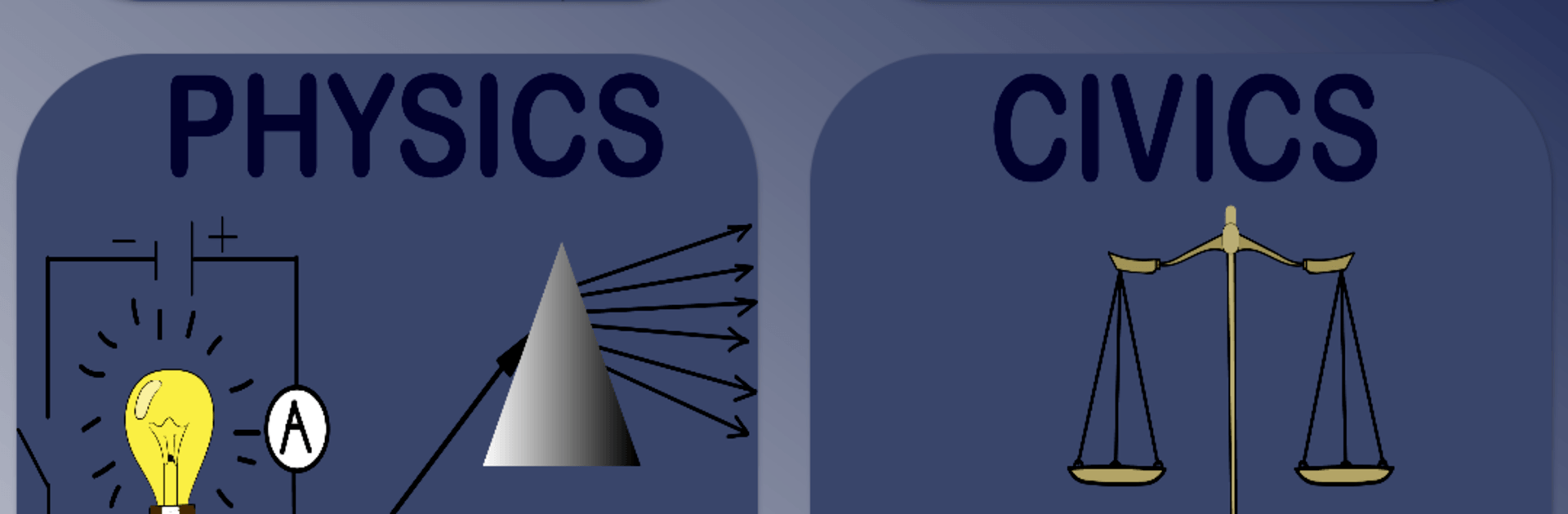
Prep from ADStudios is an Education app built to support students in Ethiopia getting ready for the national university entrance exam. It’s a straightforward study companion for Grade 11 and Grade 12 learners who want a clear path and steady momentum. Expect a clean, student-friendly experience that keeps exam goals front and center without extra fluff.

App Features

  • Ethiopian exam focus: Everything revolves around the Ethiopian university entrance exam, so your study time actually matches what you’ll face on test day.
  • For Grade 11 and Grade 12: Whether you’re laying the groundwork in Grade 11 or polishing up in Grade 12, Prep keeps both stages in mind so you can build and review with purpose.
  • Organized and easy to use: Simple navigation helps you find what you need quickly—no digging, no distractions—so you can get in, study, and move on.
  • Study your way: Do quick refreshers between classes or settle in for longer sessions; Prep fits different schedules and study styles.
  • Consistent, not crammed: The app encourages steady practice and regular check-ins, helping you avoid last-minute stress and keep progress moving.
  • Big-screen option: Prefer a laptop setup? You can run Prep on BlueStacks to review on a larger display and stay comfortable during longer study blocks.

Eager to take your app experience to the next level? Start right away by downloading BlueStacks on your PC or Mac.

How to Download and Run Prep on PC or Mac

  • Download and install BlueStacks on your PC or Mac

  • Complete Google sign-in to access the Play Store, or do it later

  • Look for Prep in the search bar at the top right corner

  • Click to install Prep from the search results

  • Complete Google sign-in (if you skipped step 2) to install Prep

  • Click the Prep icon on the home screen to start playing

video
Watch Video

Minimum System Requirements

With BlueStacks 5, you can get started on a PC that fulfills the following requirements.

  • Operating System

    Microsoft Windows 7 or above, macOS 11 (Big Sur) or above

  • Processor

    Intel, AMD or Apple Silicon Processor

  • RAM

    at least 4GB

  • HDD

    10GB Free Disk Space

Note:

* You must be an Administrator on your PC. Up to date graphics drivers from Microsoft or the chipset vendor.

Prep - FAQs

  • How to Run Prep on Windows PC & Mac?

    Run Prep on your PC or Mac by following these simple steps.

    • Click on ‘Download Prep on PC’ to download BlueStacks
    • Install it and log-in to Google Play Store
    • Launch and run the app.
  • Why is BlueStacks the fastest and safest platform to play games on PC?

    BlueStacks respects your privacy and is always safe and secure to use. It does not carry any malware, spyware, or any sort of additional software that could harm your PC.

    It is engineered to optimize speed and performance for a seamless gaming experience.

  • What are Prep PC requirements?

    Minimum requirement to run Prep on your PC

    • OS: Microsoft Windows 7 and above:
    • Processor: Intel or AMD Processor:
    • RAM: Your PC must have at least 2GB of RAM. (Note that having 2GB or more disk space is not a substitute for RAM):
    • HDD: 5GB Free Disk Space.
    • You must be an Administrator on your PC.