miRadio: FM Radio Italy

miRadio: FM Radio Italy

Music & Audio

| Moldes Bros. Radio FM, Radio Online

Play on PC with BlueStacks or from our cloud

  • Overview
  • How to Download

Page Modified On: January 02, 2026

Run miRadio: FM Radio Italy on PC or Mac

Get freedom from your phone’s obvious limitations. Use miRadio: FM Radio Italy, made by Moldes Bros. Radio FM, Radio Online, a Music & Audio app on your PC or Mac with BlueStacks, and level up your experience.

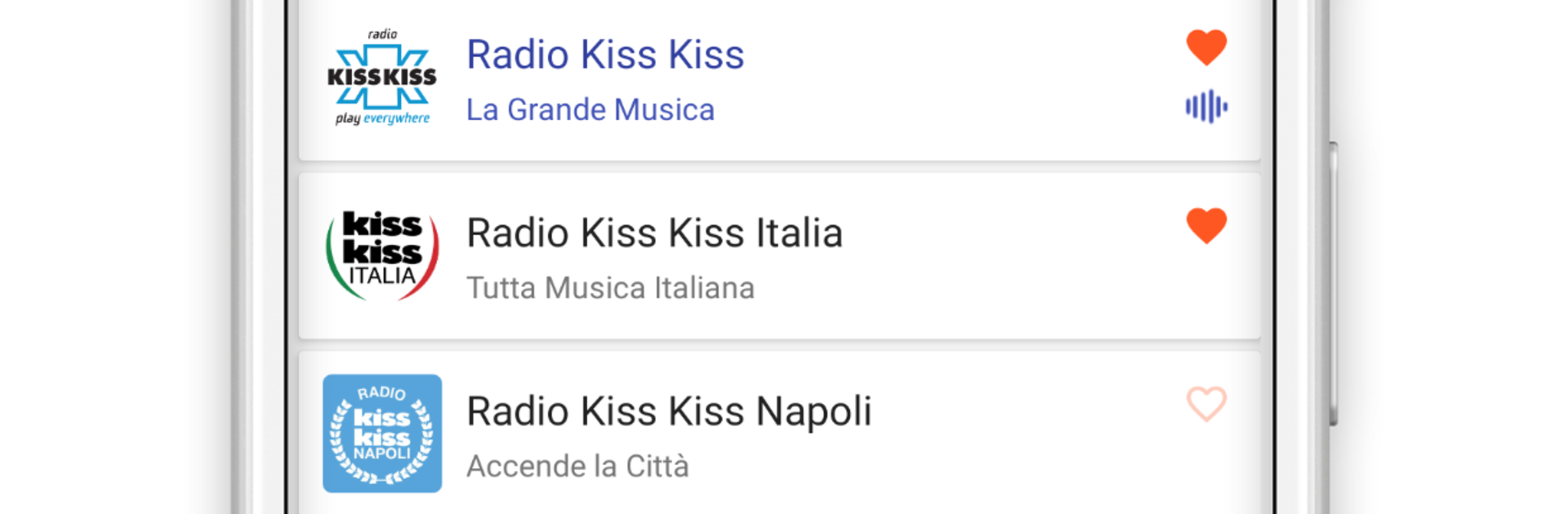
miRadio: FM Radio Italy feels like a clean, no‑frills way to stream Italian stations without any sign up or weird hoops. One tap and a station is on, and it connects quick with very little waiting, as long as the internet is decent. The catalog is big and kept fresh, with music, news, sports, talk, and regional stations from all over the map. Big names are here like Radio 105, Rai Radio 1 to 3, Radio Deejay, RTL, RDS, Virgin Radio, Kiss Kiss, Radio Subasio, and plenty of smaller local ones too. The station finder is simple to use and search works by name, region, or even frequency, plus there is a Top 50 section if someone just wants what is popular right now. Favorites can be saved and sorted, and the app shows song and show info while it plays.

There are handy extras that make it nice for daily use. An alarm clock that wakes to a station, an automatic shutdown timer for falling asleep, notification controls for quick pause or switch, and a Football mode that surfaces sports stations for match days. The look is not stuck either, there are about twenty color themes, so it can match the mood. Running it on a PC with BlueStacks is smooth, and it is great to keep it in a corner while working, search with the keyboard, and alt tab without stopping the stream. Stations update automatically, and if a favorite is missing there is a way to request it inside the app. It does require an internet connection, but that is expected for live radio.

BlueStacks brings your apps to life on a bigger screen—seamless and straightforward.

How to Download and Run miRadio: FM Radio Italy on PC or Mac

  • Download and install BlueStacks on your PC or Mac

  • Complete Google sign-in to access the Play Store, or do it later

  • Look for miRadio: FM Radio Italy in the search bar at the top right corner

  • Click to install miRadio: FM Radio Italy from the search results

  • Complete Google sign-in (if you skipped step 2) to install miRadio: FM Radio Italy

  • Click the miRadio: FM Radio Italy icon on the home screen to start playing

video
Watch Video

Minimum System Requirements

With BlueStacks 5, you can get started on a PC that fulfills the following requirements.

  • Operating System

    Microsoft Windows 7 or above, macOS 11 (Big Sur) or above

  • Processor

    Intel, AMD or Apple Silicon Processor

  • RAM

    at least 4GB

  • HDD

    10GB Free Disk Space

Note:

* You must be an Administrator on your PC. Up to date graphics drivers from Microsoft or the chipset vendor.

miRadio: FM Radio Italy - FAQs

  • How to Run miRadio: FM Radio Italy on Windows PC & Mac?

    Run miRadio: FM Radio Italy on your PC or Mac by following these simple steps.

    • Click on ‘Download miRadio: FM Radio Italy on PC’ to download BlueStacks
    • Install it and log-in to Google Play Store
    • Launch and run the app.
  • Why is BlueStacks the fastest and safest platform to play games on PC?

    BlueStacks respects your privacy and is always safe and secure to use. It does not carry any malware, spyware, or any sort of additional software that could harm your PC.

    It is engineered to optimize speed and performance for a seamless gaming experience.

  • What are miRadio: FM Radio Italy PC requirements?

    Minimum requirement to run miRadio: FM Radio Italy on your PC

    • OS: Microsoft Windows 7 and above:
    • Processor: Intel or AMD Processor:
    • RAM: Your PC must have at least 2GB of RAM. (Note that having 2GB or more disk space is not a substitute for RAM):
    • HDD: 5GB Free Disk Space.
    • You must be an Administrator on your PC.