mMusic Audio Player
mMusic Audio Player

mMusic Audio Player

Music & Audio

| Stanislav Bokach

Play on PC with BlueStacks or from our cloud

  • Overview
  • How to Download

Page Modified On: November 03, 2025

Run mMusic Audio Player on PC or Mac

Upgrade your experience. Try mMusic Audio Player, the fantastic Music & Audio app from Stanislav Bokach, from the comfort of your laptop, PC, or Mac, only on BlueStacks.

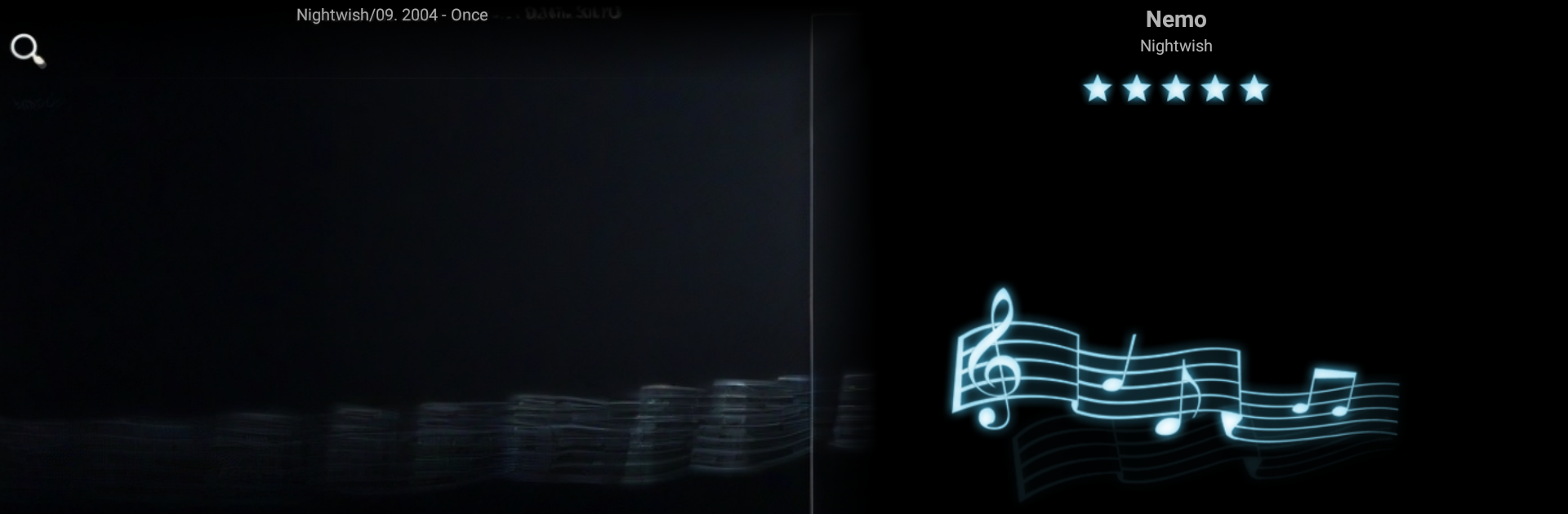
mMusic Audio Player feels like an old-school folder player that actually respects how a music library is organized. The whole thing is three screens: now playing, a simple file browser, and the playlist. Swipe left or right to move between them, and on a PC through BlueStacks, flicking with the mouse or tapping arrow keys works fine. It is quick to search inside folders, and queueing is flexible. Add a song to the end, or stick it right after the current track. Long press (or a right click) can toss whole folders into the queue, then the list can be reordered or trimmed without any fuss.

There is album art and lyrics display, with optional plugins that can fetch missing stuff online. Shuffle and repeat behave like they should, the built-in equalizer does the job, and it even scrobbles to Last.fm for anyone who keeps track of listens. Skins and widgets are there for people who like to tweak, plus headset button support if that matters. It reads a bunch of formats, including mp3, flac, aac, ogg, m4a, and handles odd tag encodings like Cyrillic, so mixed libraries do not break. The full version adds track rating, a sleep timer plugin, more skins, and a resizable widget. There is a mini free version to try first. If someone wants a clean, light player that browses by folders and stays out of the way, this nails it, and it runs nicely in BlueStacks without extra hassle.

BlueStacks brings your apps to life on a bigger screen—seamless and straightforward.

How to Download and Run mMusic Audio Player on PC or Mac

  • Download and install BlueStacks on your PC or Mac

  • Complete Google sign-in to access the Play Store, or do it later

  • Look for mMusic Audio Player in the search bar at the top right corner

  • Click to install mMusic Audio Player from the search results

  • Complete Google sign-in (if you skipped step 2) to install mMusic Audio Player

  • Click the mMusic Audio Player icon on the home screen to start playing

video
Watch Video

Minimum System Requirements

With BlueStacks 5, you can get started on a PC that fulfills the following requirements.

  • Operating System

    Microsoft Windows 7 or above, macOS 11 (Big Sur) or above

  • Processor

    Intel, AMD or Apple Silicon Processor

  • RAM

    at least 4GB

  • HDD

    10GB Free Disk Space

Note:

* You must be an Administrator on your PC. Up to date graphics drivers from Microsoft or the chipset vendor.

mMusic Audio Player - FAQs

  • How to Run mMusic Audio Player on Windows PC & Mac?

    Run mMusic Audio Player on your PC or Mac by following these simple steps.

    • Click on ‘Download mMusic Audio Player on PC’ to download BlueStacks
    • Install it and log-in to Google Play Store
    • Launch and run the app.
  • Why is BlueStacks the fastest and safest platform to play games on PC?

    BlueStacks respects your privacy and is always safe and secure to use. It does not carry any malware, spyware, or any sort of additional software that could harm your PC.

    It is engineered to optimize speed and performance for a seamless gaming experience.

  • What are mMusic Audio Player PC requirements?

    Minimum requirement to run mMusic Audio Player on your PC

    • OS: Microsoft Windows 7 and above:
    • Processor: Intel or AMD Processor:
    • RAM: Your PC must have at least 2GB of RAM. (Note that having 2GB or more disk space is not a substitute for RAM):
    • HDD: 5GB Free Disk Space.
    • You must be an Administrator on your PC.